Workflow Guide
Step-by-step operator and developer workflow for Toxicology.
Workflow Guide
This section should explain how the feature is used in practice before diving into implementation details.
Prerequisite Master Data Setup
Before Toxicology configuration is used, the lab needs prerequisite master data for drugs, panels, and brands.
The master screens are available from:
Drug Master / Panel Master
The section includes:
Drug MasterPanel MasterBrand Master- related microbiology masters such as
Antibiotic Master,Organism Master, andGene Master
Where the user goes
- Open the application sidebar.
- Expand
Drug Master / Panel Master. - Open
Drug Master,Panel Master, orBrand Masterdepending on the master data being configured.
What the controls do
| Control | What it does |
|---|---|
Add Drug | Opens drug creation flow |
Add Panel | Opens panel creation flow |
Add Brand | Opens brand creation flow |
Download List | Downloads visible master data |
Bulk Actions | Applies supported operations to selected master rows |
Request New ... For System Default List | Requests a new system default drug, panel, or brand |
Drug Master
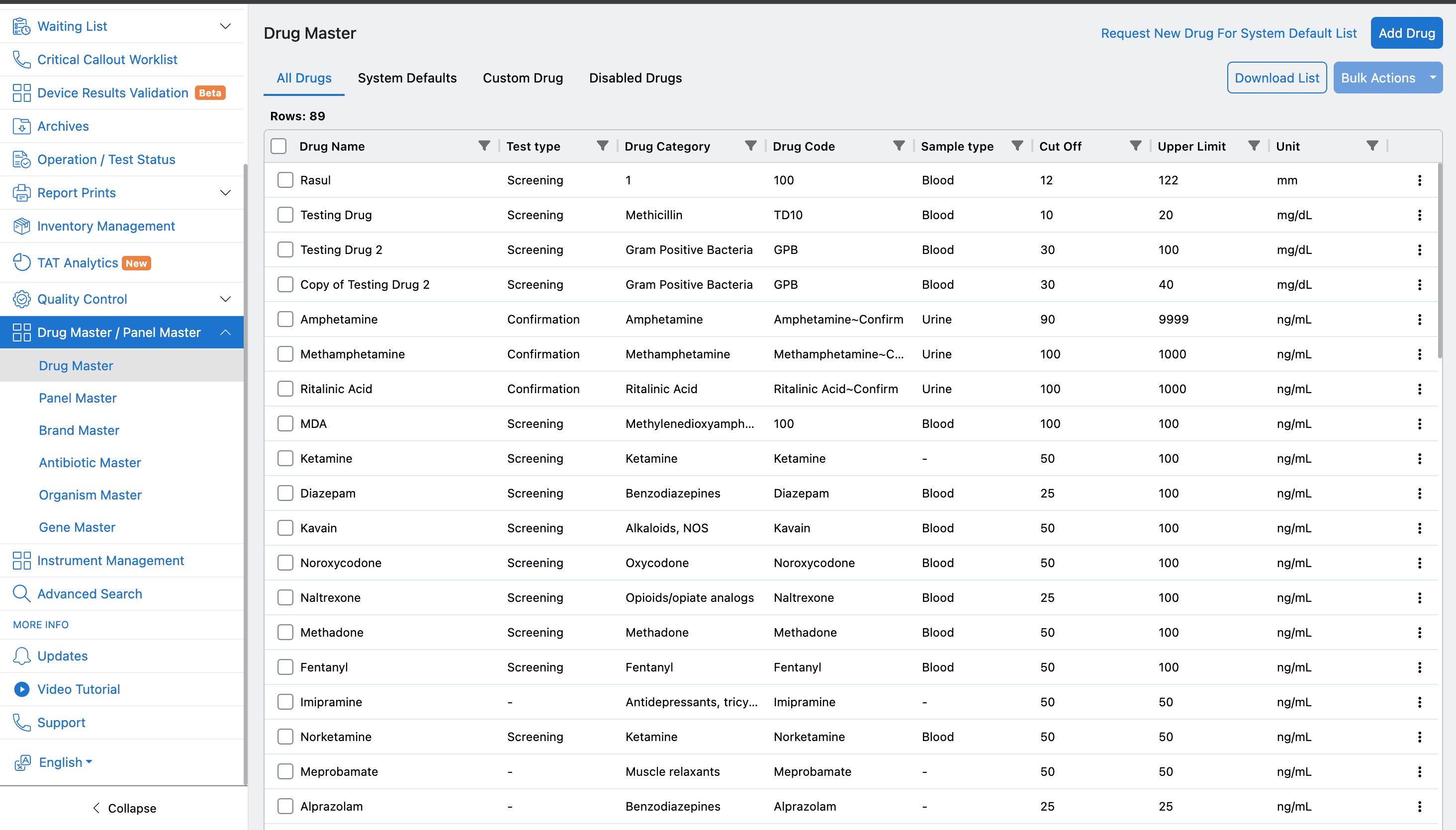
Drug Master is the base catalog for toxicology. Each drug record represents a substance that may be tested in a biological sample.
The list view shows:
- drug name,
- test type,
- drug category,
- drug code,
- sample type,
- cut off,
- upper limit,
- unit,
- status/action controls.
The screen supports tabs such as All Drugs, System Defaults, Custom Drug, and Disabled Drugs.
Panel Master
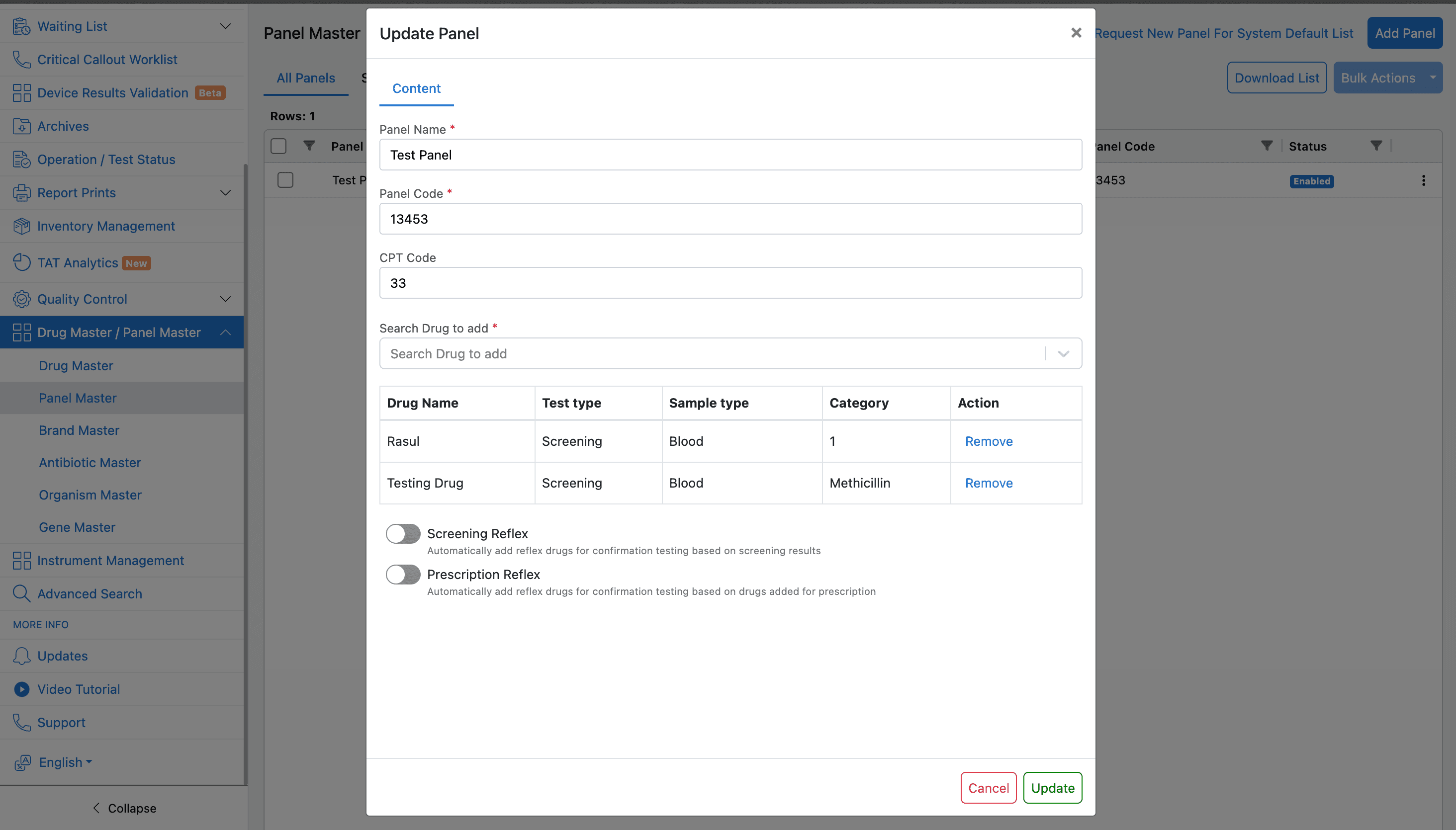
A panel is a collection of drugs. Panels let the lab group multiple toxicology drugs under one panel name and panel code.
The panel update flow includes:
Panel Name,Panel Code,CPT Code,Search Drug to add,- selected-drug table with drug name, test type, sample type, category, and remove action,
Screening Reflex,Prescription Reflex.
Reflex toggles control whether confirmation/reflex drugs should be added automatically based on screening results or prescription drugs.
Brand Master
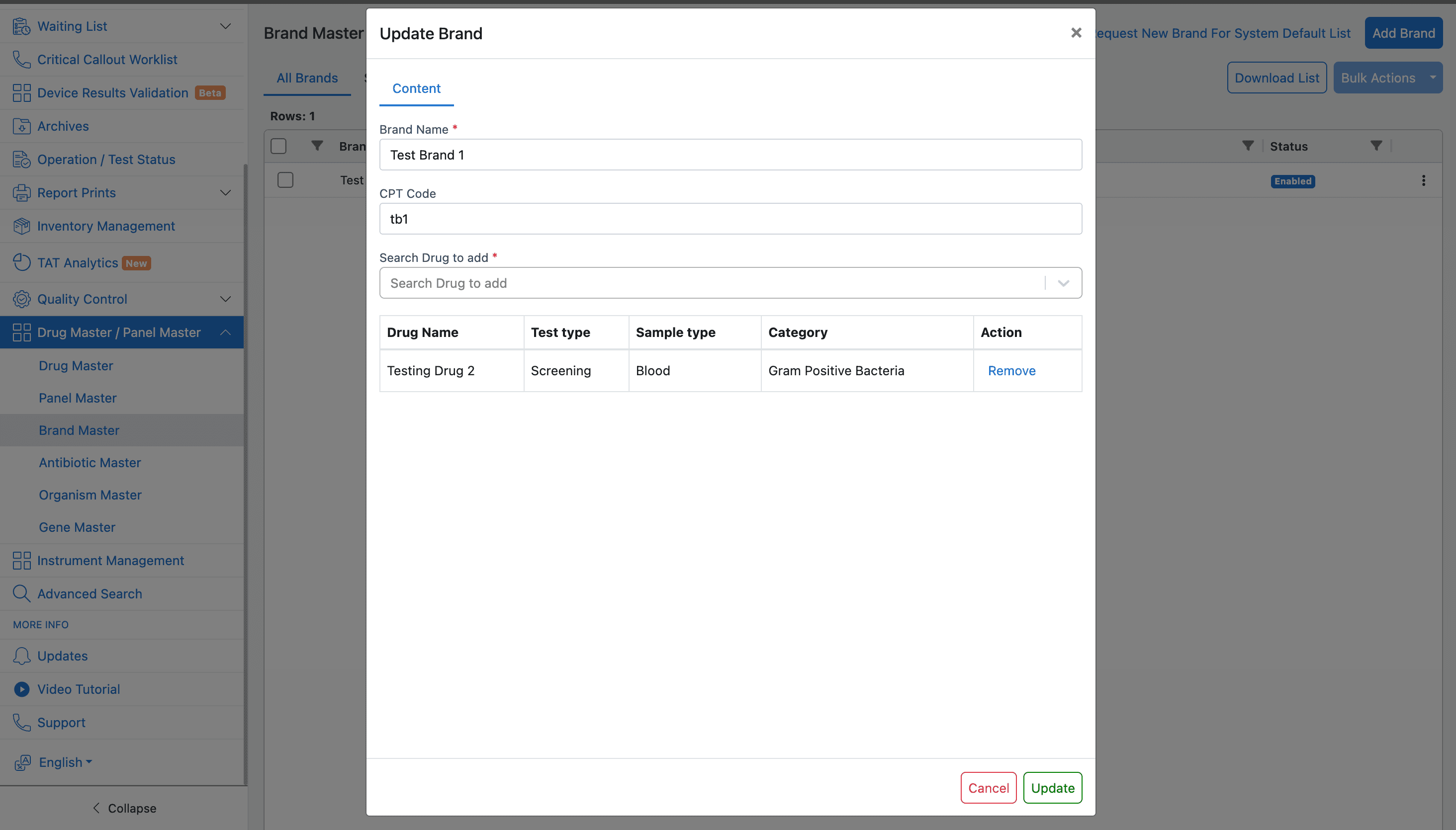
A brand is also a collection of drugs, but the collection is based on the drug brand.
The brand update flow includes:
Brand Name,CPT Code,Search Drug to add,- selected-drug table with drug name, test type, sample type, category, and remove action.
Toxicology Report / Test Setup
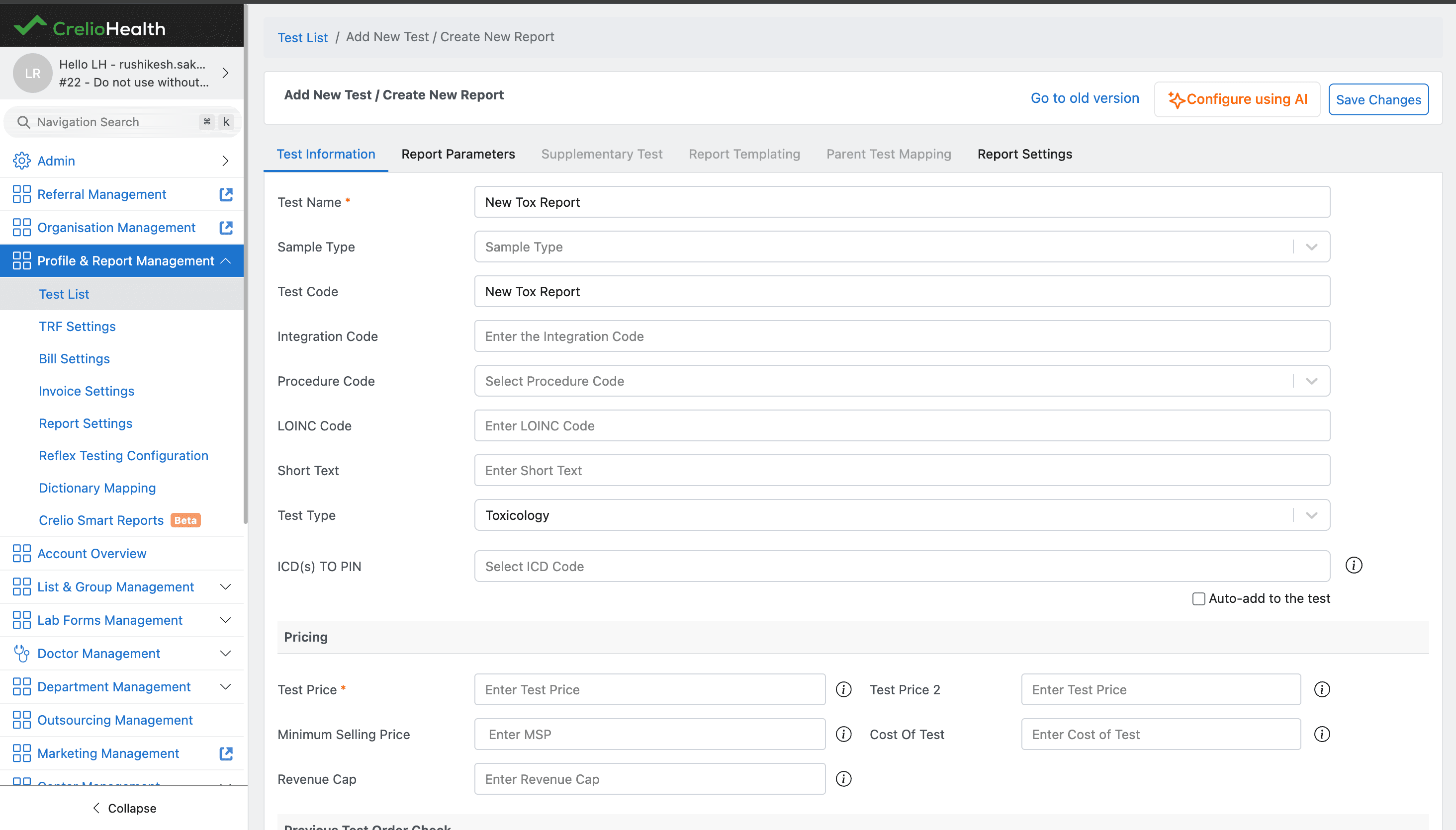
After master data is configured, create a toxicology report from the Test List.
Where the user goes
- Open
Profile & Report Management. - Open
Test List. - Click
Add New Test. - On
Test Information, setTest TypetoToxicology. - Save the test/report after report parameters are configured.
Selecting Toxicology as the test type enables toxicology-specific report components in the Report Parameters tab.
Toxicology Report Components
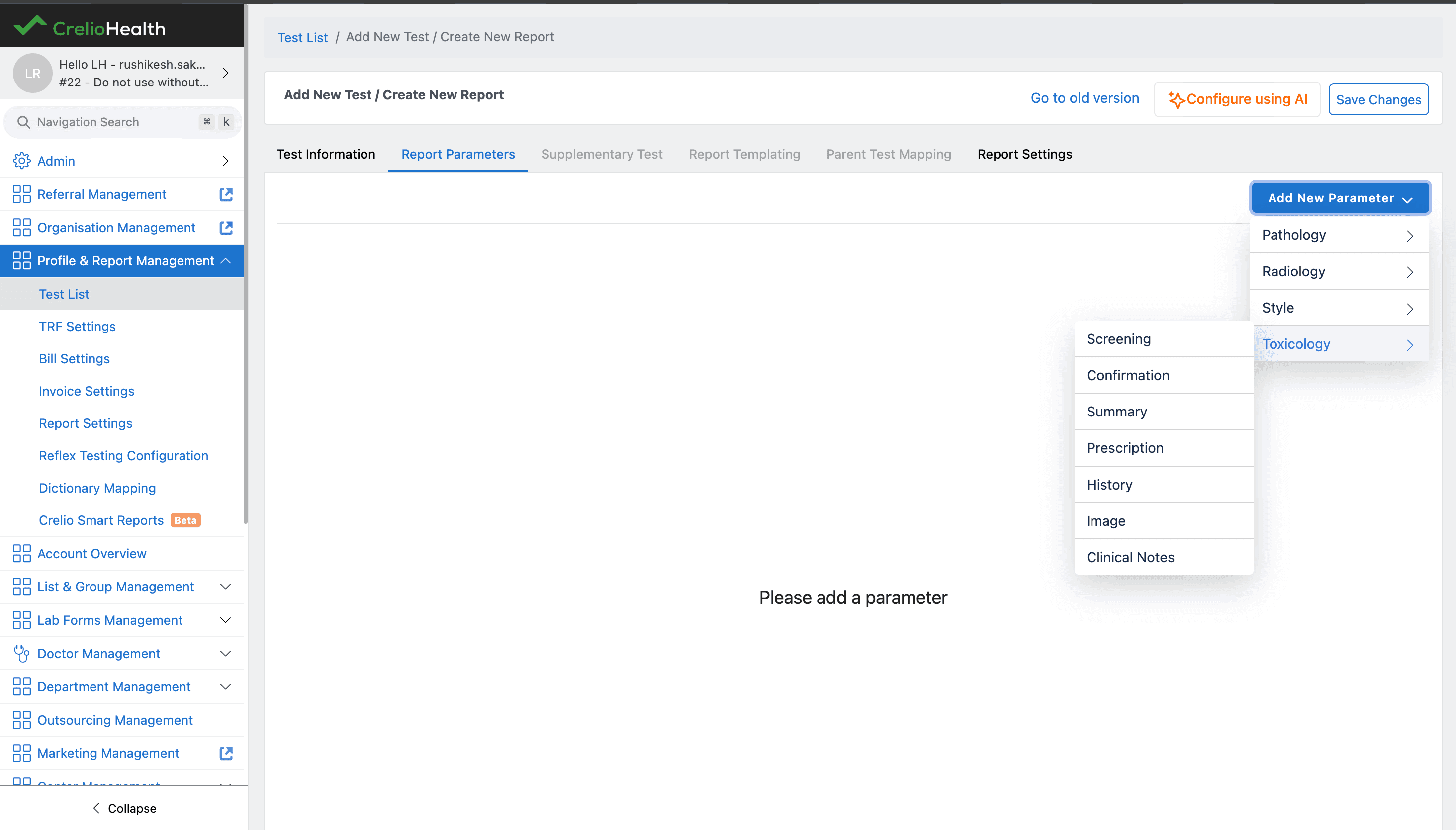
The Add New Parameter menu exposes toxicology components:
ScreeningConfirmationSummaryPrescriptionHistoryImageClinical Notes
Screening
Screening is the first-line test used to quickly detect the possible presence of drugs or toxins.
Key behavior:
- usually done with immunoassays,
- fast and cost-effective,
- high sensitivity, so it catches most positives,
- lower specificity, so it can produce false positives.
Typical output:
Negative: no further testing in most cases,Presumptive Positive: routed to confirmation.
Confirmation
Confirmation is the definitive test performed after a positive screen to verify the exact substance.
Key behavior:
- uses highly specific methods such as
GC-MSorLC-MS/MS, - eliminates false positives,
- identifies and can quantify the substance.
Typical output:
Confirmed Positivewith exact drug and concentration,Not detectedwhen the screening result was a false positive.
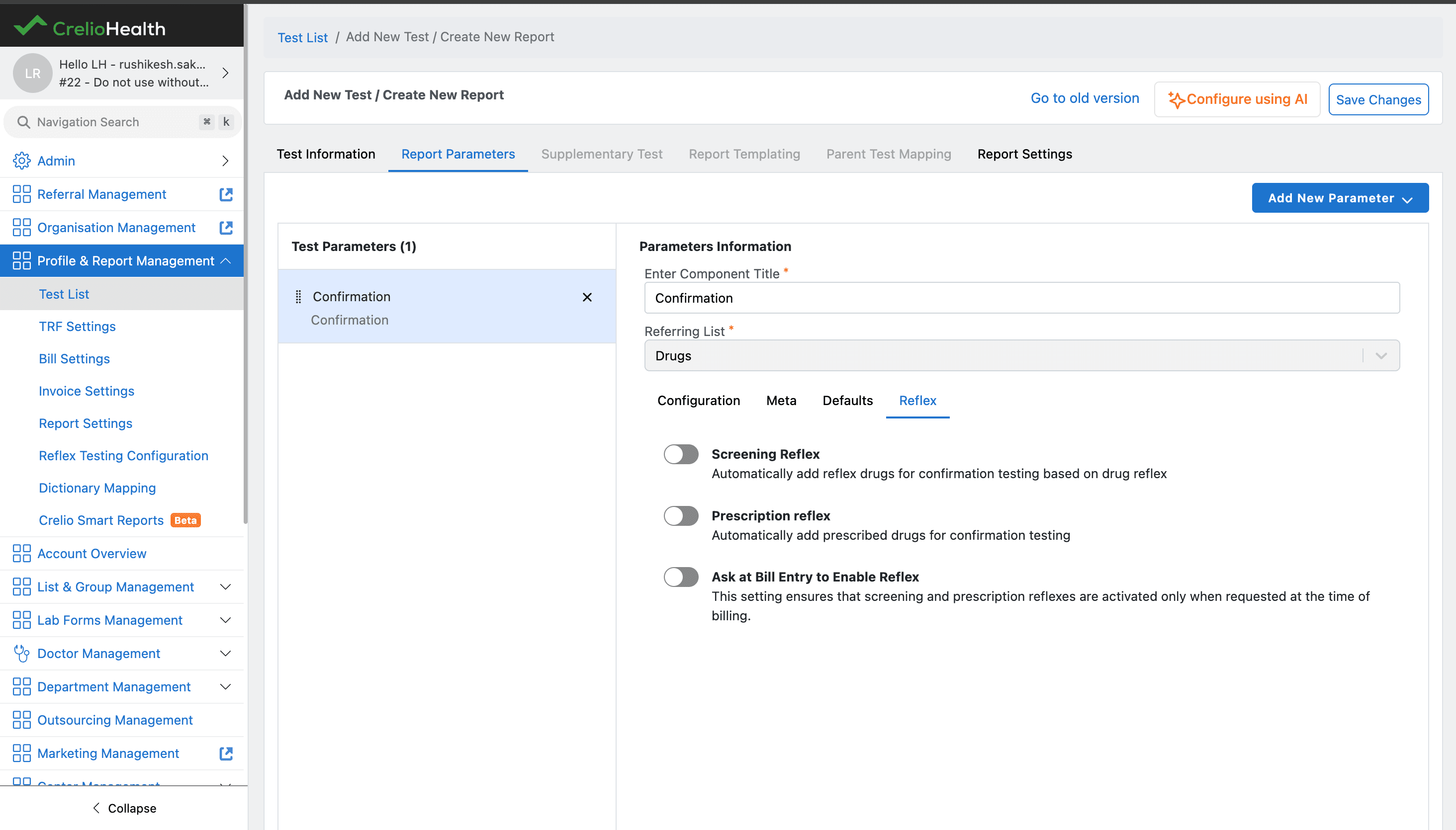
The Confirmation component supports the same core sections as Screening:
Configuration,Meta,Defaults.
It also includes a Reflex section. Reflex settings control whether confirmation drugs should be added automatically from screening or prescription context:
Screening Reflex: automatically adds reflex drugs for confirmation testing based on drug reflex.Prescription reflex: automatically adds prescribed drugs for confirmation testing.Ask at Bill Entry to Enable Reflex: activates screening and prescription reflexes only when requested during billing.
Prescription
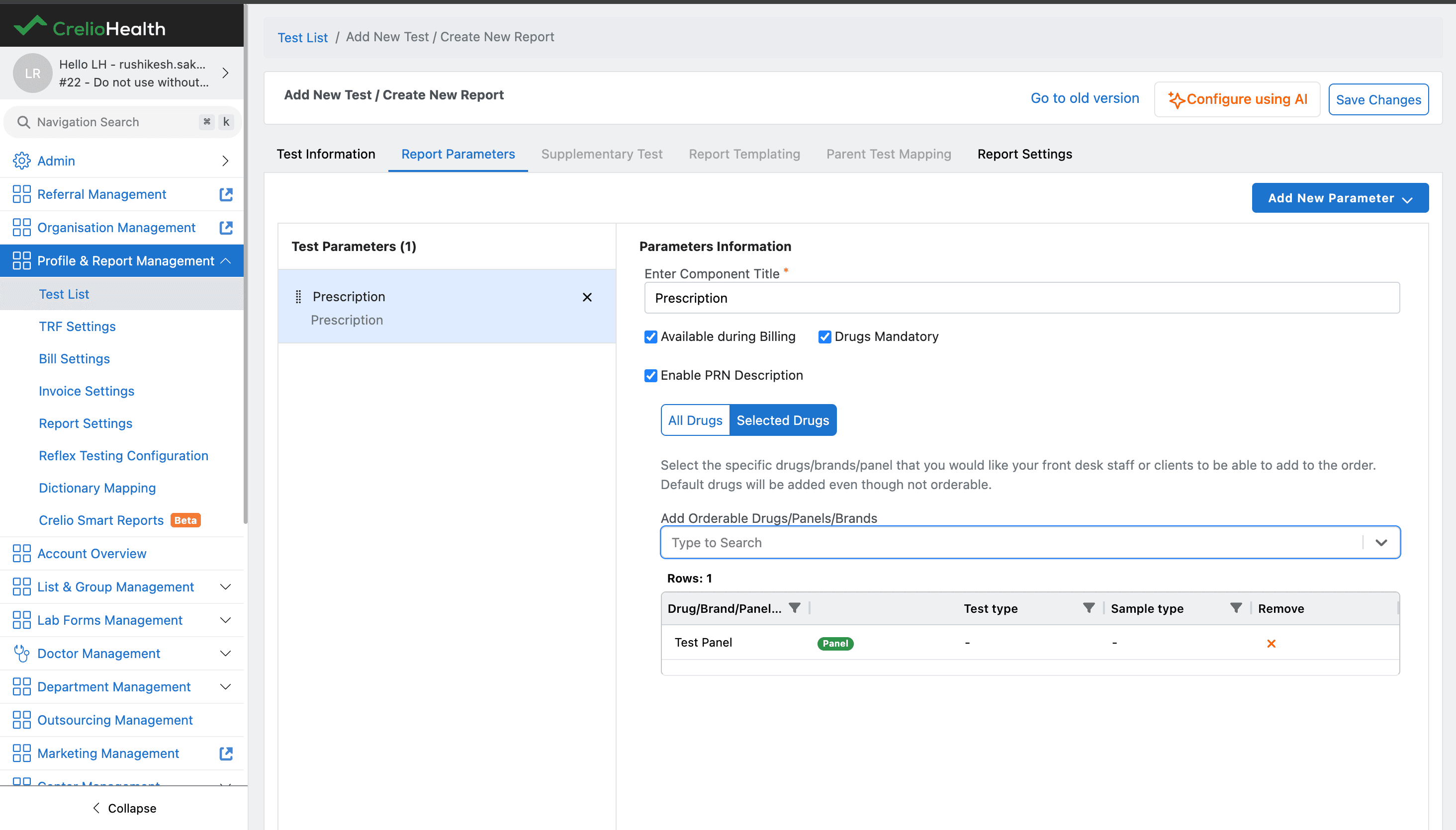
Prescription captures medication history: legally prescribed medications the patient is taking.
This matters because prescribed medicines can explain expected positives. For example, if a patient is prescribed codeine, morphine may appear in the toxicology result.
The Prescription component tracks prescribed drugs for the patient. It can be made available during billing, require drug selection, and optionally enable PRN description. Users can select orderable drugs, panels, or brands for prescription capture.
Summary
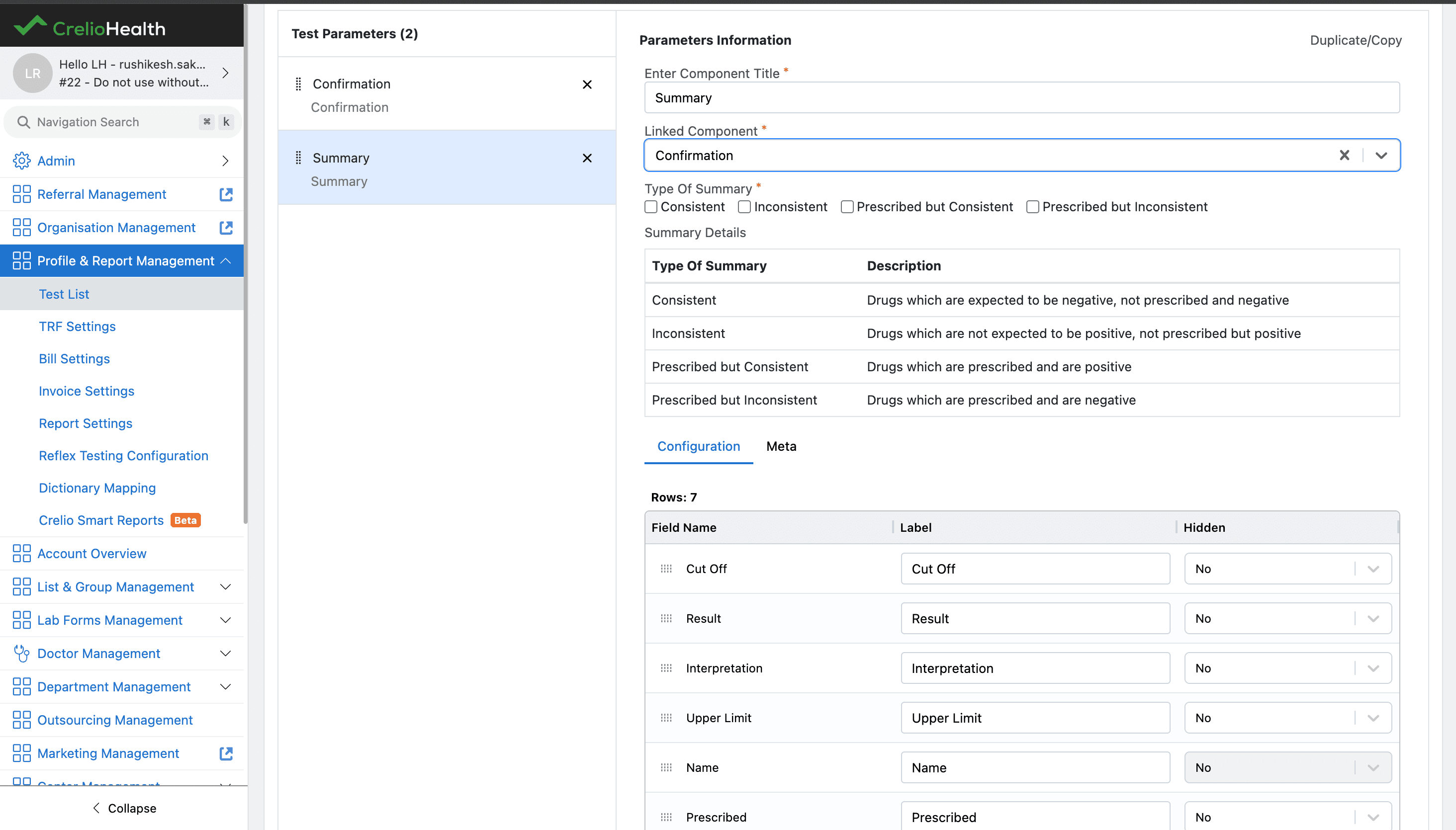
Summary consolidates the toxicology findings into an interpretation section. It should be linked to either a Screening or Confirmation component so the summary knows which result set it is summarizing.
Summary supports result classifications such as:
Consistent,Inconsistent,Prescribed but Consistent,Prescribed but Inconsistent.
The summary table describes how each classification should be interpreted. For example, prescribed-and-positive results can be treated differently from not-prescribed positives.
History
History captures patient background, including past drug/alcohol use, medical conditions, exposure history, poisoning/overdose context, and social habits.
The History component summarizes past toxicology results across previous reports. It is useful when the current result needs trend context instead of a single-visit interpretation.
Configuration fields visible in the component:
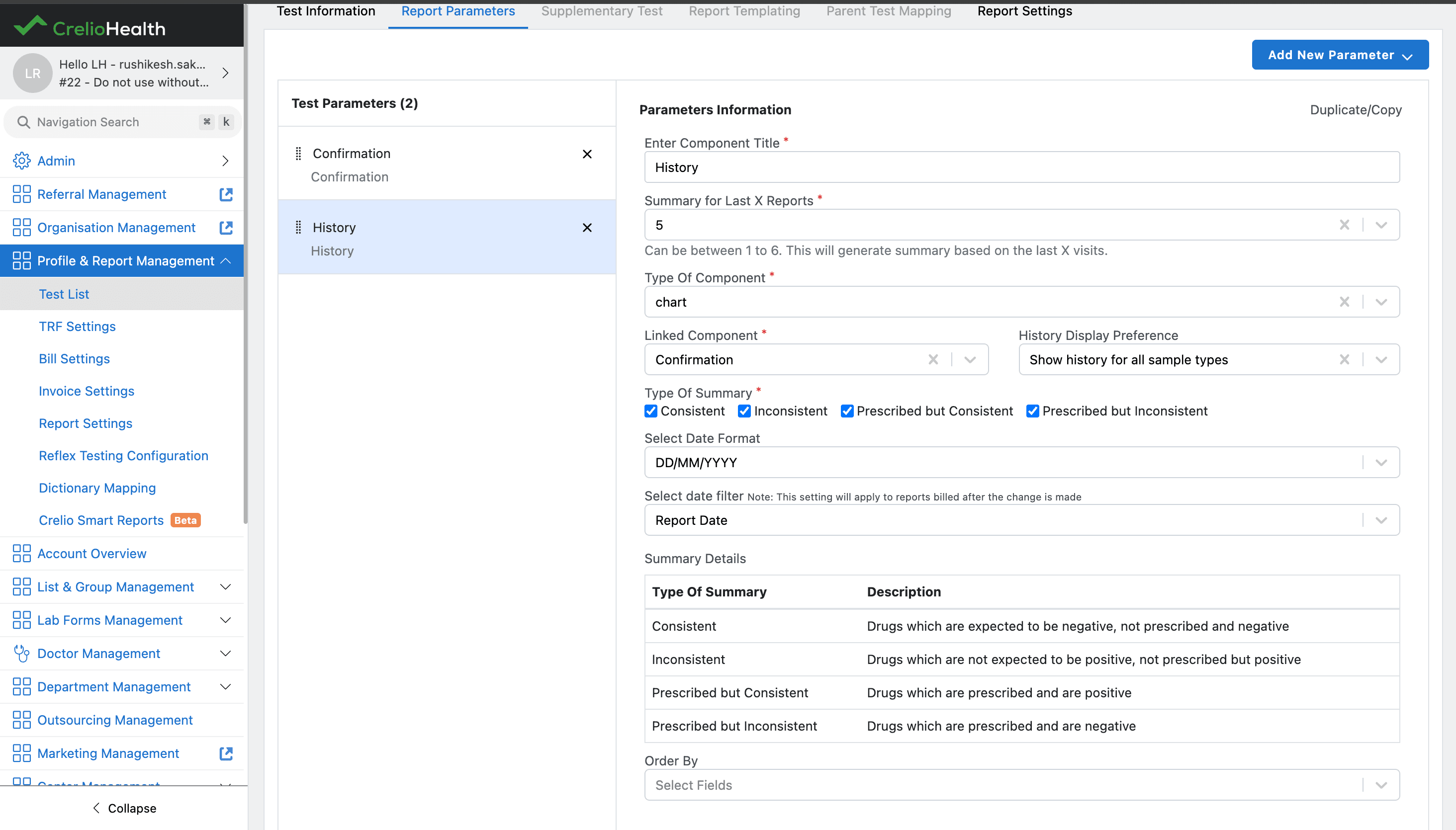
Summary for Last X Reports: number of previous reports to summarize; supported range shown in the UI is1to6.Type Of Component: display format, such aschart.Linked Component: the component whose historical results should be summarized, such asConfirmation.History Display Preference: whether to show history for all sample types or a narrower sample-type scope.Type Of Summary: selected summary classes such asConsistent,Inconsistent,Prescribed but Consistent, andPrescribed but Inconsistent.Select Date Format: report date format, such asDD/MM/YYYY.Select date filter: date basis for the history, such asReport Date.Order By: field-based ordering for the generated history.
The component also displays the summary-definition table so users can see what each summary type means.
Image
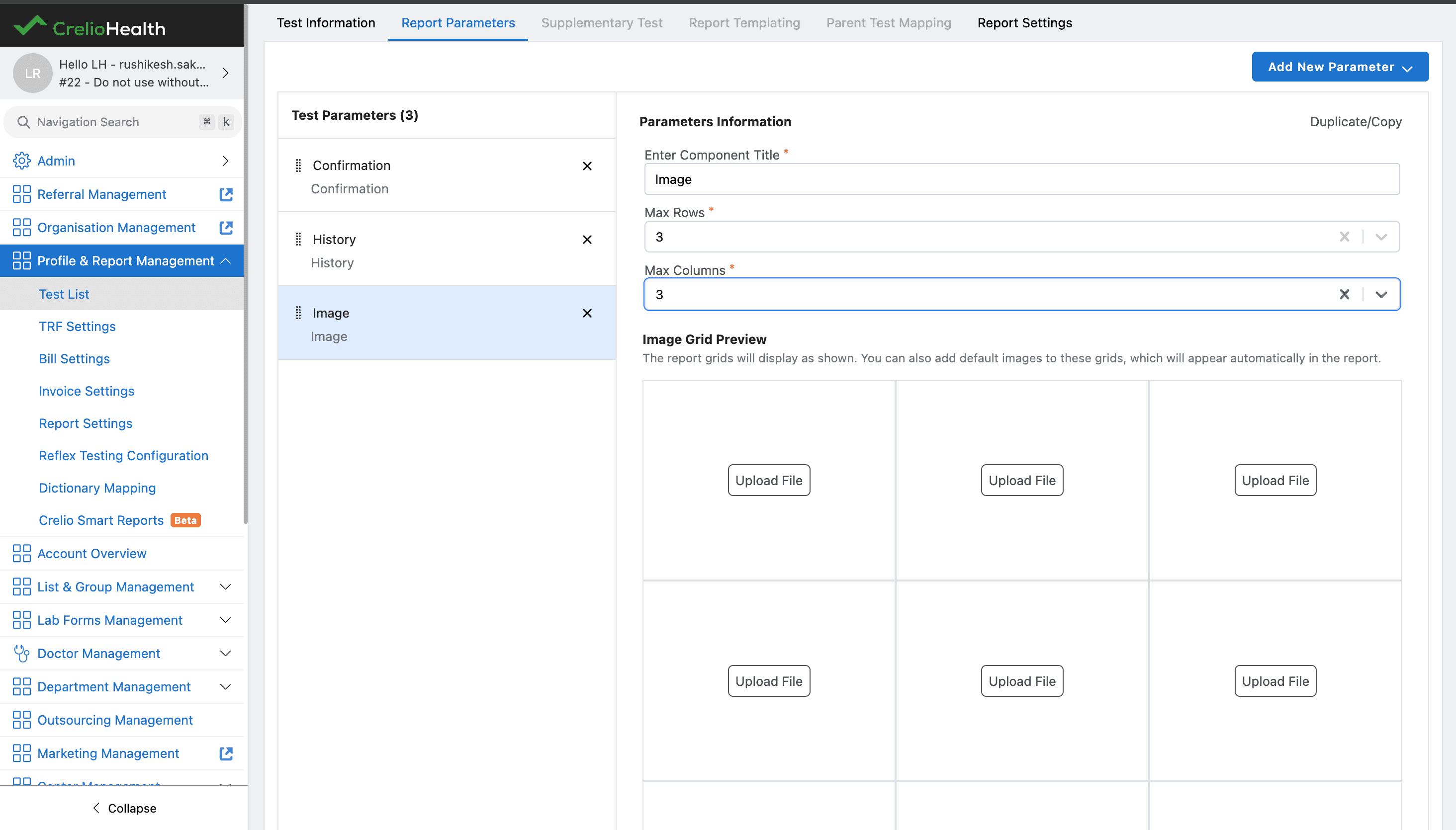
The Image component adds an image grid to the toxicology report.
Configuration fields visible in the component:
Max Rows: maximum number of rows in the image grid.Max Columns: maximum number of columns in the image grid.Image Grid Preview: shows the report grid layout before saving.Upload File: upload controls inside each grid cell for adding default images.
The preview helps confirm how many image slots will appear in the report. Default images can be attached to grid cells and then appear automatically in the report.
Clinical Notes
Clinical Notes capture clinician observations and interpretation, such as symptoms, physical findings, suspected overdose, diagnosis, or treatment decisions.
The Clinical Notes component links notes to a toxicology result component, commonly Confirmation, and controls where notes should be shown.
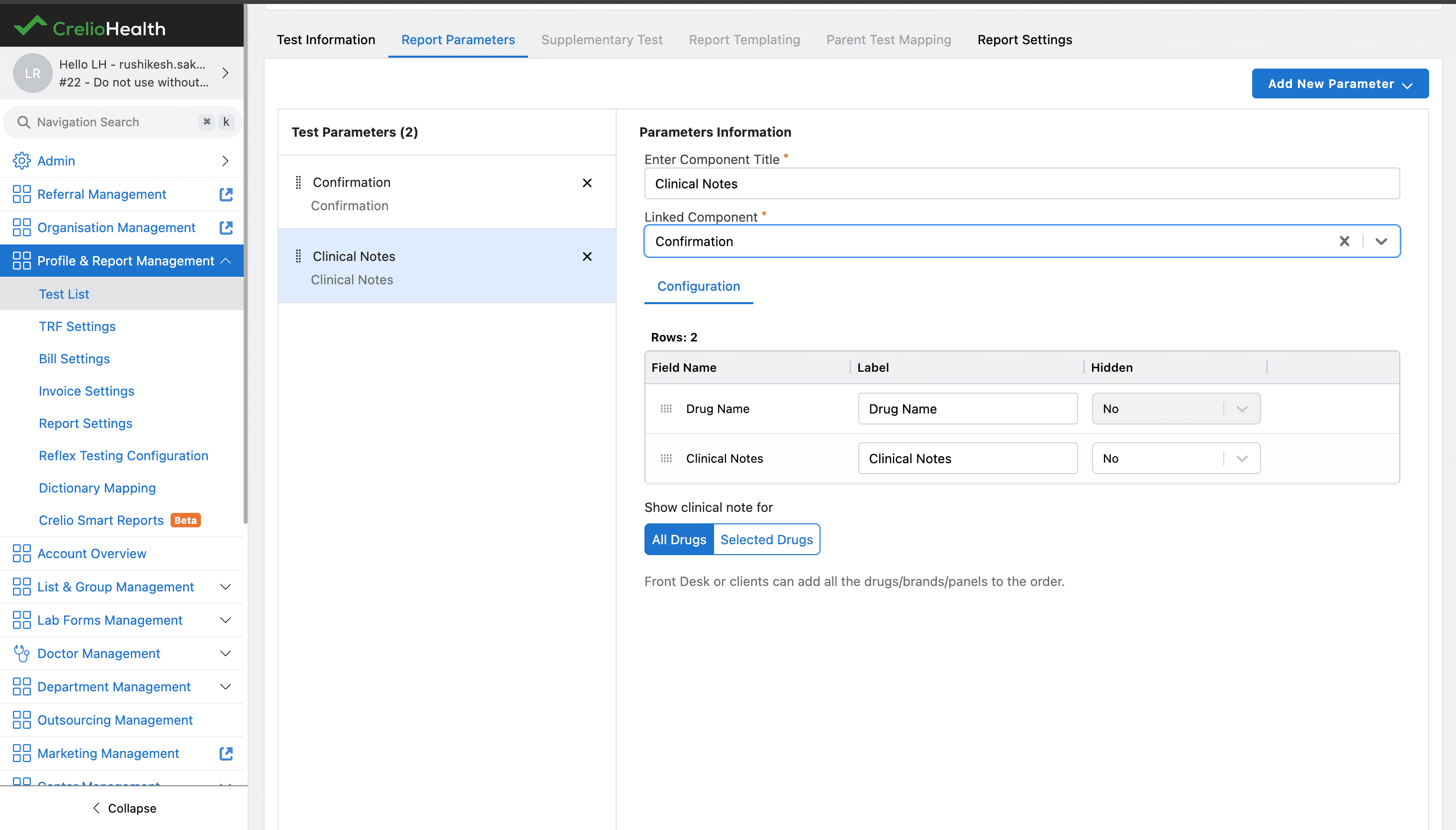
Configuration fields visible in the component:
Linked Component: connects clinical notes to a result component such asConfirmation.- Field table with
Drug NameandClinical Notes. - Per-field
Labelvalues so report labels can be customized. - Per-field
Hiddencontrols so fields can be shown or hidden on the report. Show clinical note for: controls whether notes are shown forAll Drugsor onlySelected Drugs.
When All Drugs is selected, front desk users or clients can add all drugs, brands, or panels to the order and clinical notes can apply broadly. Selected Drugs can be used when notes should be limited to specific configured drugs.
End-to-end interpretation flow
Screening Component Configuration
The Screening component has three configuration sections: Configuration, Meta, and Defaults.
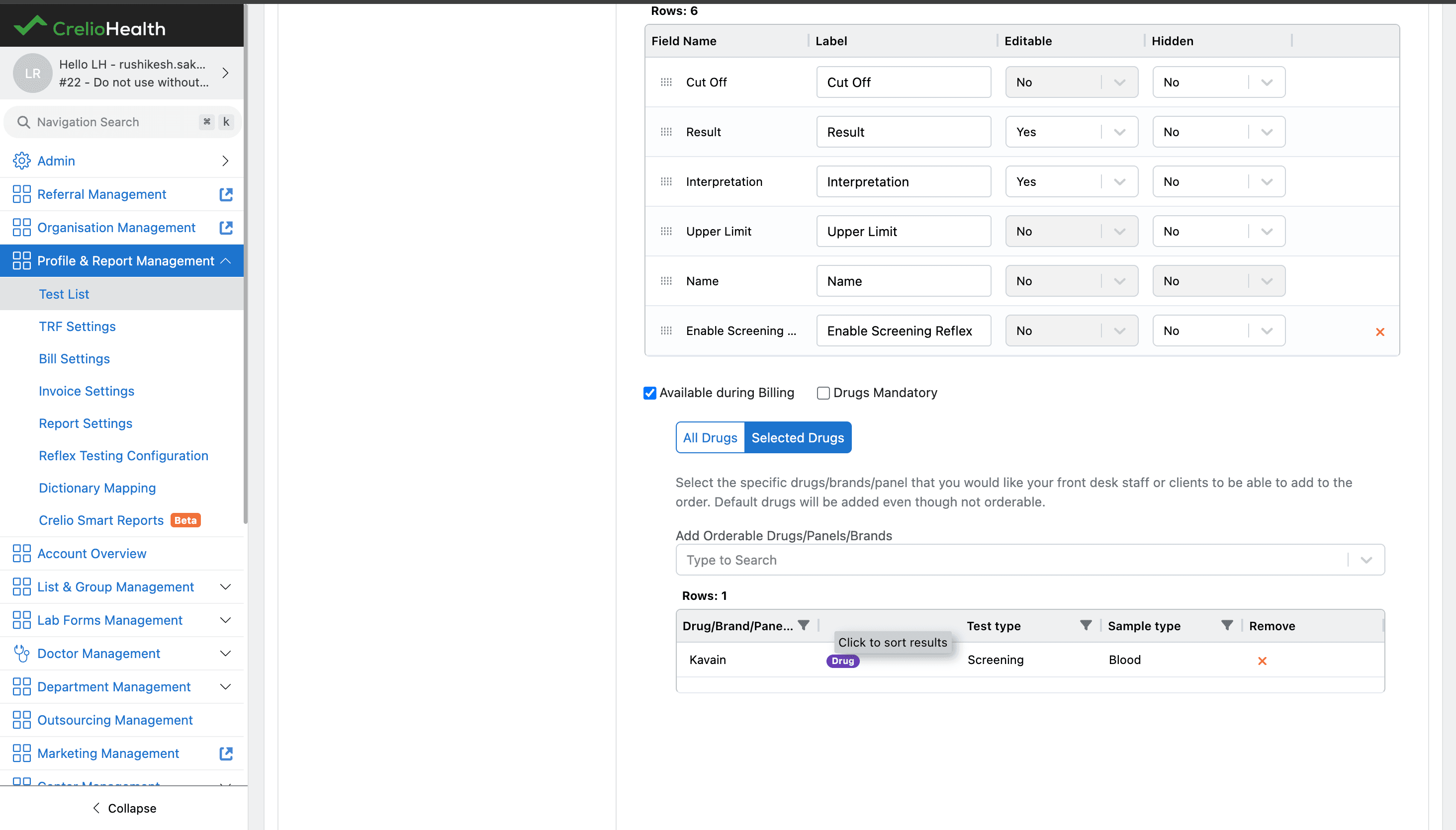
Configuration
In Configuration, select which fields should appear during report entry. Each selected field can be configured with:
- label,
- editable behavior,
- hidden behavior.
Common Screening fields include:
Cut Off,Result,Interpretation,Upper Limit,Name,Enable Screening Reflex.
The same section also exposes:
Available during Billing: makes selected drugs/panels/brands available from the billing modal,Drugs Mandatory: makes drug selection mandatory where applicable.
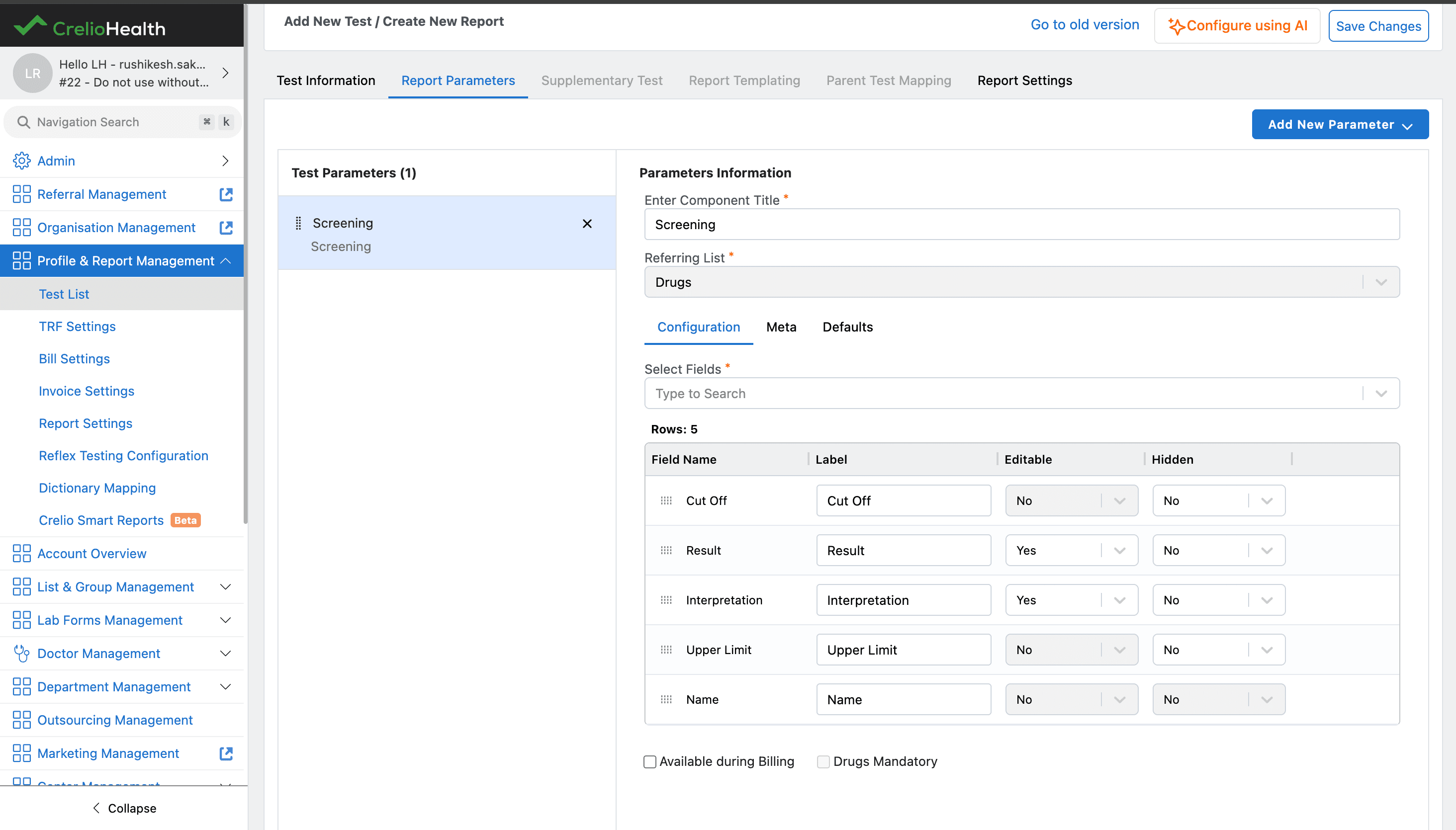
When Available during Billing is enabled, users can select orderable drugs, panels, or brands. Default drugs can still be added even when they are not orderable.
Meta
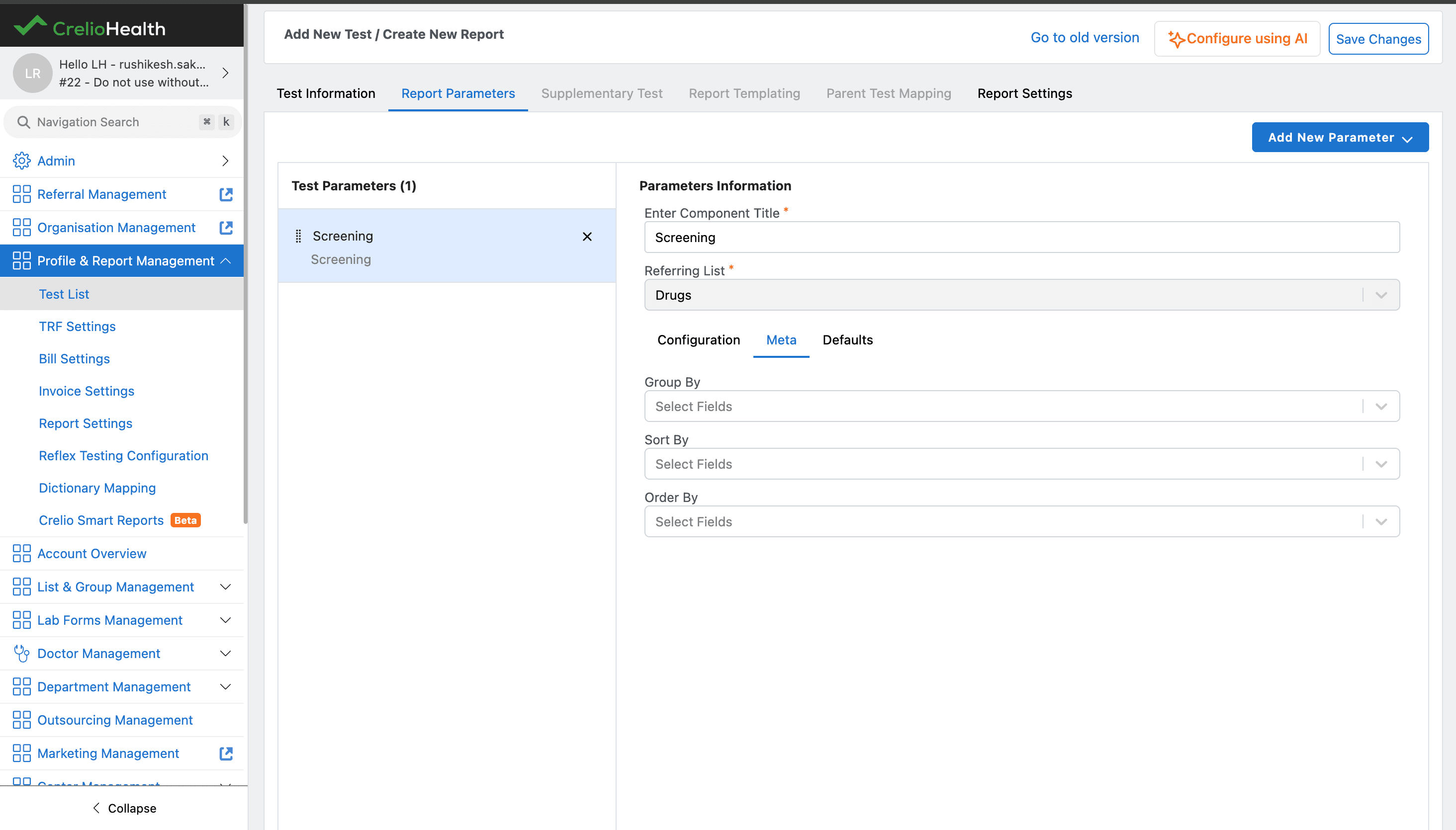
In Meta, specify how Screening entries should be organized:
Group By,Sort By,Order By.
These fields control report-entry and report-display ordering for the Screening component.
Defaults
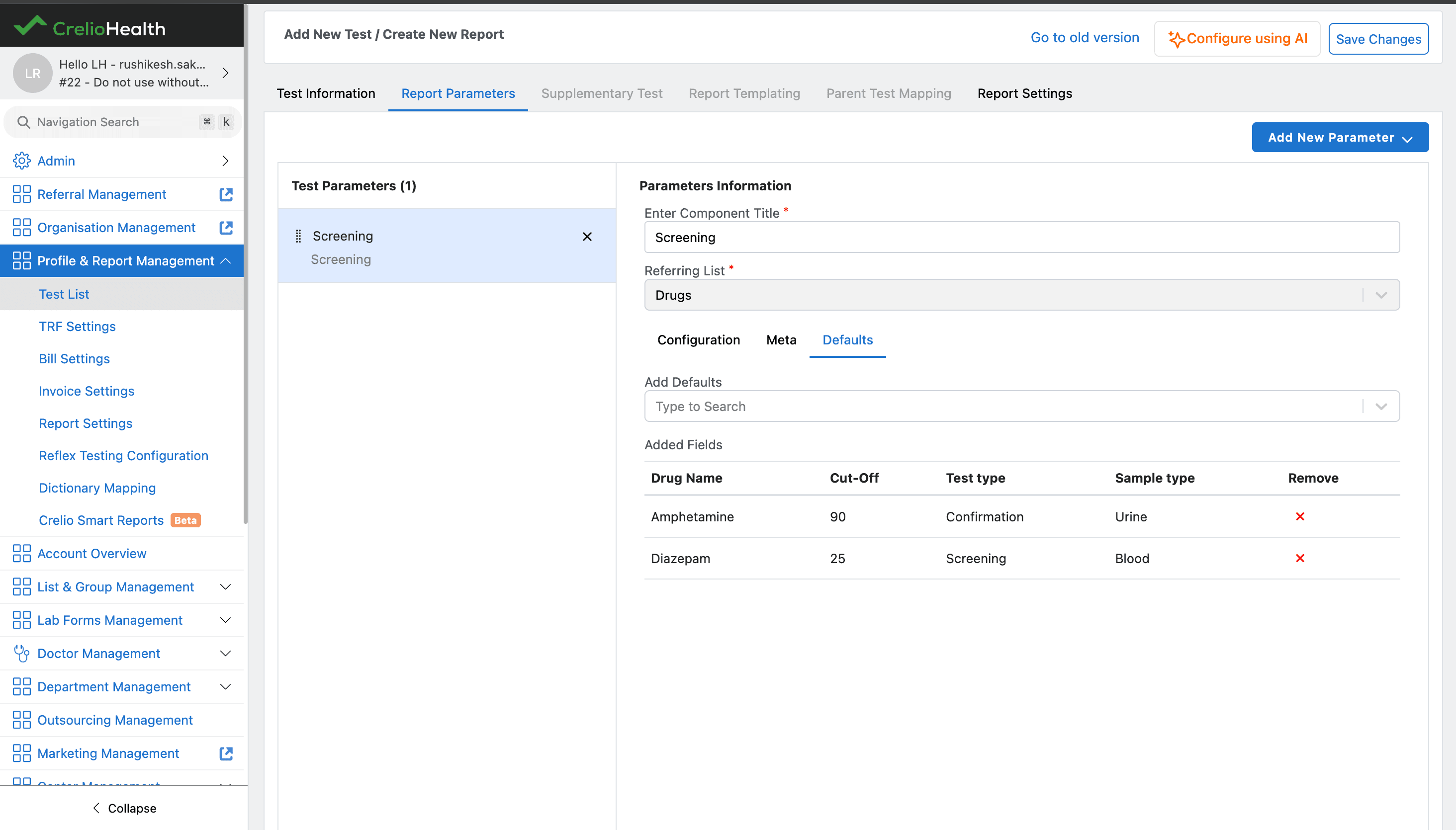
In Defaults, add drugs or panels that should be inserted automatically when the toxicology test is billed.
Default behavior:
- selected drugs or panels are added to Screening by default once the toxicology test is billed,
- defaults help labs avoid manual repeated setup for common toxicology screens,
- defaults can include drugs with different test types and sample types.
Primary User Workflow
- User opens
Drug Master / Panel Master. - User verifies that required drug records are present in
Drug Master. - User creates or updates a panel by adding one or more drugs in
Panel Master. - User creates or updates a brand by adding one or more drugs in
Brand Master. - User opens
Profile & Report Management > Test List. - User creates a new report/test and selects
Toxicologyas the test type. - User adds toxicology report components such as Screening, Confirmation, Prescription, History, Image, and Clinical Notes.
- User configures Screening fields, meta ordering, defaults, and billing availability.
- Backend validates and persists the master data and report configuration.
- The configured drug, panel, brand, and report component data becomes available for billing, report entry, and downstream toxicology workflows.
Validation And Edge Cases
| Case | Expected behavior | Notes |
|---|---|---|
| Missing drug selection in panel or brand | Save should be blocked or validation should show required drug selection | Panel and brand collections depend on drugs |
| Missing panel name or panel code | Save should be blocked | These fields identify the panel |
| Missing brand name | Save should be blocked | Brand name identifies the brand collection |
| Existing record update | Existing selected drugs should be shown and can be removed or extended | Update modals show current selected-drug table |
| Permission or role restriction | User should not see or use restricted master screens/actions | Exact permission keys TBD |
| Toxicology component without toxicology test type | Toxicology-specific components should not be available until the report/test is configured as Toxicology | The component menu is driven by test type |
| Screening defaults missing | Screening starts without default drugs/panels and requires manual entry | Defaults are optional but useful for common toxicology workflows |
| Available during Billing disabled | Drugs/panels/brands are not exposed as selectable orderables during billing | Default drugs may still be added through default configuration |
Submit / Save Payload
Exact request keys should be added after the source paths are mapped. At a business level, the save payloads need to carry:
- master record identity for updates,
- name/code fields,
- status/disabled state where applicable,
- selected drug ids for panel and brand collections,
- reflex toggle values for panels,
- toxicology report component definitions,
- Screening selected fields and labels,
- Screening meta options,
- Screening default drug/panel/brand ids,
- billing availability and mandatory-drug flags.
Resolution / Completion Behavior
After save, the master record appears in its corresponding list with enabled/disabled status. Panels and brands retain their selected drug mappings and can be updated later.
Where Toxicology Is Visible To The User
| Screen | What shows up |
|---|---|
| Drug Master | Drug catalog and drug metadata |
| Panel Master | Panel list and panel add/update modal |
| Brand Master | Brand list and brand add/update modal |
| Test List / Add New Test | Toxicology test type selection |
| Report Parameters | Toxicology components and Screening configuration |
| Billing modal | Screening drugs/panels/brands when Available during Billing is enabled |
| Toxicology configuration | Uses drug, panel, brand, and report component data as prerequisites |
Screenshots
Screenshots are embedded above for Drug Master, Panel Master, Brand Master, toxicology test setup, report parameter components, and Screening configuration.