Workflow Guide
Step-by-step technical workflow and logic flow for the lh-print utility.
Remote Printer Workflow Guide
This guide details the end-to-end execution flow of the lh-print utility, from the initial setup and browser trigger to the physical output on a barcode printer.
1. Initial Setup & Installation
Based on the official training documentation, follow these steps to prepare the local environment:
A. Windows Printer Configuration
- Drivers: Install the official drivers for your thermal printer (TSC, Zebra, TVS, etc.).
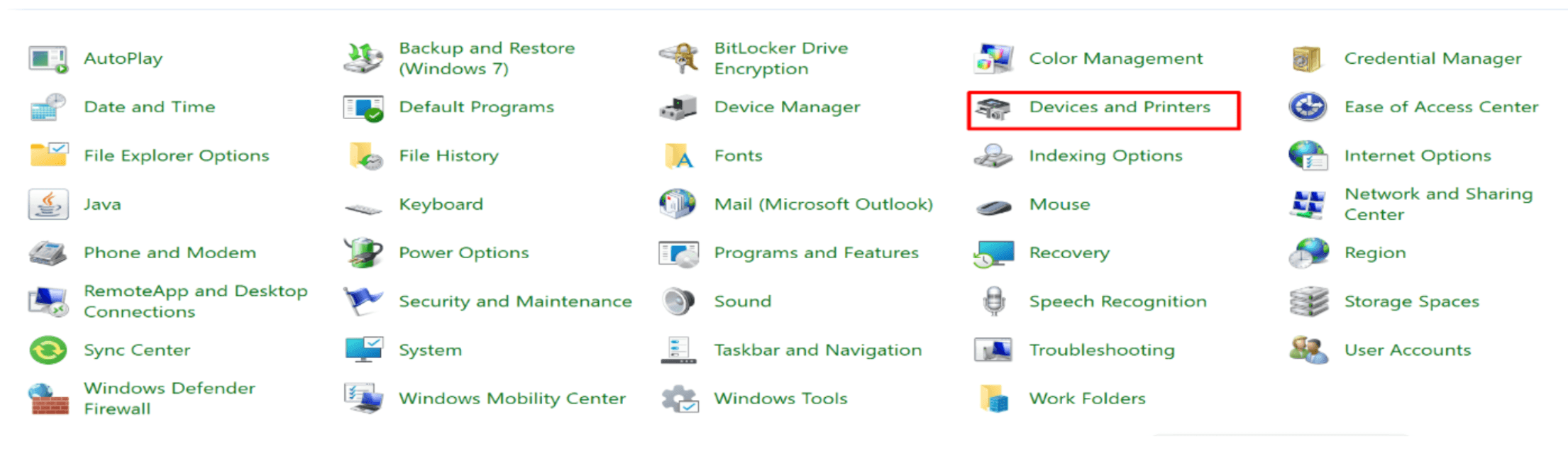
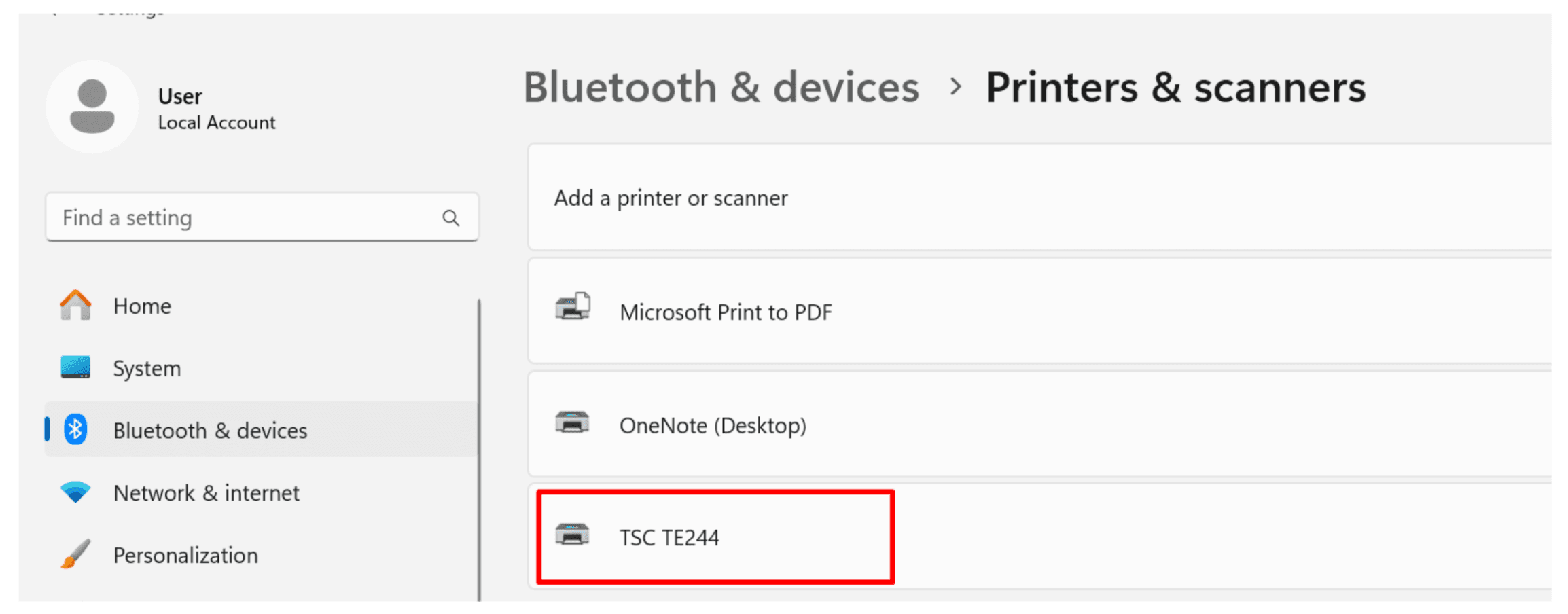
- Sharing: Go to Control Panel -> Devices and Printers -> Bluetooth and Devices -> Printers & Scanners -> ** Select Printer Name **
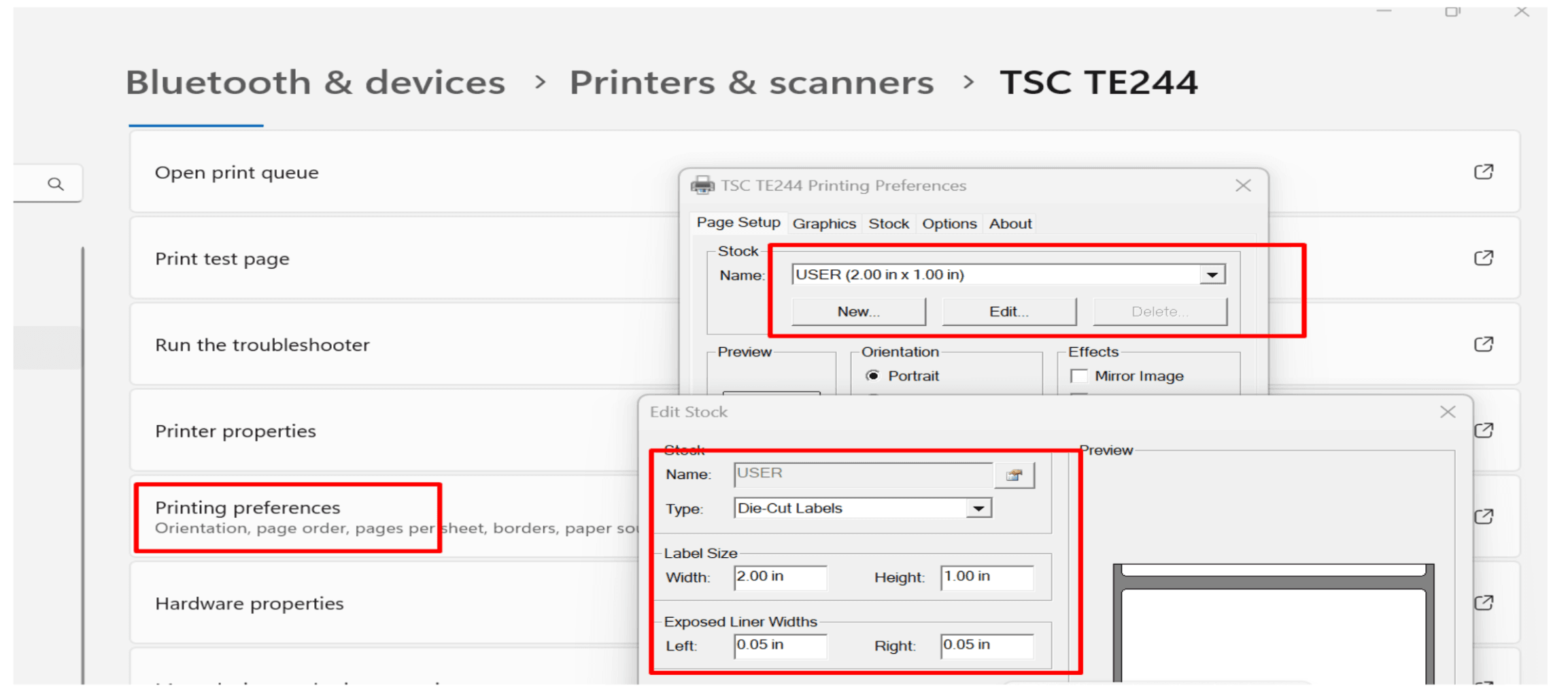
- Calibration: Go to "Printing Preferences" -> "Page Setup". Set the stock size to match your labels (e.g., 2.00" x 1.00").
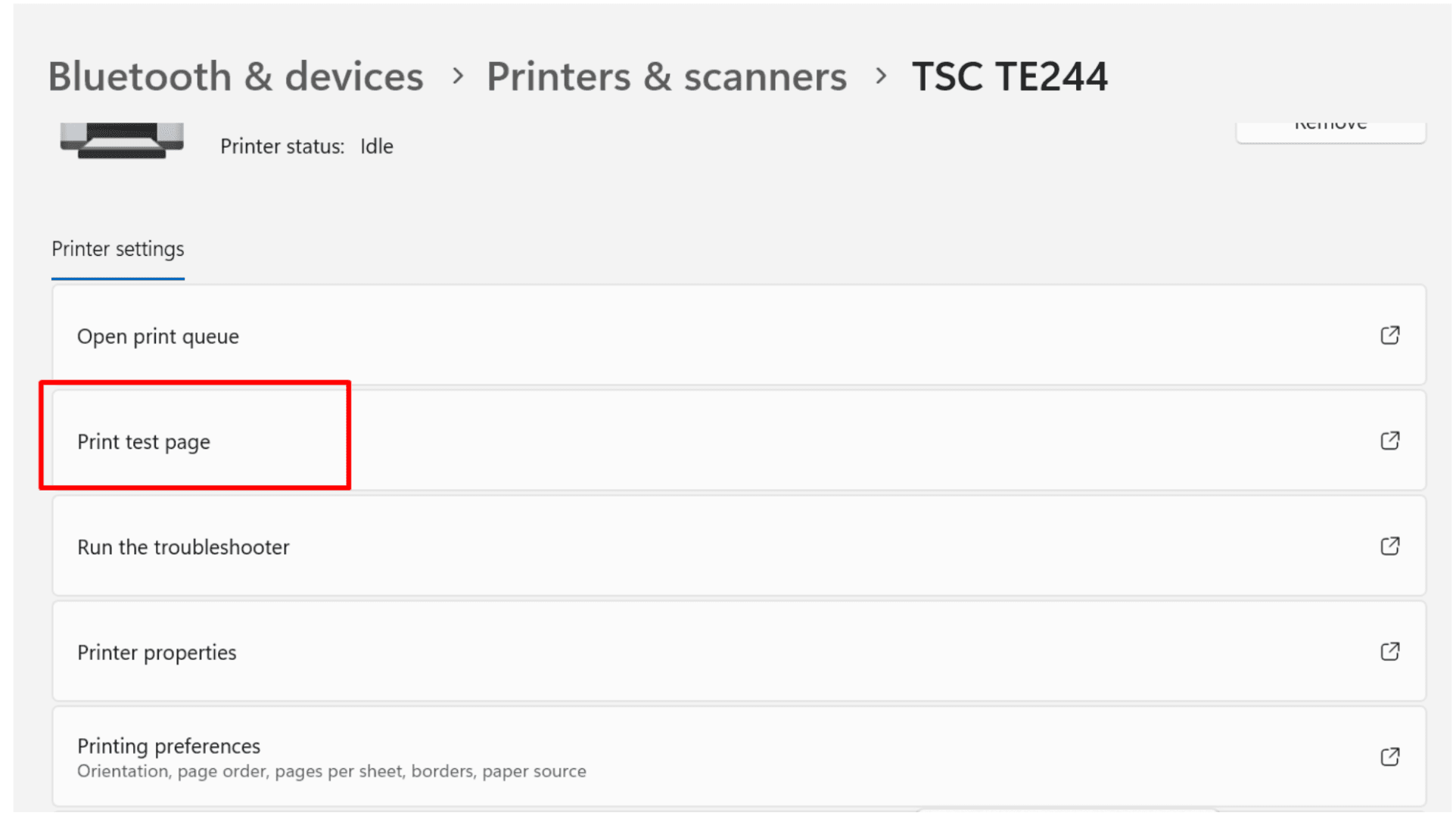
- Test Print: Use the "Print Test Page" button to ensure the hardware is communicating correctly with Windows.
B. Utility Deployment
- Download: Go to the CrelioHealth Support Dashboard -> Interfaces and download
lh-print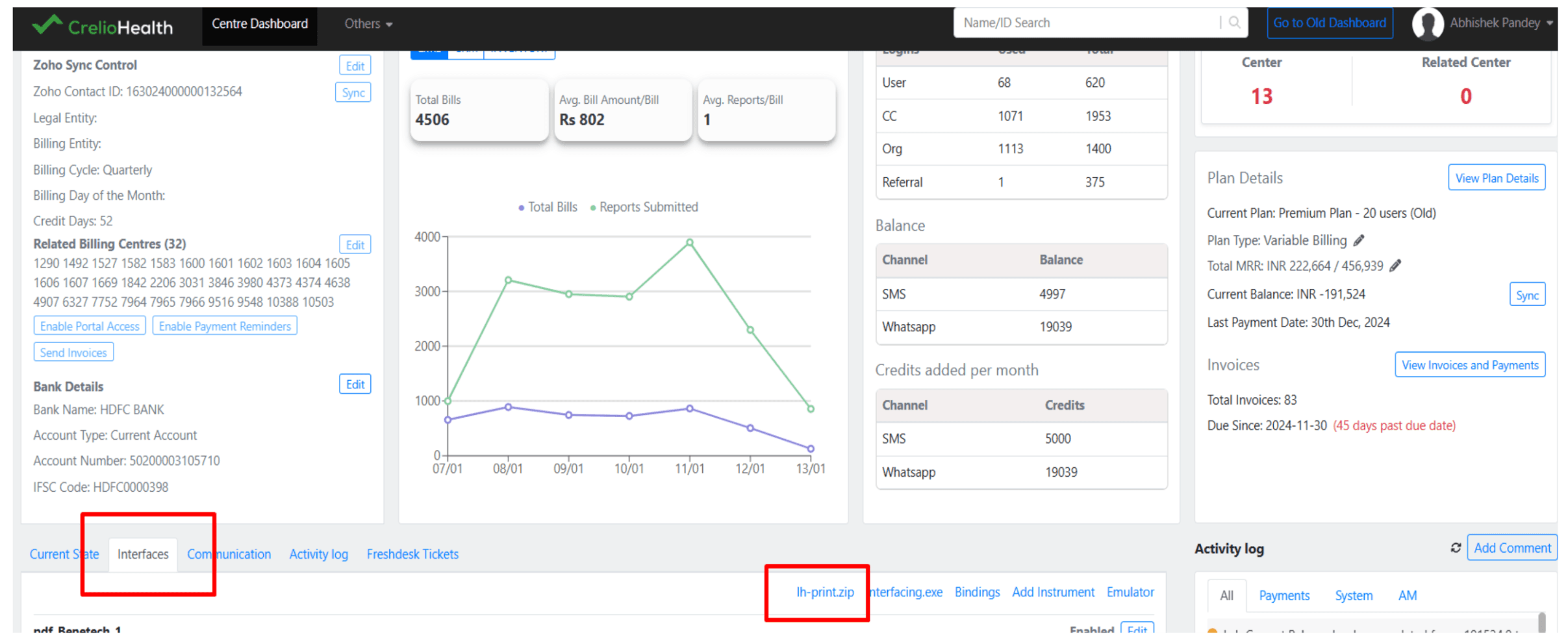
- Extract: Extract the zip file
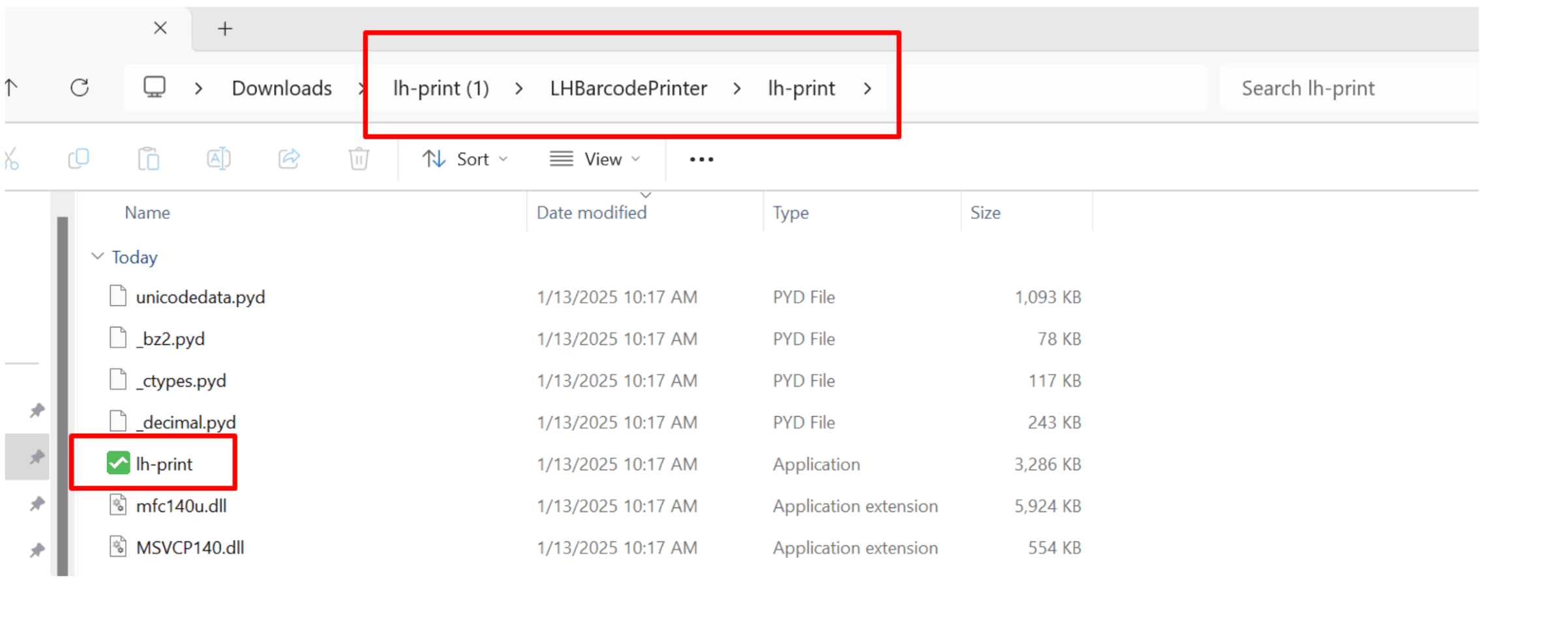
- Initialization: Double-click
lh-print.exe. This will generate:config.json: The main configuration file.lh-print.reg: Registry registration file based on the current path.logs/andtemplates/folders.
C. Protocol Registration
To allow browsers to trigger local printing, merge the registry file:
- Double-click
C:\livehealth\LHBarcodePrinter\lh-print.reg.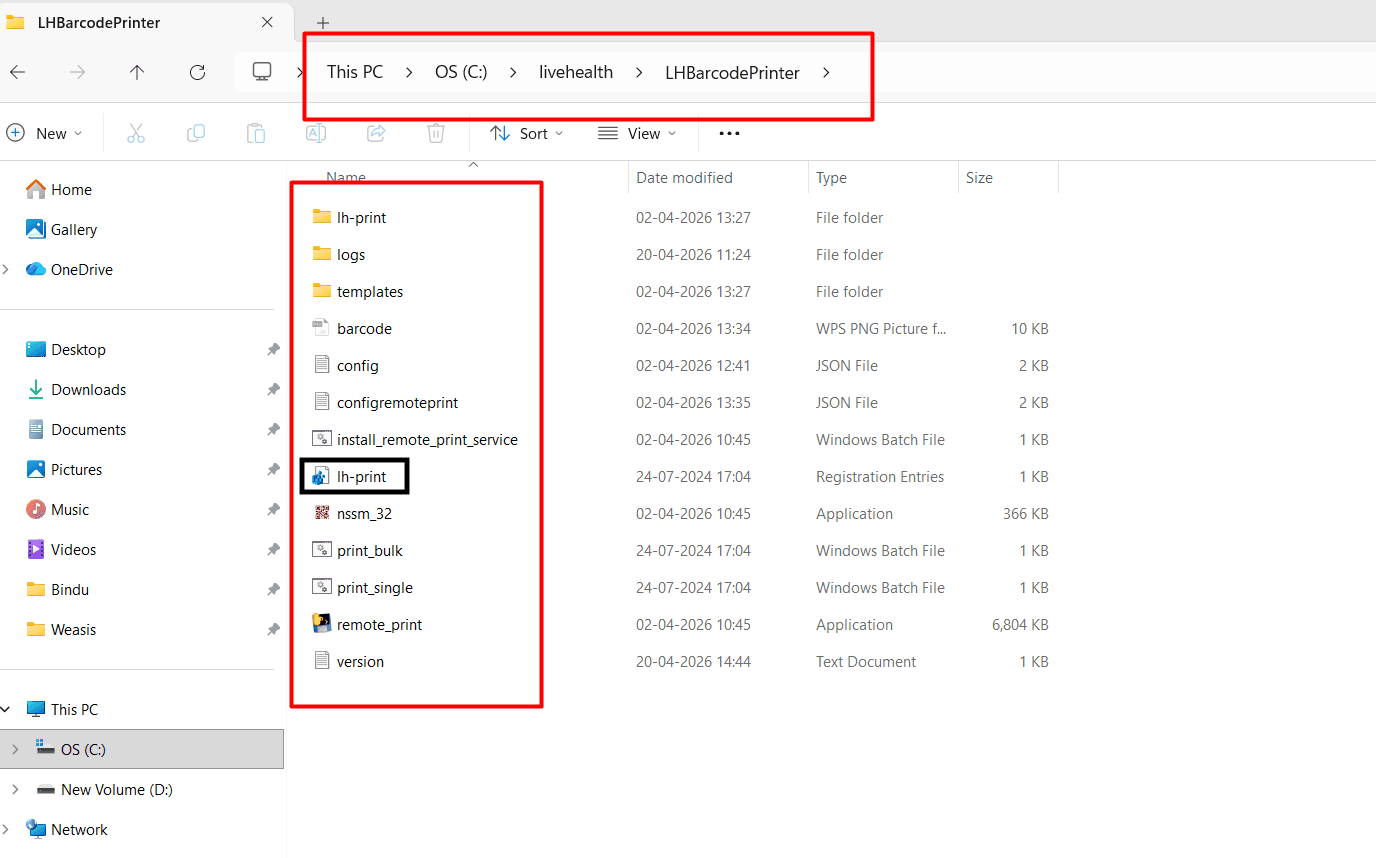
- Confirm the merge to register the
lhprint://protocol.
D. Verification Scripts
The application automatically creates two test scripts in the root directory:
print_single.bat: Triggers a test print for a single mock patient.print_bulk.bat: Triggers a test print for multiple mock samples.
Run these scripts and check logs/info.log to confirm the application parsed the data and executed the move command correctly.
E. Service Activation
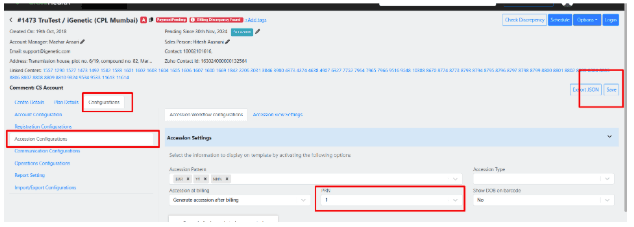
- Support Dashboard: Go to Configuration -> Accession Configuration -> PRN. Select the mode and click Save.
- Admin Settings: Enable required check boxes at
https://livehealth.solutions/billSetting/(e.g., Barcode Flag).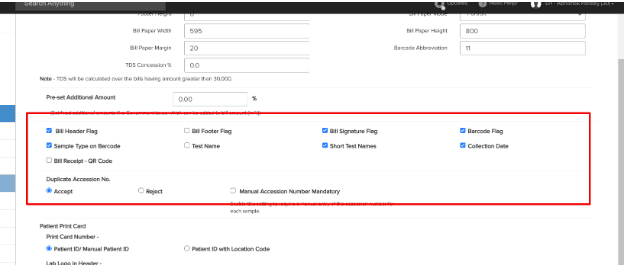
F. Developer: Building from Source
If you need to build a new .exe version:
- Install dependencies:
pip install -r requirements.txt. - Bundle the app:
pyinstaller --noconsole --onefile --icon=icon.ico __main__.py -n lh-print
2. Configuration Reference (config.json)
The config.json determines how patient data is parsed and which printer to use.
A. Printer Settings (prn)
| Key | Type | Description |
|---|---|---|
printer_name | String | The share name of the printer (e.g., TSC). |
machine_name | String | The hostname of the computer where the printer is connected. |
barcode_template | String | The filename of the template in templates/ (e.g., epl.prn). |
group_by | Integer | Number of labels per row (set to 2 or 3 for multi-label rolls). |
B. App & Patient Settings
| Key | Type | Description |
|---|---|---|
debug | Integer | Set to 1 to enable verbose logging in logs/. |
character_limit | Integer | Limit for splitting long patient names or test fields. |
fields_to_split | Array | List of field names that should be split into multiple lines. |
parse_test_to_multiline | Boolean | Automatically splits test names into TESTS_LINE_1, 2, and 3. |
3. Template Customization
lh-print uses placeholders wrapped in curly braces (e.g., {SAMPLE_ID}).
Available Placeholders
{PATIENT_NAME},{PATIENT_ID}{SAMPLE_ID}(The Barcode value){AGE},{GENDER},{SAMPLE_TYPE}{ACCESSION_DATETIME},{ORG_CODE},{LABNAME}{TESTS_LINE_1},{TESTS_LINE_2},{TESTS_LINE_3}(If multiline is enabled)
Coordinate-based Alignment (EPL/TSPL)
In EPL templates, use the A command to position text:
- X-Axis:
A14,...-> Increase to move Right. - Y-Axis:
A14,4,...-> Increase to move Down.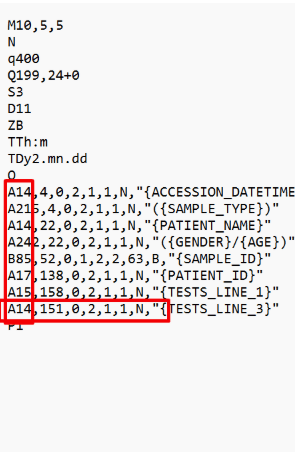
Execution Flow Diagram
The following sequence diagram illustrates how the system intercepts the browser trigger and coordinates the printing process.
Step-by-Step Workflow
1. Initialization (config.py -> init_lhprint)
When the application starts, it first ensures the local environment is ready:
- Config Check: Verifies if
config.jsonexists. If not, it creates a default one withprnmode enabled. - Directories: Creates
logs/andtemplates/folders in the root directory (C:\livehealth\LHBarcodePrinter). - Templates: Populates the
templates/folder with default PRN files (EPL, ZPL, etc.). - Registry Registration: Generates
lh-print.regto ensure thelhprint://protocol is associated with the executable.
2. Argument Interception (__main__.py)
The application receives the full URI from the OS (passed as the first command-line argument).
- Example:
lhprint://0^John+Doe^30Y^F^001^ORG^2024-04-20^S123^Blood^CBC^B456 - The entry point decodes the URI and hands it to the
BarcodePrinterorchestrator.
3. Data Parsing (barcode_printer.py -> parse_args)
The BarcodePrinter class determines the printing mode based on the first character:
- Mode 0 (Single): Prints one barcode using the provided data.
- Mode 1 (Bulk): String is split by
$to handle multiple sample entries. - Mode 2 (API Fetch): (Future extension) Fetches deep patient details via a secure API endpoint.
The data is then handed to the Patient model (patient.py), which splits the string by the ^ delimiter and maps values to attributes like patient_name, sample_id, and tests.
4. Template Hydration (prn_printer.py -> generate_prn_template)
The PRNPrinter executor takes over:
- Loads the raw
.prnfile specified inconfig.json(e.g.,epl.prn). - Performs string interpolation. Every attribute in the
Patientobject (formatted as uppercase keys) is used to replace placeholders in the template. - Example:
{SAMPLE_ID}in the template becomesS123in the output buffer.
5. Physical Print (prn_printer.py -> print)
The final hydrated buffer is written to a temporary file named barcode.prn.
The utility then executes an OS-level move command:
move barcode.prn \\{machine_name}\{printer_name}This bypasses traditional spoolers and sends the raw PRN data directly to the printer's internal interpreter.
Troubleshooting & Calibration
Shifting Barcode Alignment
If the printout is misaligned, you can adjust the coordinates directly in the .prn template (e.g., epl.prn).
In EPL templates, the A command (e.g., A14,4,0,2,1,1,N,"{SAMPLE_ID}") controls positioning:
- X-Axis (Horizontal): The first number after
A. Increase this value (e.g., from14to24) to shift the text to the right. - Y-Axis (Vertical): The second number. Increase this to shift the text down.
Referencing Available Fields
If you need to add more patient details to a label:
- Open the latest log file in
C:\livehealth\LHBarcodePrinter\logs. - Look for the list of parsed fields for a recent print job.
- Use any of those field names as a placeholder (e.g.,
{PATIENT_AGE}) in your template.
Multi-Column (Group) Printing
If group_by is set to > 1 in config.json, the PRNPrinter uses the print_barcode_by_group logic. This is used for label rolls that have 2 or 3 labels across. The templates use numbered placeholders like {SAMPLE_ID_1}, {SAMPLE_ID_2} to handle this layout.