Workflow Guide
Step-by-step guide for Toxicology Reflex Configuration
Toxicology Reflex Workflow Guide
Toxicology Reflex Management automates the addition of confirmation drugs based on screening results or prescription selections.
There are two types of reflex workflows supported in Toxicology:
- Screening Reflex
- Prescription Reflex
1. Screening Reflex
Before configuring Toxicology Screening Reflex workflows, reflex drugs must first be configured for the primary drug. This configuration defines which drugs should automatically be added to the Confirmation component when a drug qualifies for reflex processing.
Prerequisites
Configure Reflex Drugs
Follow the steps below to configure reflex drugs for a drug in the system.
Step 1: Open Drug Master
Navigate to:
Operations → Drug Master / Panel MasterSelect Drug Master to manage individual drug configurations.
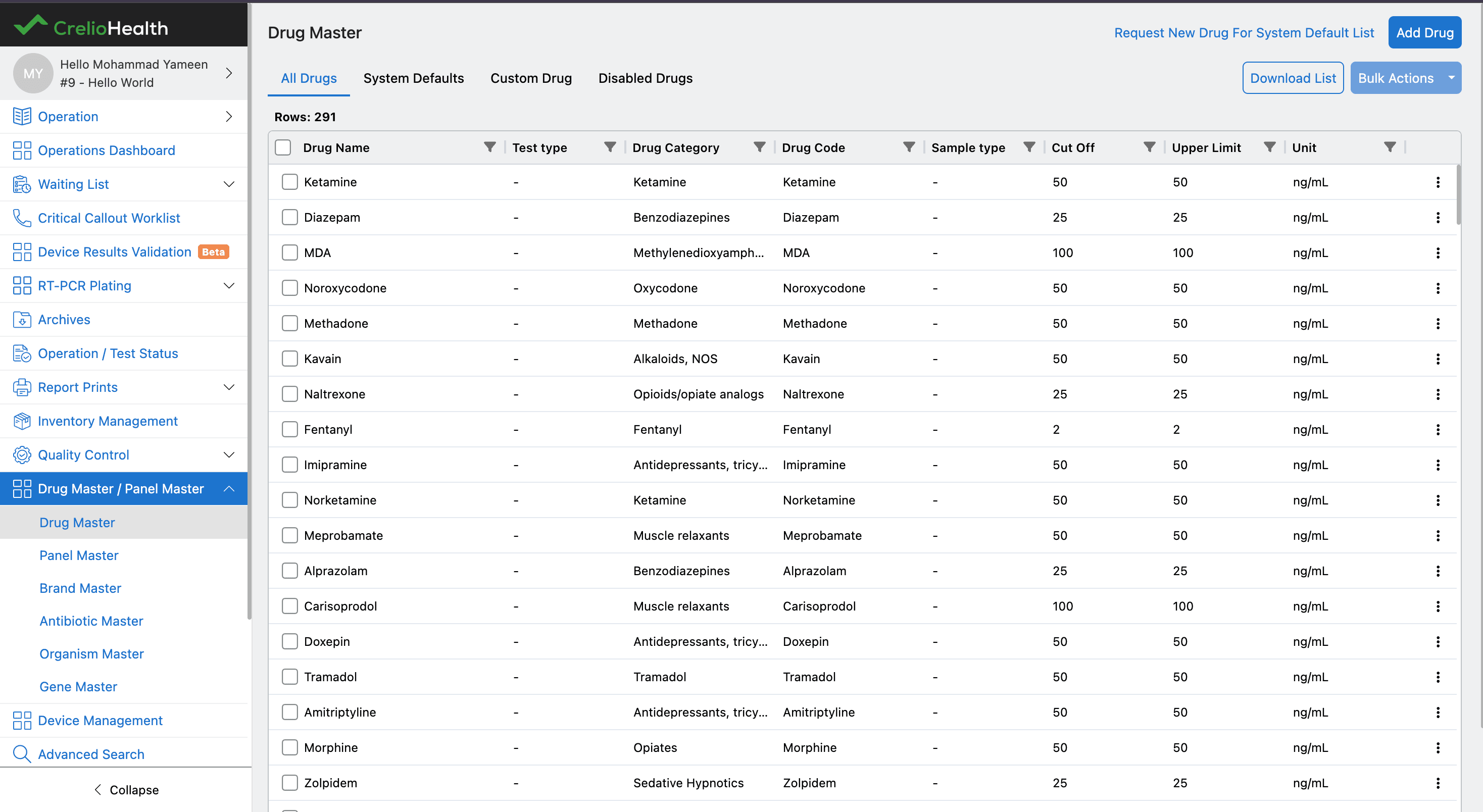
Step 2: Select the Primary Drug
Choose the drug for which you want to configure reflex drugs, eg. Ketamine
This opens the drug configuration modal.
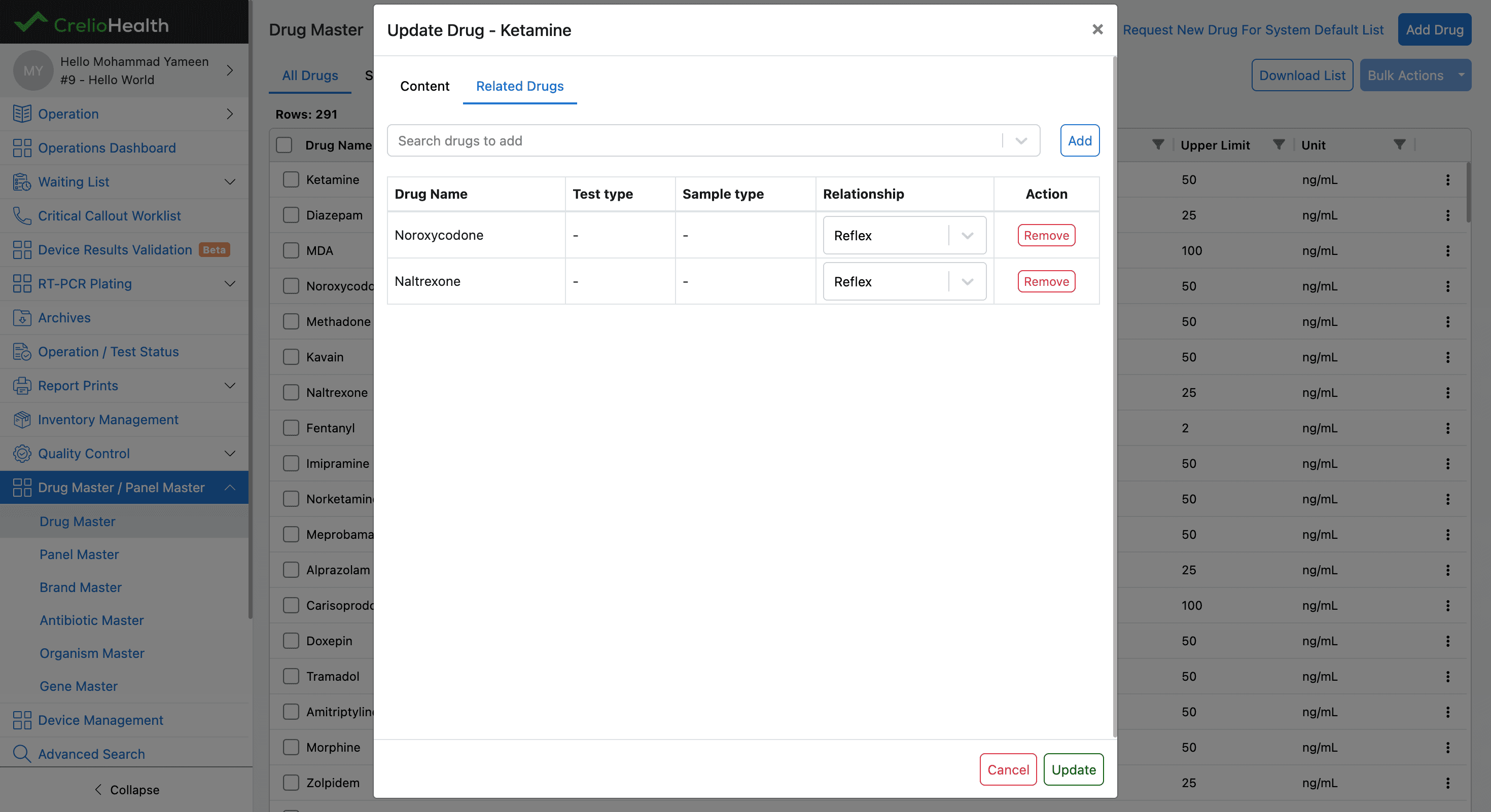
Step 3: Open the Related Drugs Tab
Inside the drug configuration modal:
- Navigate to the Related Drugs tab
This section allows you to configure relationships between drugs.
Step 4: Add Reflex Drugs
Select the drugs that should be automatically added during reflex processing.
Example
- Noroxycodone
- Naltrexone
For each related drug:
- Set the Relationship Type as:
Reflex
Step 5: Save the Configuration
Save the changes to apply the reflex relationship.
Once configured:
- These reflex drugs become eligible for automatic addition to the Confirmation component when reflex conditions are satisfied.
Example
| Primary Drug | Reflex Drugs |
|---|---|
| Ketamine | Noroxycodone, Naltrexone |
Important Notes
- A drug can have multiple reflex drugs
- Reflex relationships are configured at the drug level
- Reflex processing will only occur if the appropriate reflex settings are enabled in the Confirmation configuration
Reflex Configuration at Test Level
In addition to configuring reflex drugs, the test itself must also be configured to support Screening Reflex workflows.
This configuration enables the system to automatically add reflex drugs to the Confirmation component when screening conditions are satisfied.
Step 1: Open Report Parameters
Navigate to the Add/Edit Report screen and open the:
- Report Parameters section
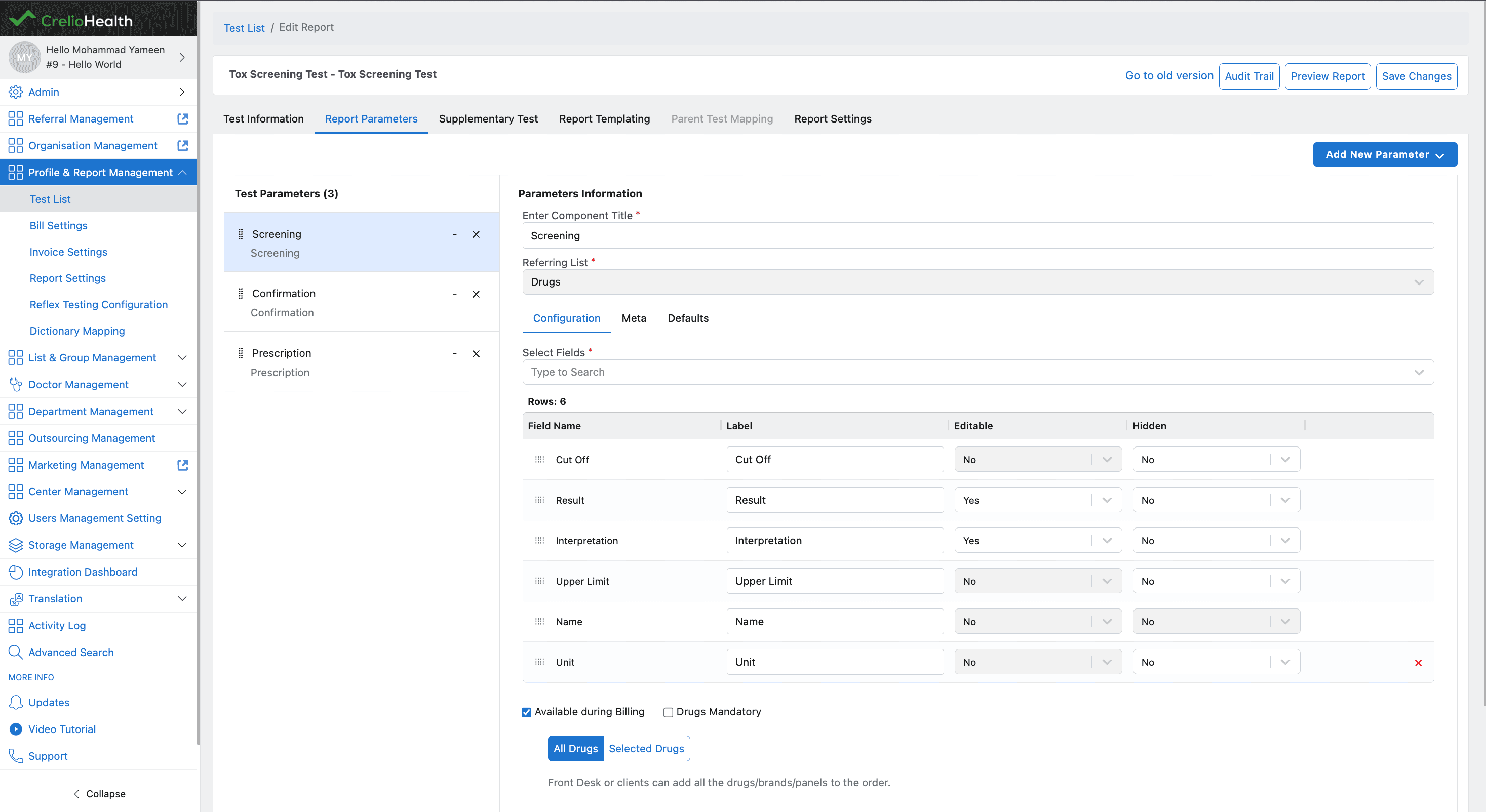
Step 2: Create a Screening Component
Create a Screening component for the report.
This component is responsible for:
- Receiving screening drugs
- Processing device results
- Triggering Screening Reflex workflows
Additional Configuration
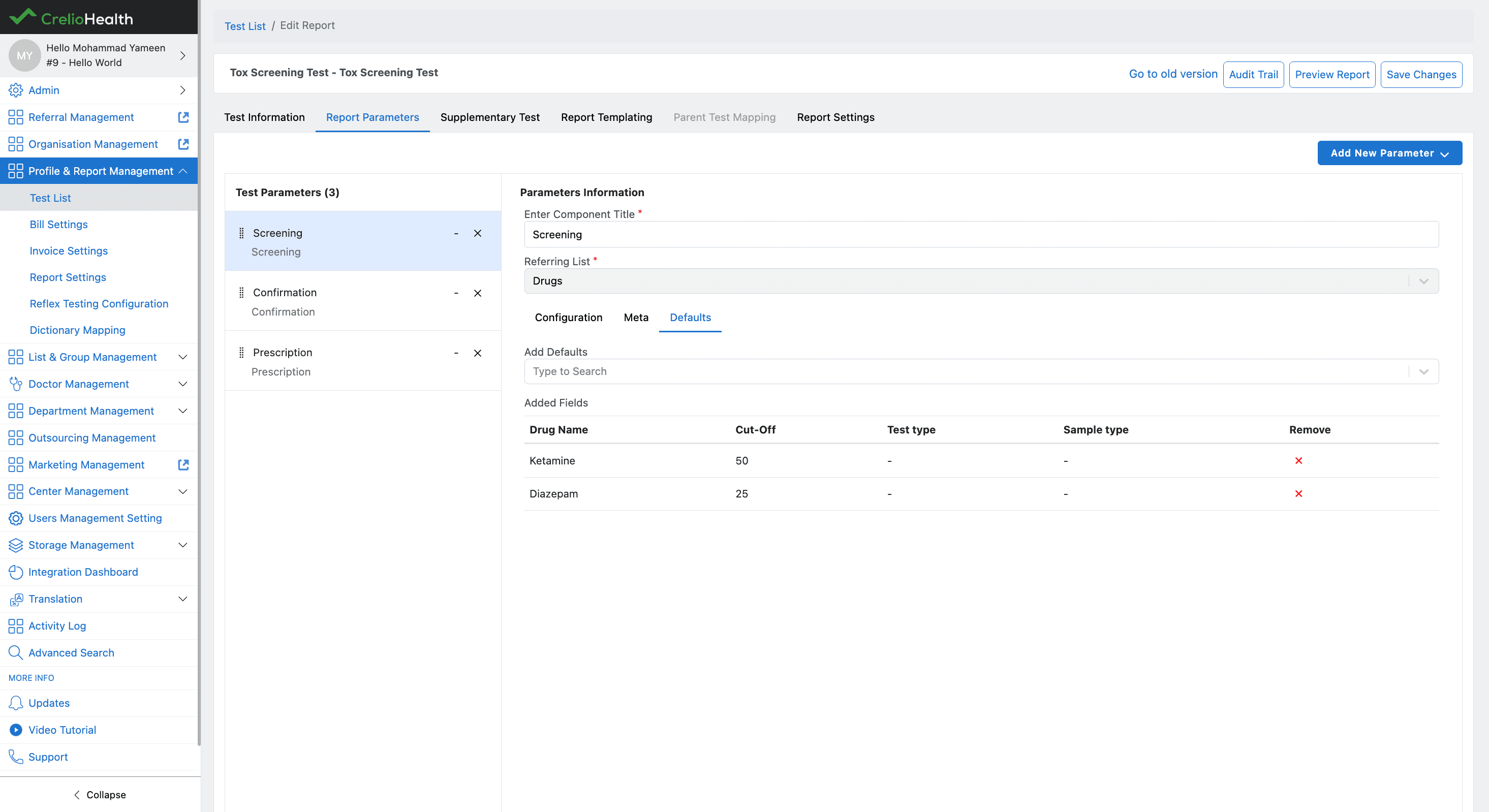
The Screening component also supports:
-
Default Drugs
- Drugs that are automatically added during billing
-
Available during Billing
- Allows users to manually select and add drugs during billing
Important Behavior
If Available during Billing is:
-
Enabled
- Users can add drugs from the configured drug list during billing
-
Disabled
- Users cannot manually add drugs during billing
- Only default configured drugs will be added to Screening
Step 3: Create a Confirmation Component
Create a Confirmation component for the report.
This component receives:
- Reflex drugs
- Metabolite drugs
- Prescription reflex drugs
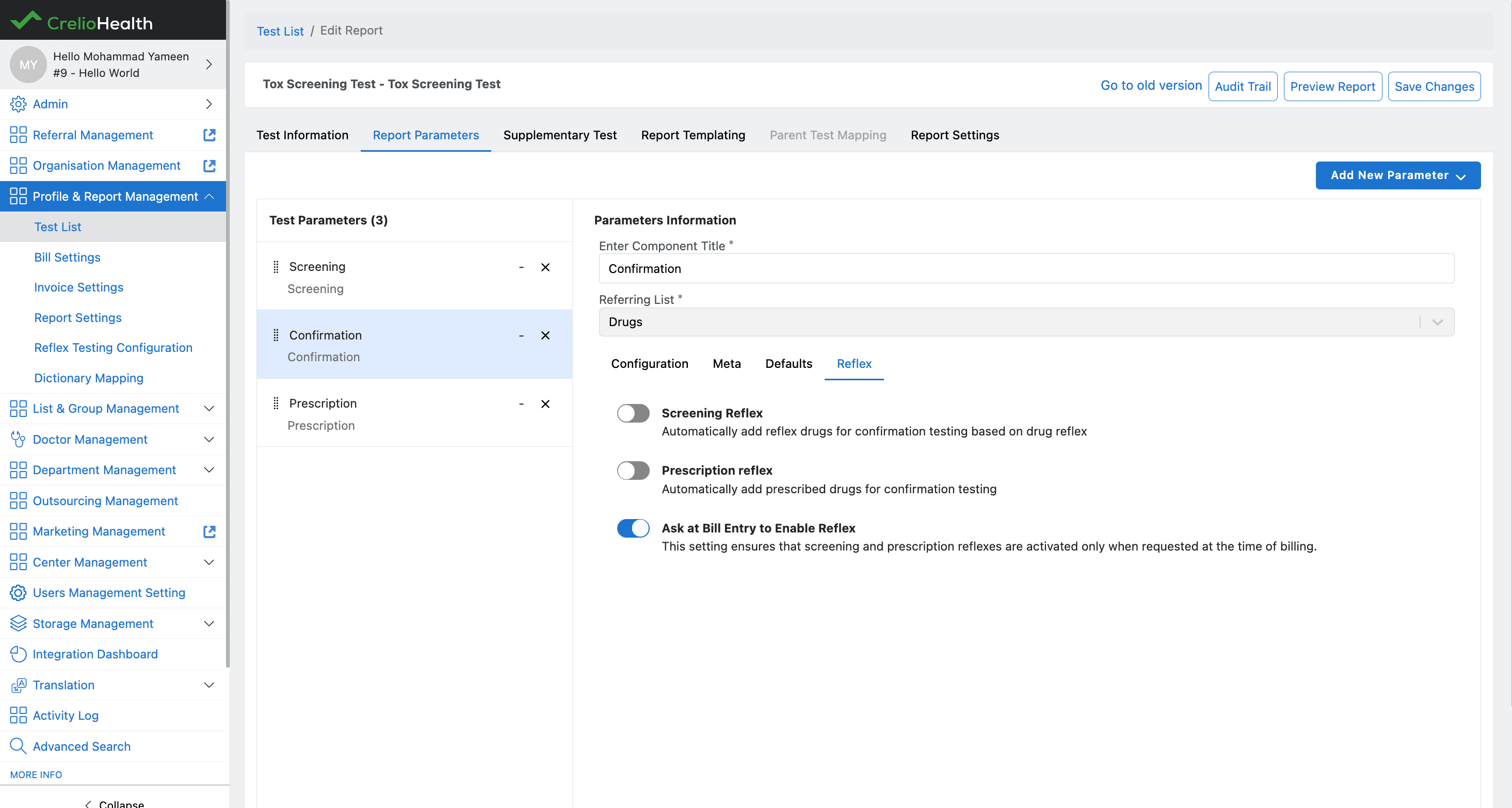
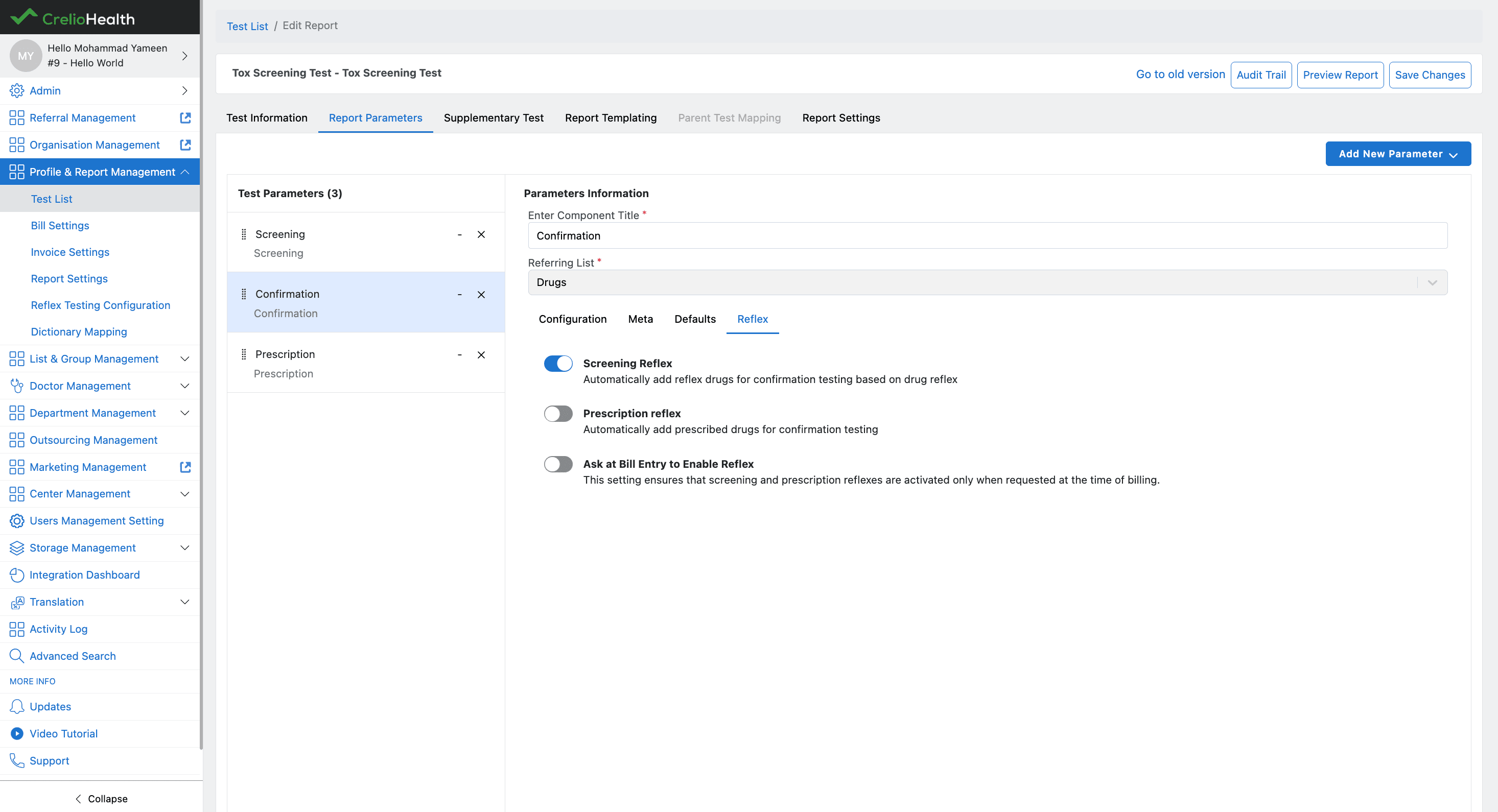
Step 4: Open the Reflex Tab
Inside the Confirmation component:
- Navigate to the Reflex tab
Step 5: Enable Screening Reflex
Enable the:
- Screening Reflex toggle
This allows the system to automatically add reflex drugs into the Confirmation component when screening conditions are met.
Important Notes
- Screening Reflex only works if this toggle is enabled
- Reflex drugs must already be configured in Drug Master
- Device results must satisfy the configured cutoff conditions
- Confirmation component is mandatory for reflex processing
2. Prescription Reflex
Prescription Reflex allows the system to automatically add drugs from the Prescription component into the Confirmation component during billing.
Unlike Screening Reflex, this workflow does not depend on:
- Device results
- Screening values
- Cutoff validation
Step 1: Open Report Parameters
Navigate to the Add/Edit Report screen and open the:
- Report Parameters section
Step 2: Create a Prescription Component
Create a Prescription component for the report.
This component is used to:
- Add prescribed drugs
- Manage prescription-based workflows
- Trigger Prescription Reflex processing
Step 3: Configure Billing Options
Inside the Prescription component, you can enable:
- Available during Billing
Behavior
If Available during Billing is:
-
Enabled
- Users can manually add prescription drugs during billing
-
Disabled
- Users cannot add prescription drugs during billing
Step 4: Create a Confirmation Component
Create a Confirmation component if it has not already been created.
This component receives:
- Screening reflex drugs
- Prescription reflex drugs
- Metabolite drugs
Step 5: Open Reflex Configuration
Inside the Confirmation component:
- Navigate to the Reflex Configuration section
Step 6: Enable Prescription Reflex
Enable the:
- Prescription Reflex toggle
This allows the system to automatically add prescription drugs into the Confirmation component when the test is billed.

Important Notes
- Prescription Reflex works during billing
- No device result is required
- No cutoff validation is performed
- Confirmation component is required for Prescription Reflex to function
Note
The Confirmation Component Reflex Configuration also includes an additional setting:
- Ask at Bill Entry to Enable Reflex
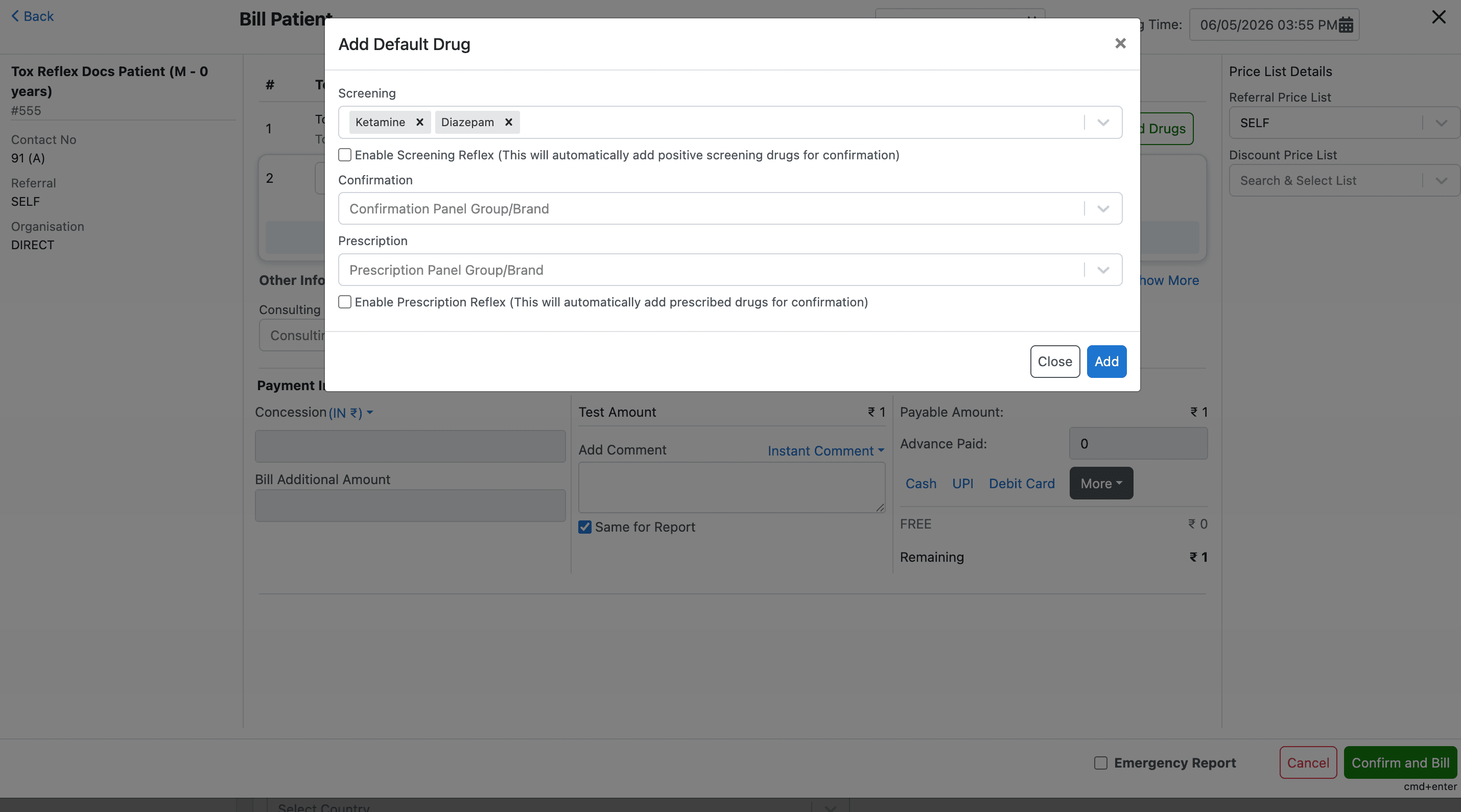
When this setting is enabled, the system asks the user during billing whether reflex drugs should be added to the Confirmation component.
The billing Add Drugs modal displays separate options for:
- Screening Reflex
- Prescription Reflex
Users can individually decide whether to allow reflex processing for each workflow during billing.
Behavior
- If enabled:
- User confirmation is required during billing
- Reflex processing depends on the user’s selection in the billing modal
- If disabled:
- Screening drugs are automatically added to Confirmation if Screening Reflex is enabled
- Prescription drugs are automatically added to Confirmation if Prescription Reflex is enabled
This setting provides additional control over reflex execution during the billing process.