Workflow Guide
Step-by-step guide for Reflex Configuration
Accessing Reflex Test Configuration
To reach the Reflex Test Configuration screen:
- Module: Admin
- Menu: Profile & Report Management
- Sub Menu: Reflex Test Configuration
Direct route: /admin/reflex-testing-configuration
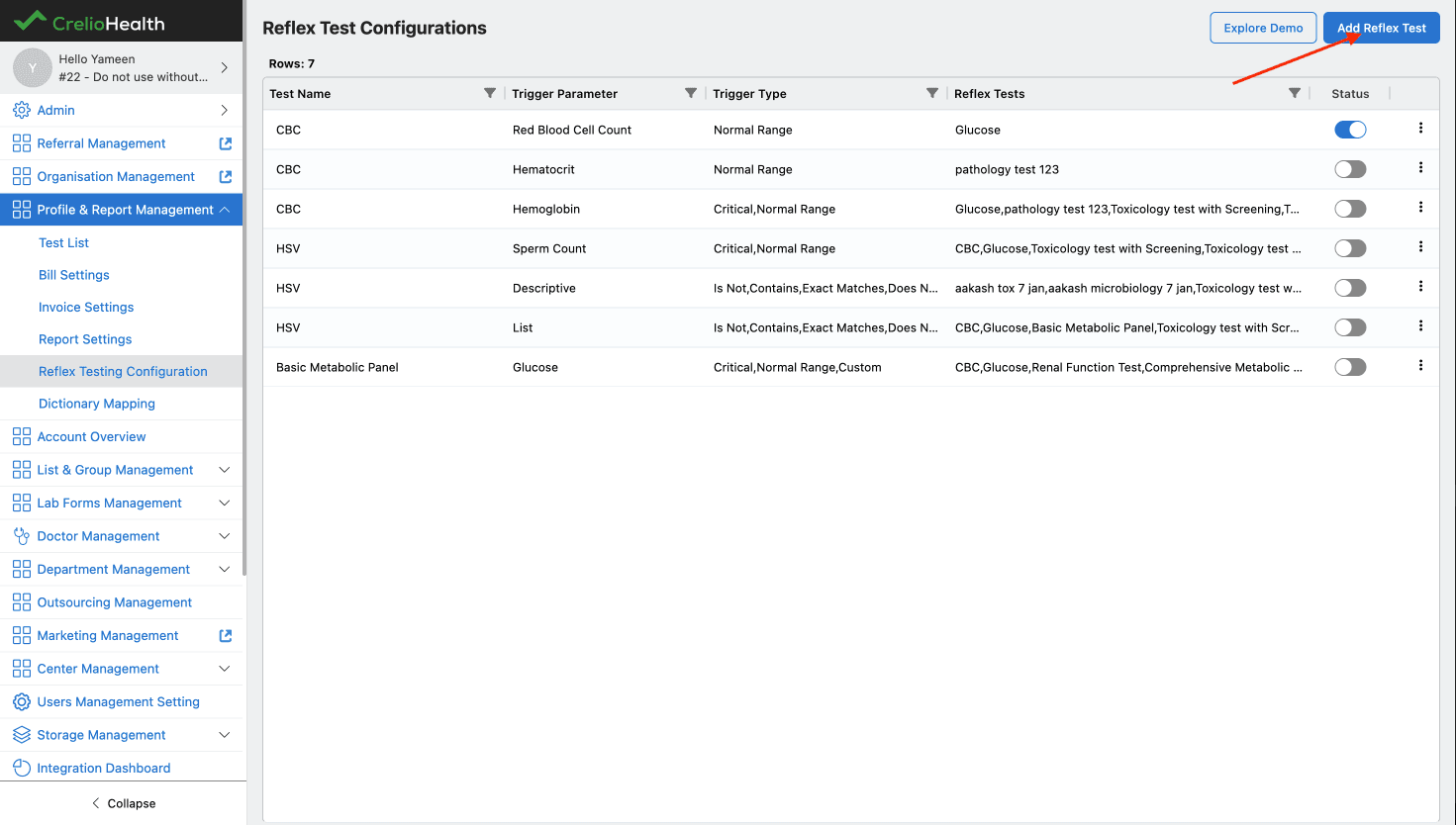
Once there, you will see a list of existing reflex configurations.
Use the Add Reflex Test button to open the configuration modal.
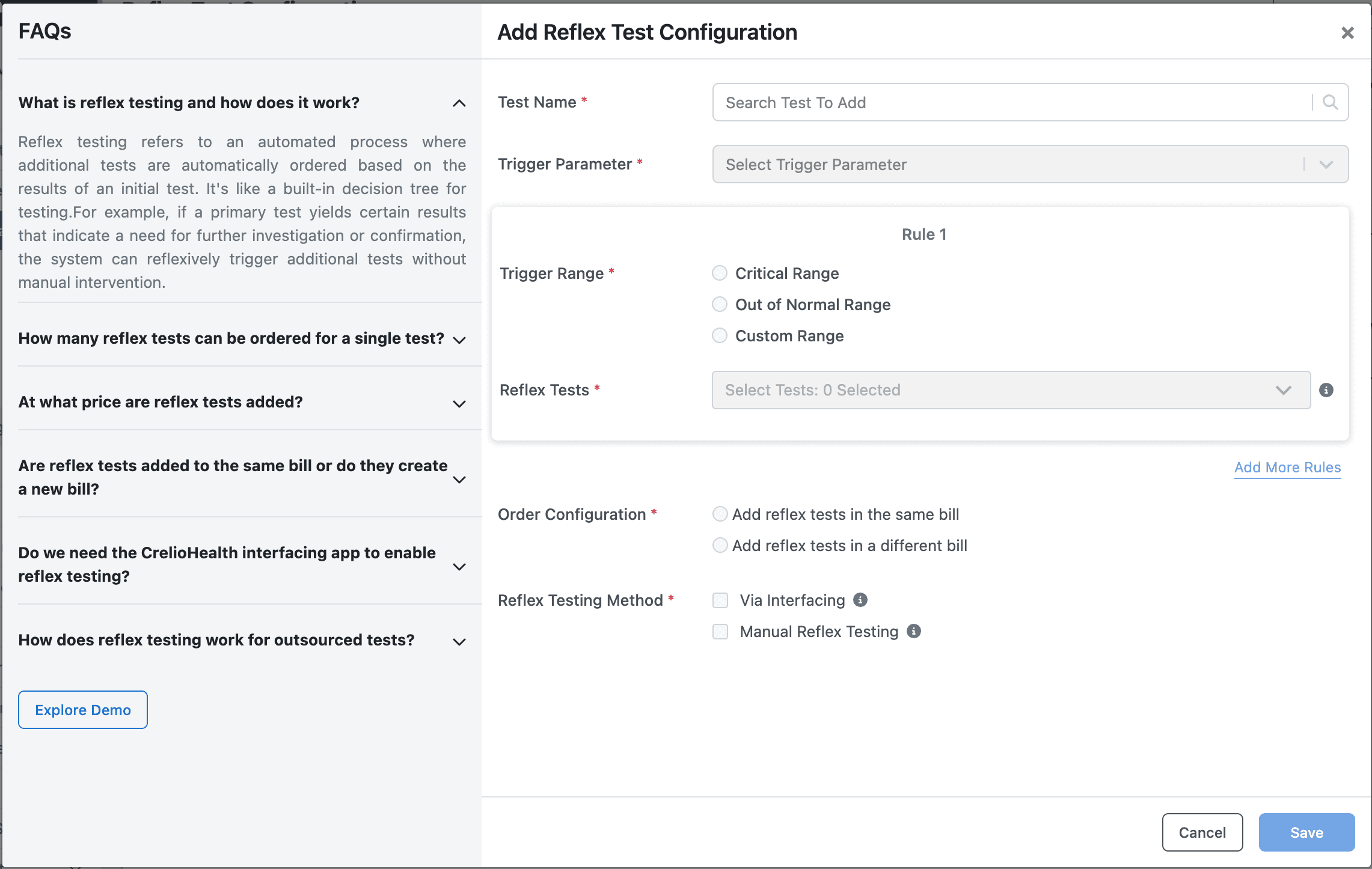
From this modal you can select the test, define trigger conditions, choose reflex tests, and configure billing & execution methods.
Configuring Reflex Tests
Follow the relevant section based on your parameter type.
Range Parameter Configuration
Use when your parameter is numeric (e.g., WBC, Hemoglobin).
Steps
- Open Reflex Test Configuration – navigate to the screen and click Add Reflex Test.
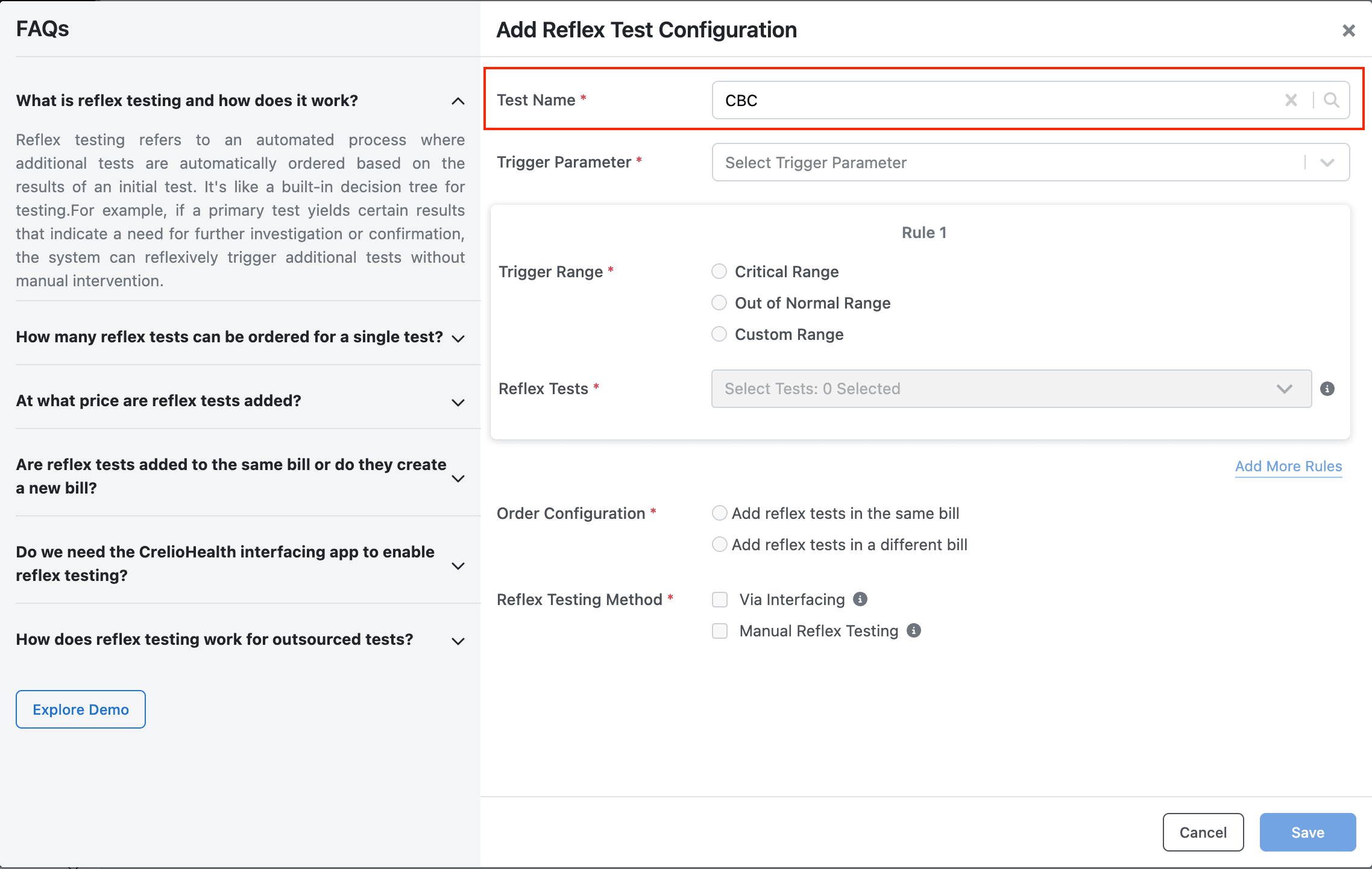
- Select Test Name – e.g., CBC.
- Select Trigger Parameter – e.g., Hemoglobin.
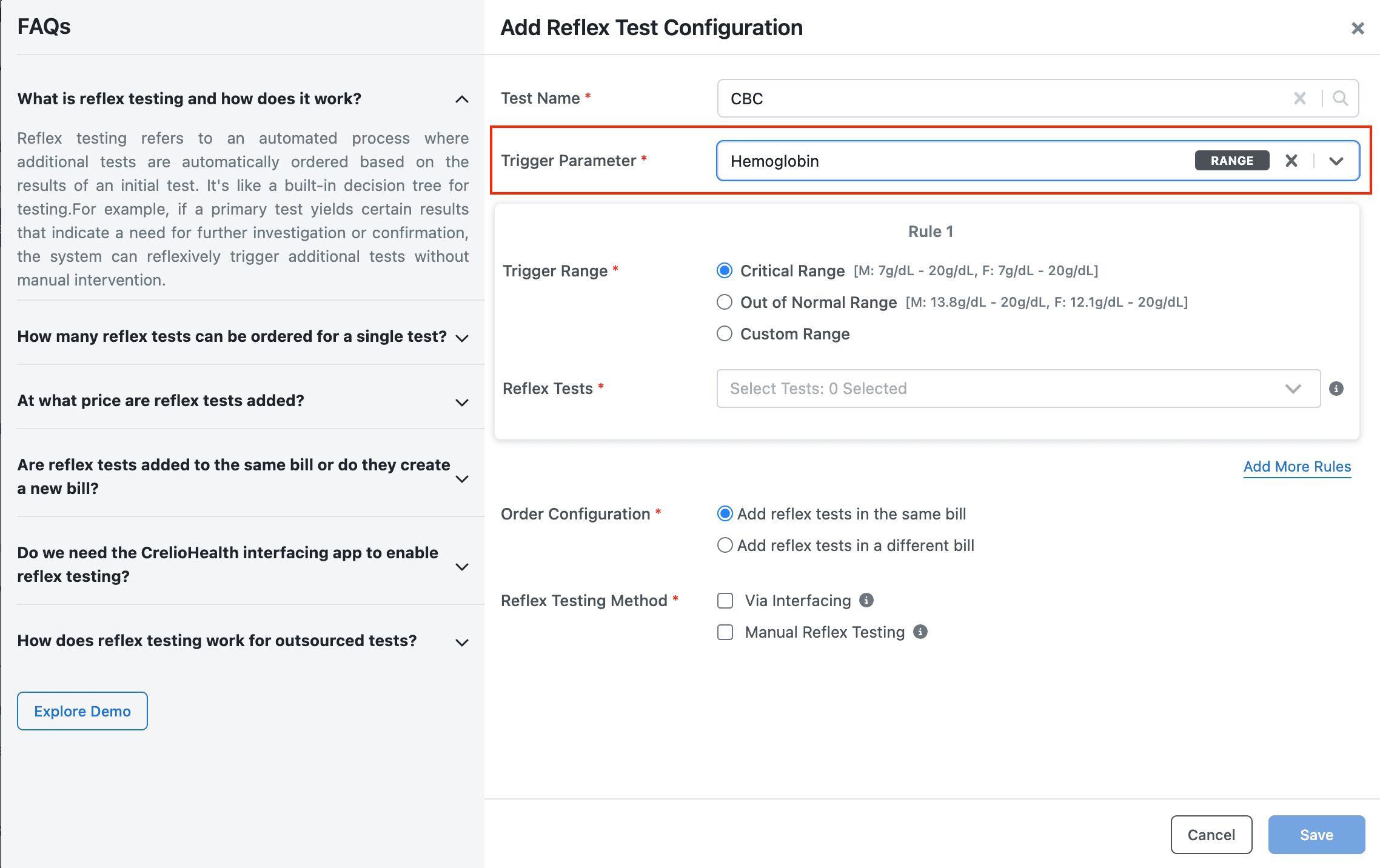
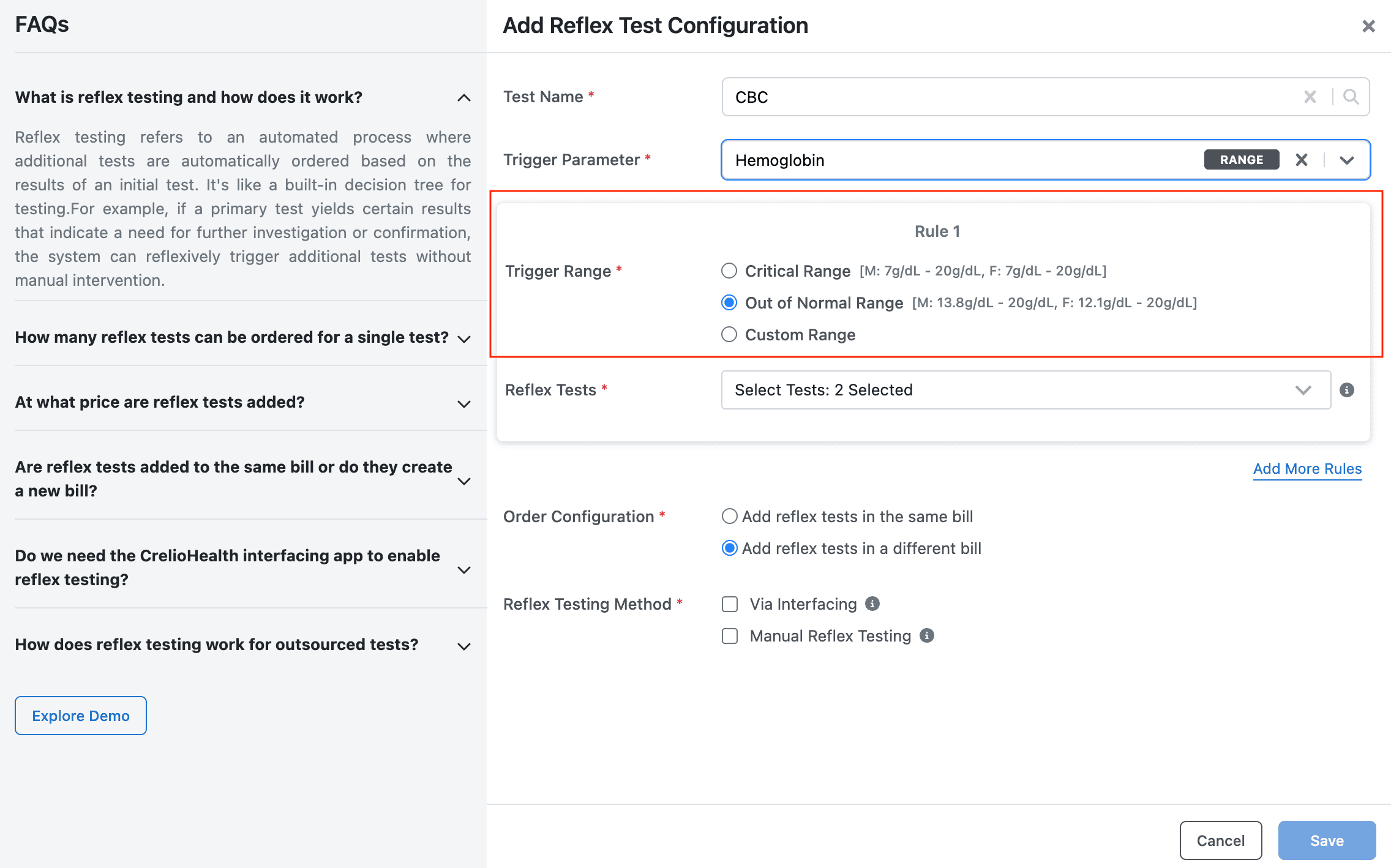
- Define Trigger Condition – choose:
- Critical Range → triggers when value is outside critical limits.
- Out of Normal Range → triggers when outside normal range.
- Custom Range → triggers when outside user‑defined range (set lower/upper bounds).
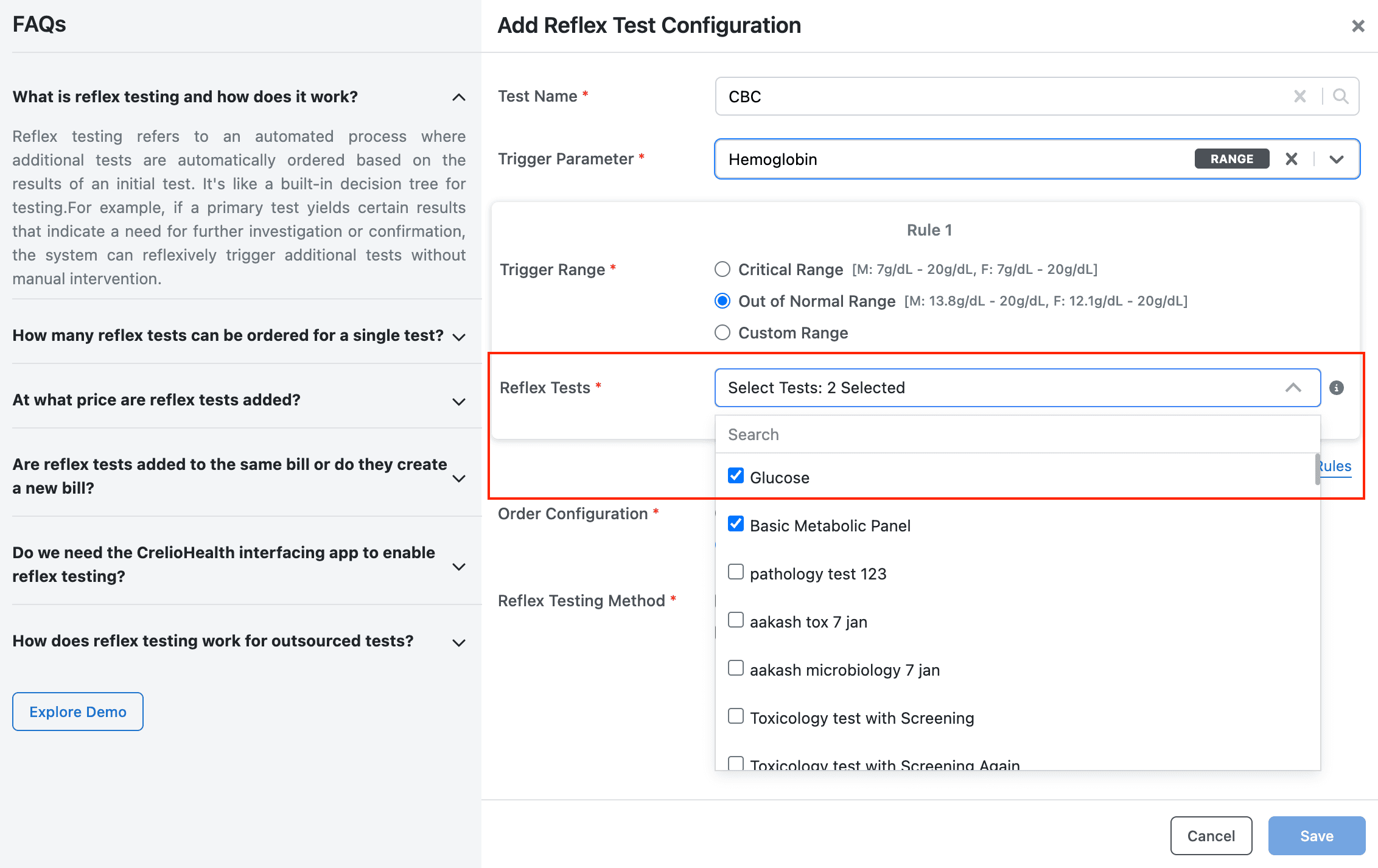
- Add Reflex Test(s) – select one or more tests to trigger.
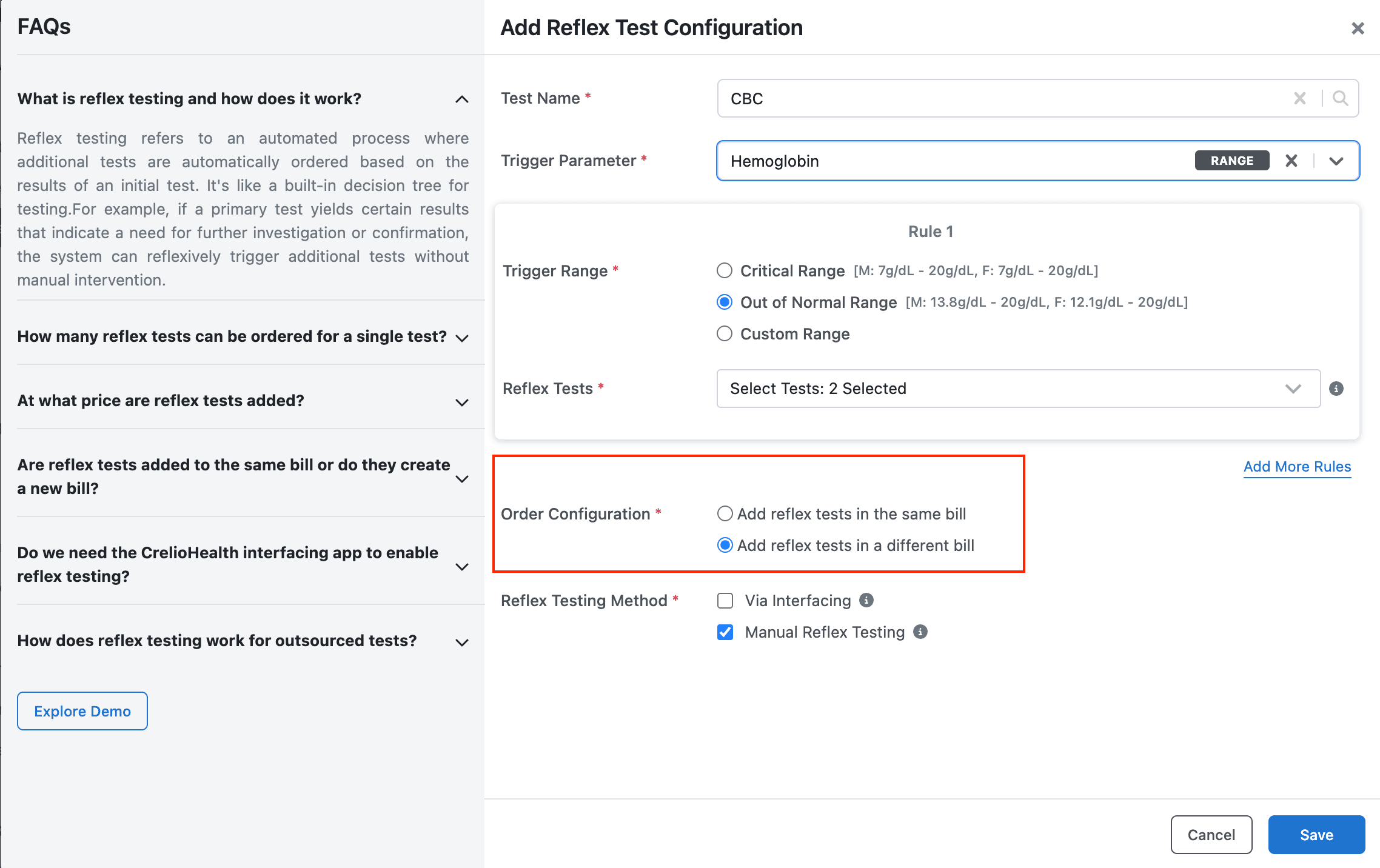
- Configure Billing Behavior – same bill or new bill.
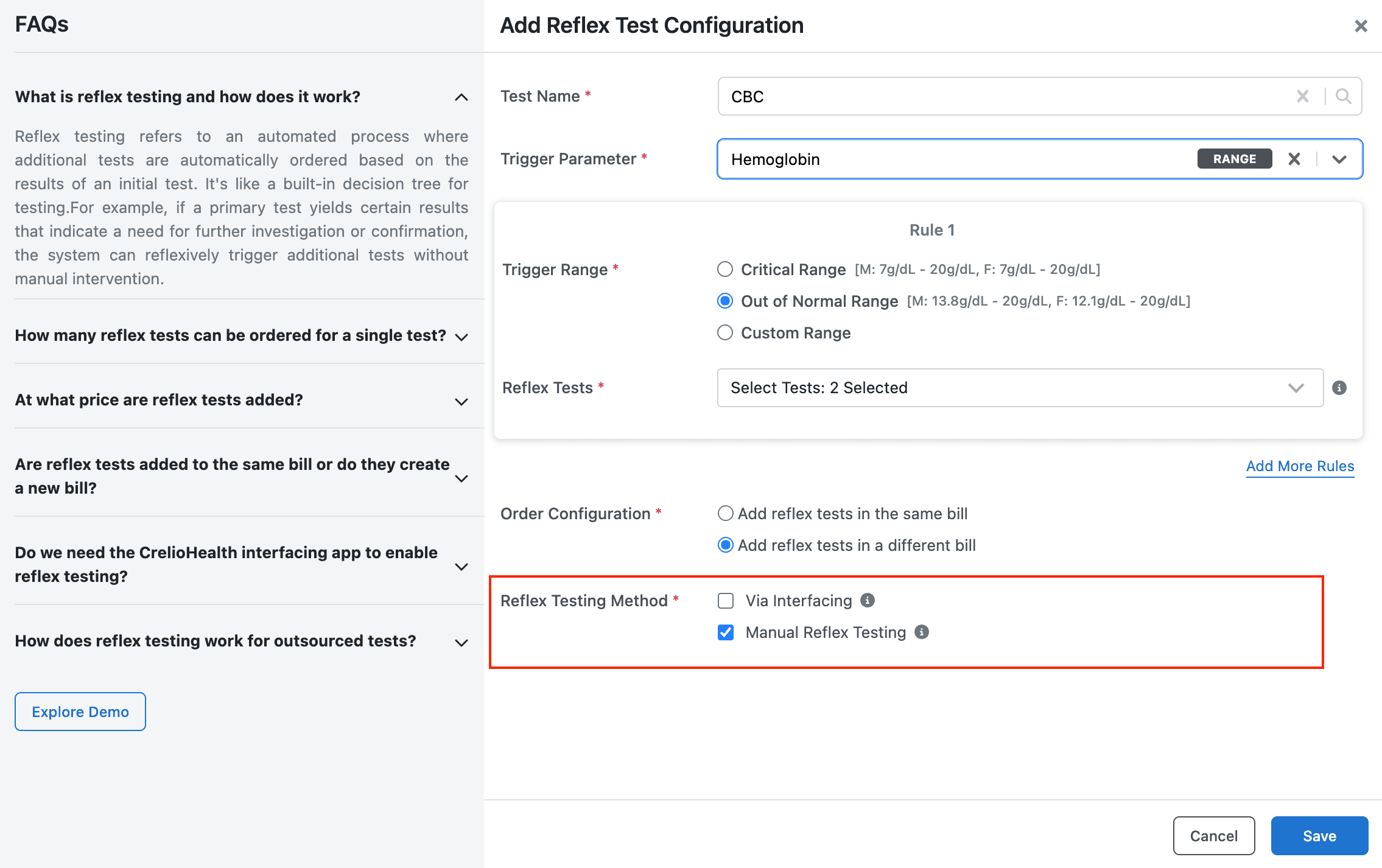
- Select Reflex Method – Via Interfacing (auto from machine results) or Manual Reflex Testing.
- Save – click Save to activate the rule.
Note: Only one Critical Range or Out of Normal Range rule per parameter. Multiple Custom Range rules allowed, but each must have a distinct range.
List Parameter Configuration
Use when your parameter has predefined values (e.g., 10, 20, Positive/Negative).
Steps
- Open Reflex Test Configuration → click Add Reflex Test.
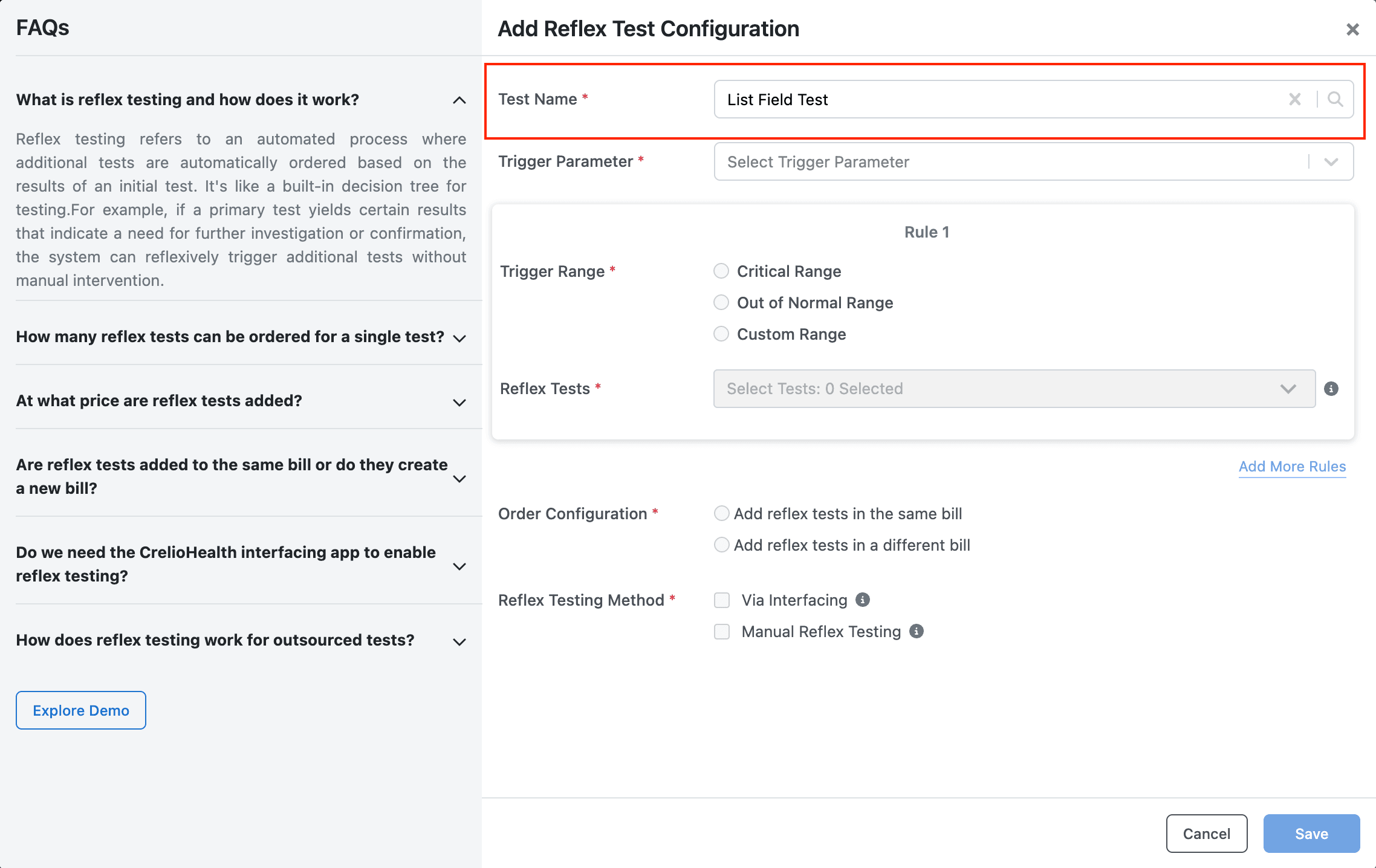
- Select Test Name – choose a list‑field test.
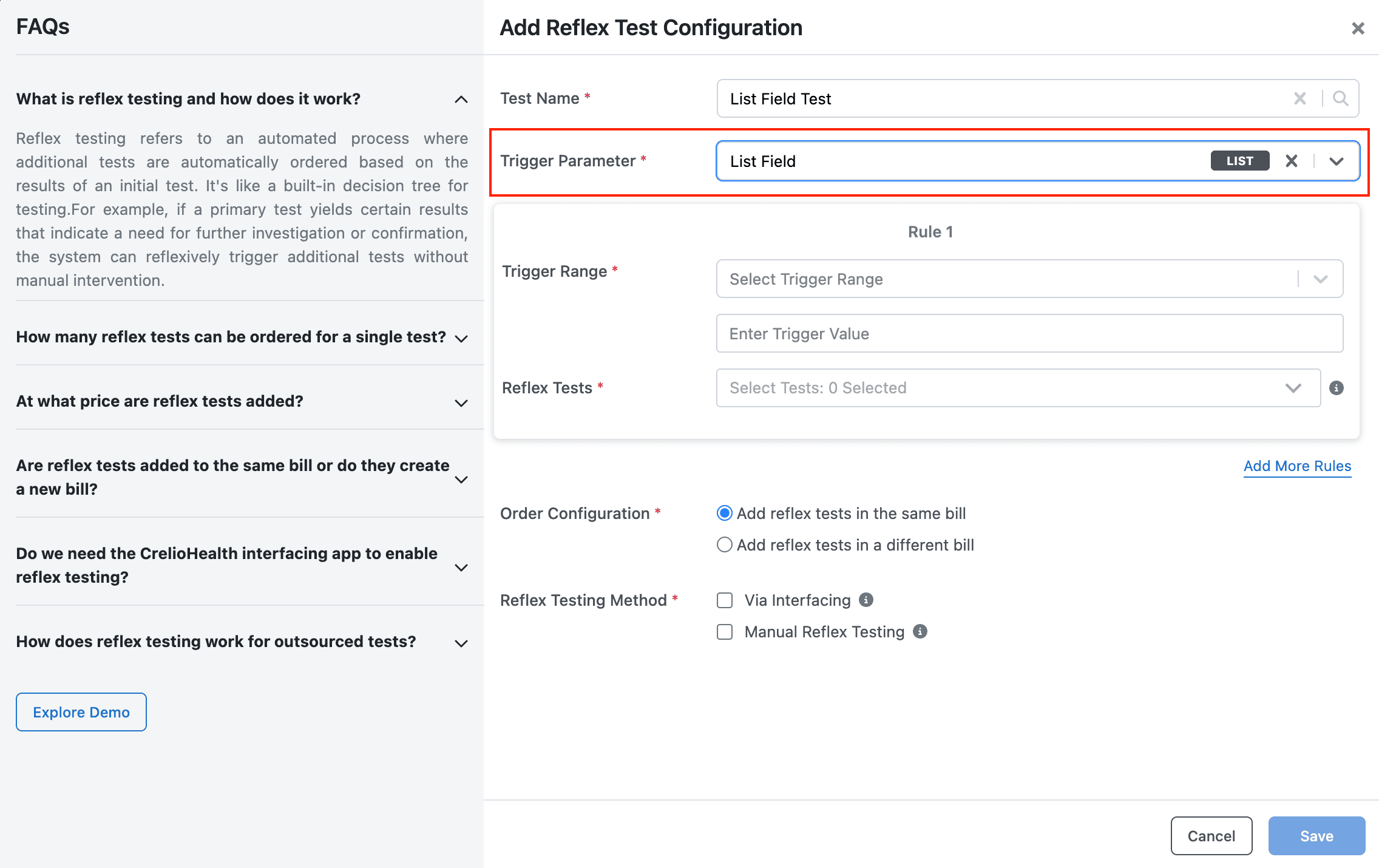
- Select Trigger Parameter – a list‑field parameter.
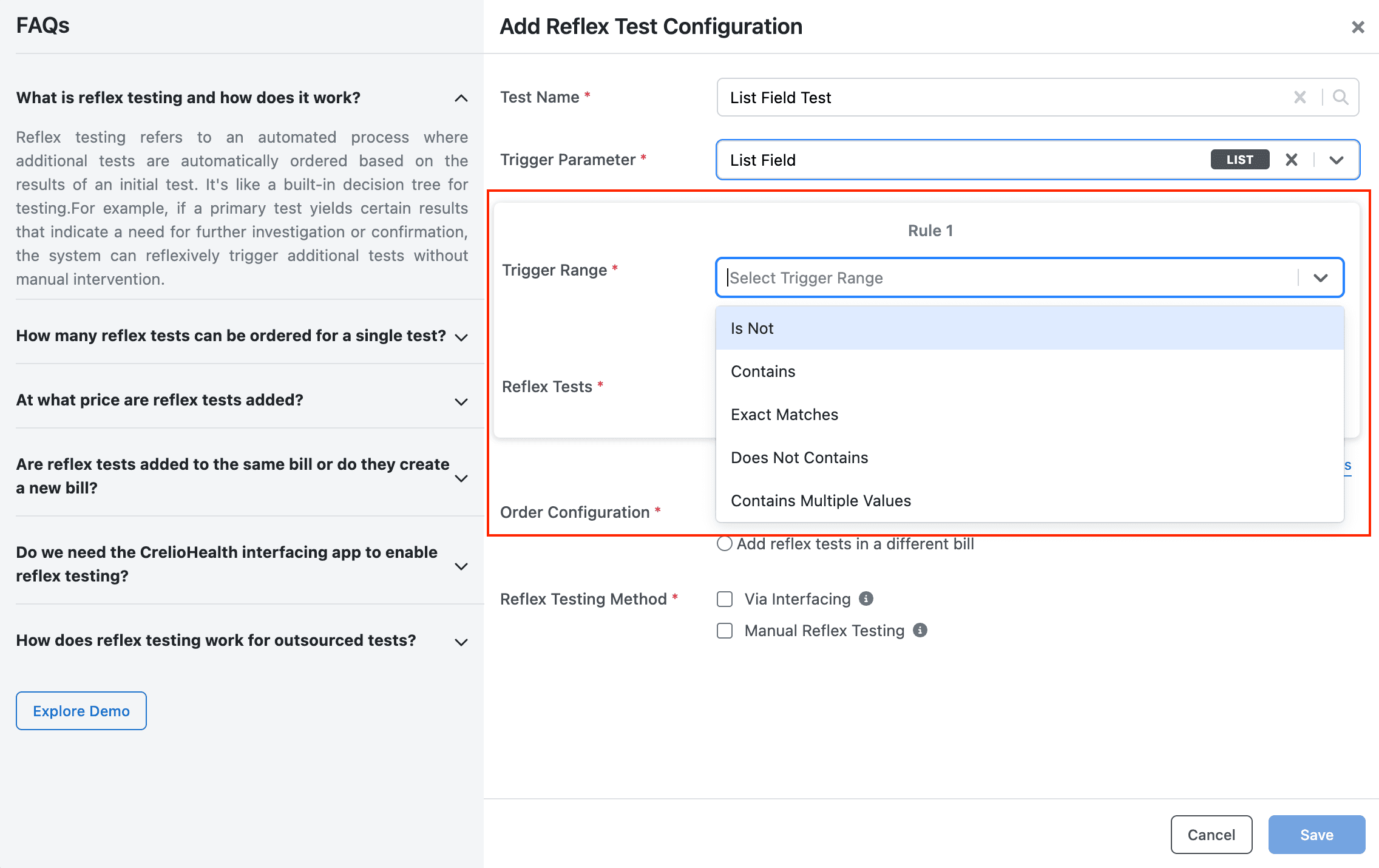
- Define Trigger Condition – options:
- Is Not
- Contains
- Exact Matches
- Does Not Contain
- Contains Multiple Values
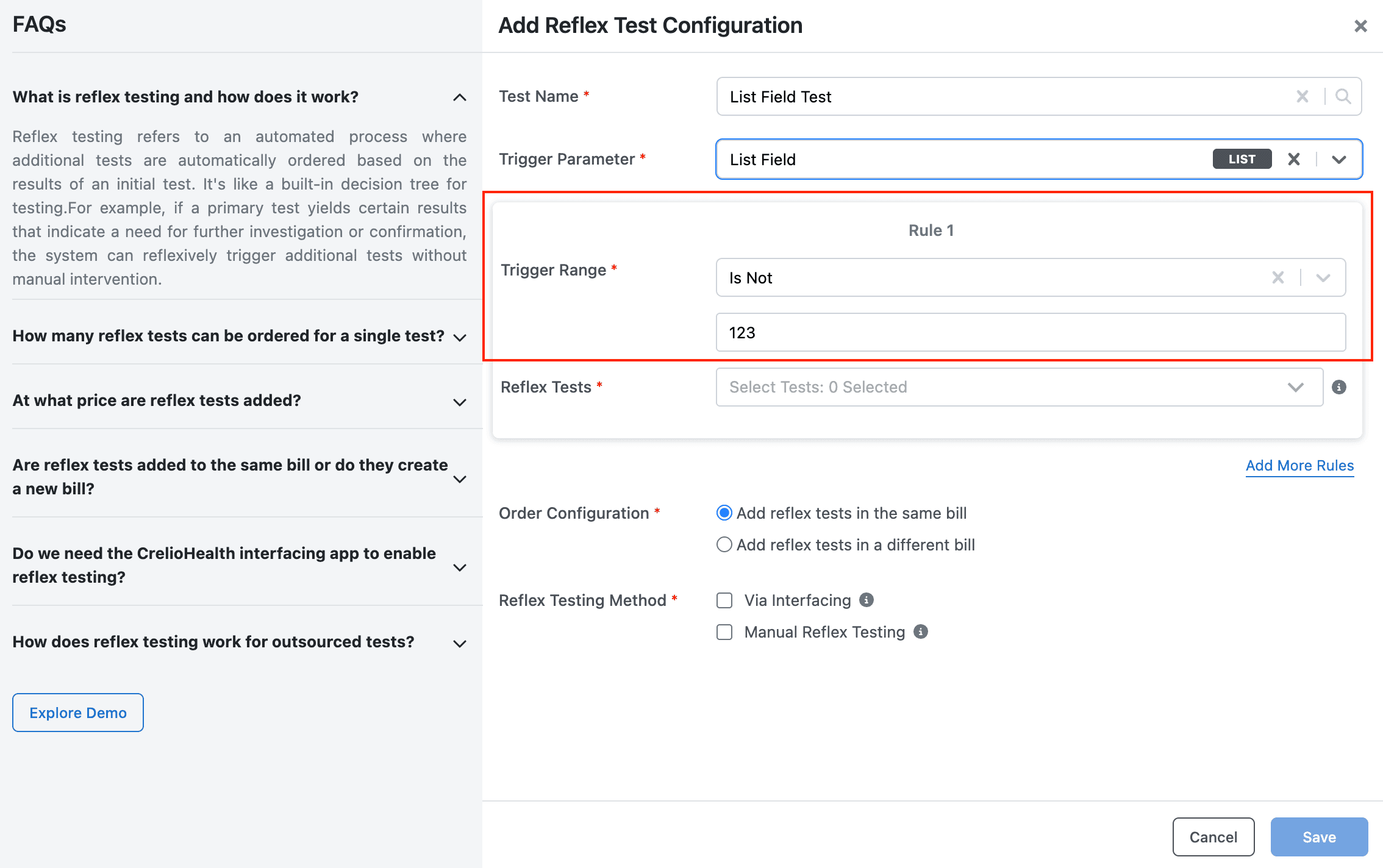
- Configure Condition Values
- Basic (Is Not / Contains / Does Not Contain) → enter a value.
- Exact Matches → select from dropdown.
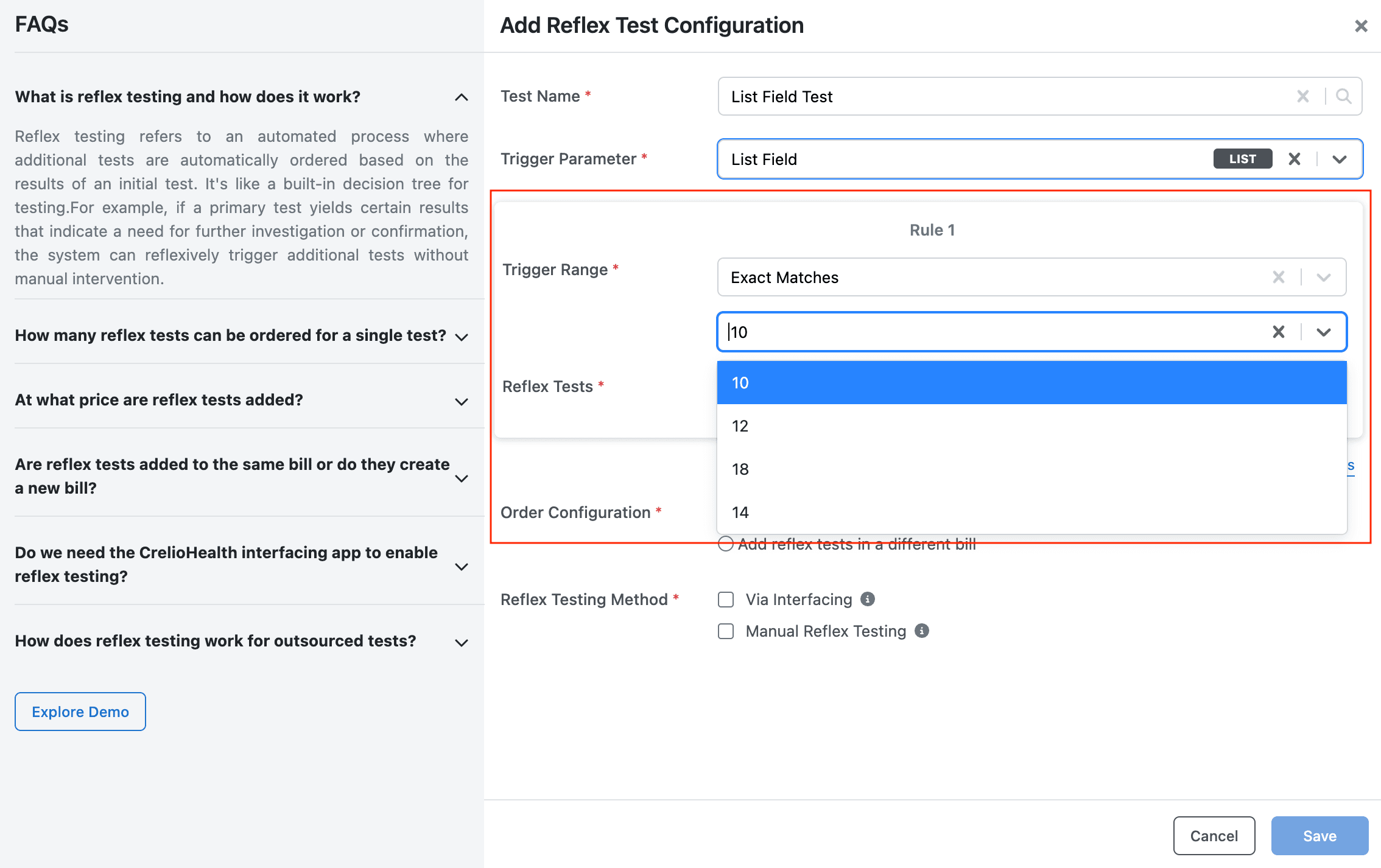
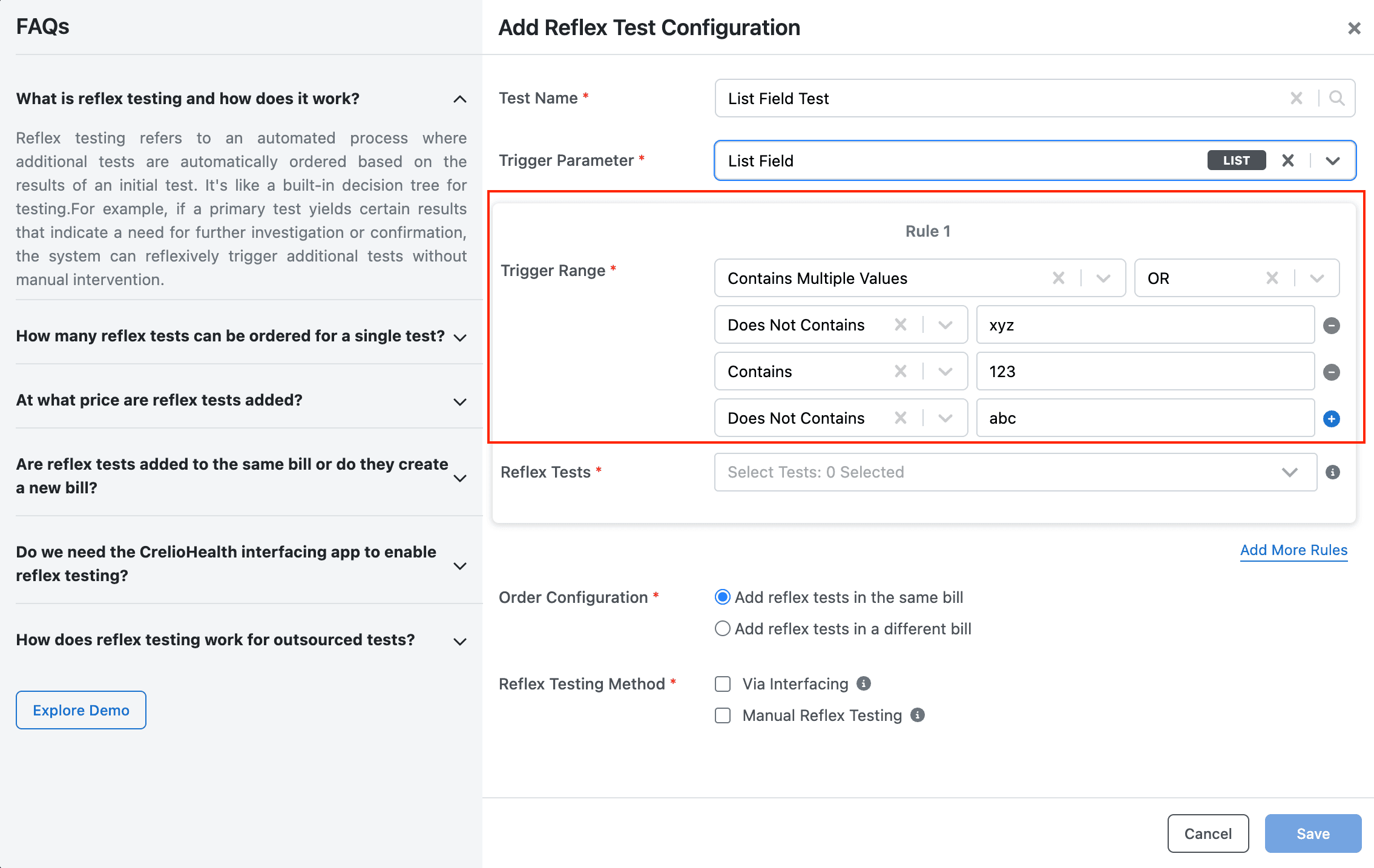
- Contains Multiple Values (Advanced) – choose AND / OR, then add multiple rules (Contains / Does Not Contain).
Example:Contains "Positive" AND Does Not Contain "Weak"
- Basic (Is Not / Contains / Does Not Contain) → enter a value.
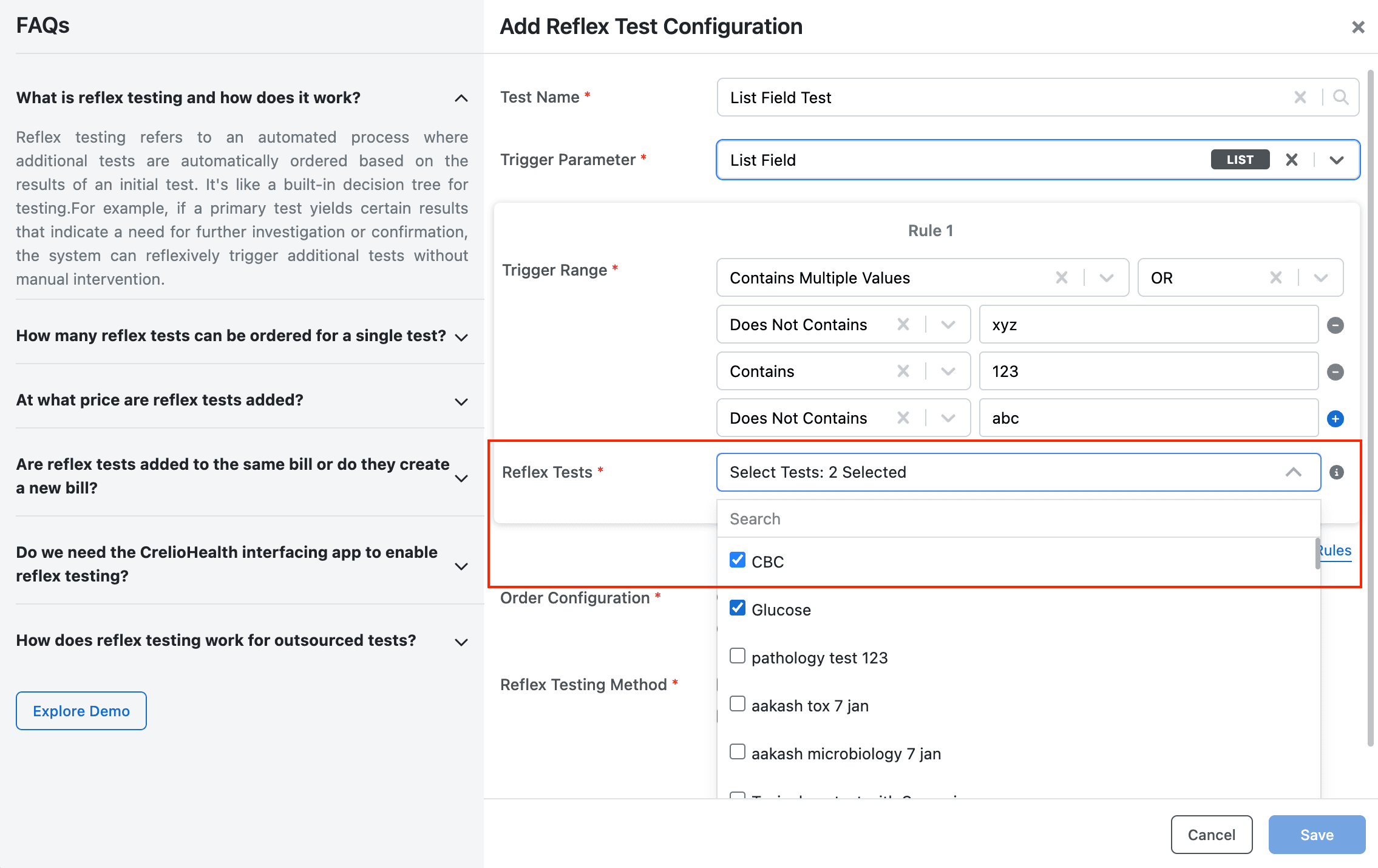
- Add Reflex Test(s) – select one or more tests.
- Configure Billing Behavior – same bill or new bill.
- Select Reflex Method – Interfacing / Manual.
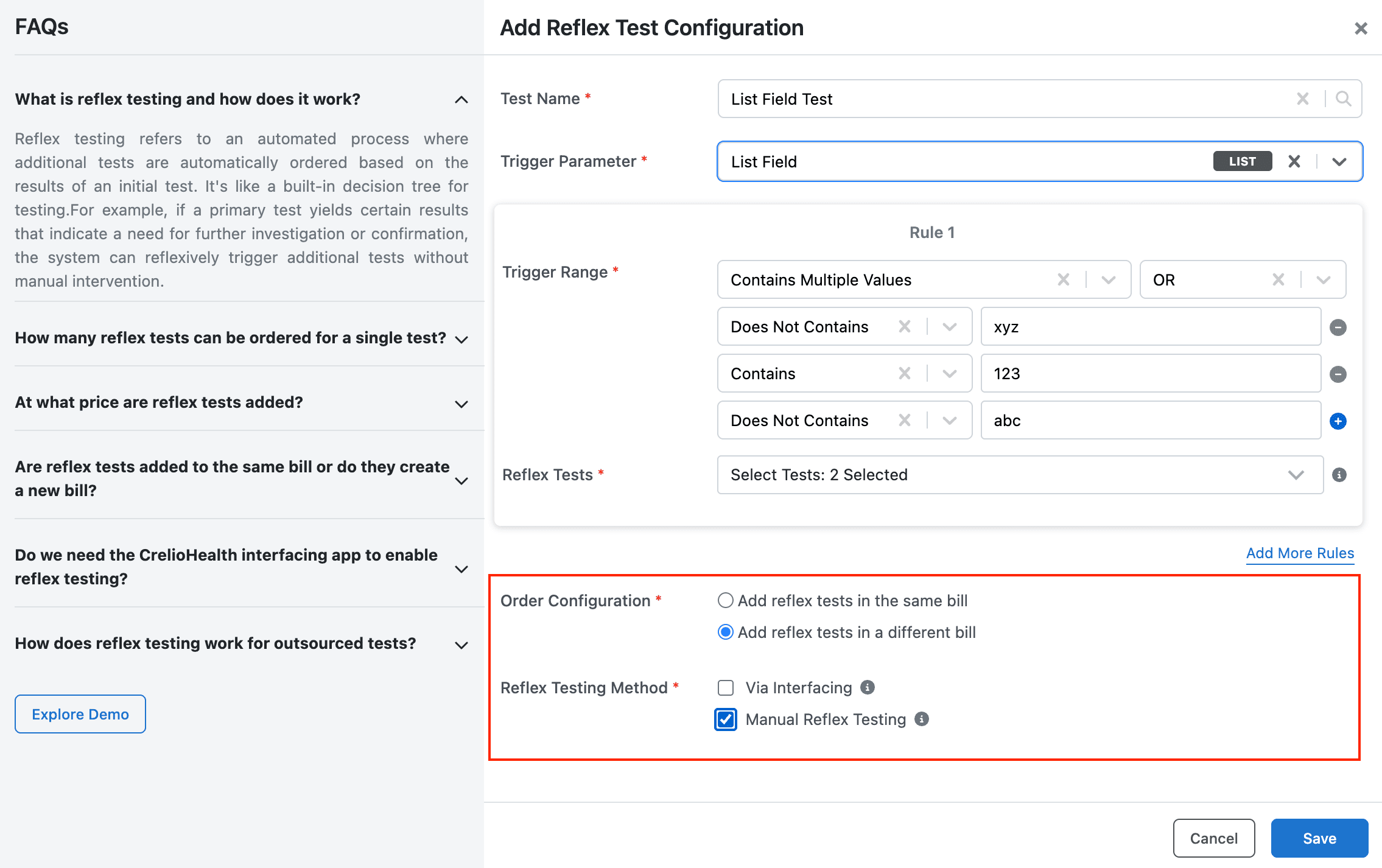
- Save.
Descriptive Parameter Configuration
Use when your parameter is free‑text based.
Steps
- Open Reflex Test Configuration → click Add Reflex Test.
- Select Test Name – choose a descriptive‑field test.
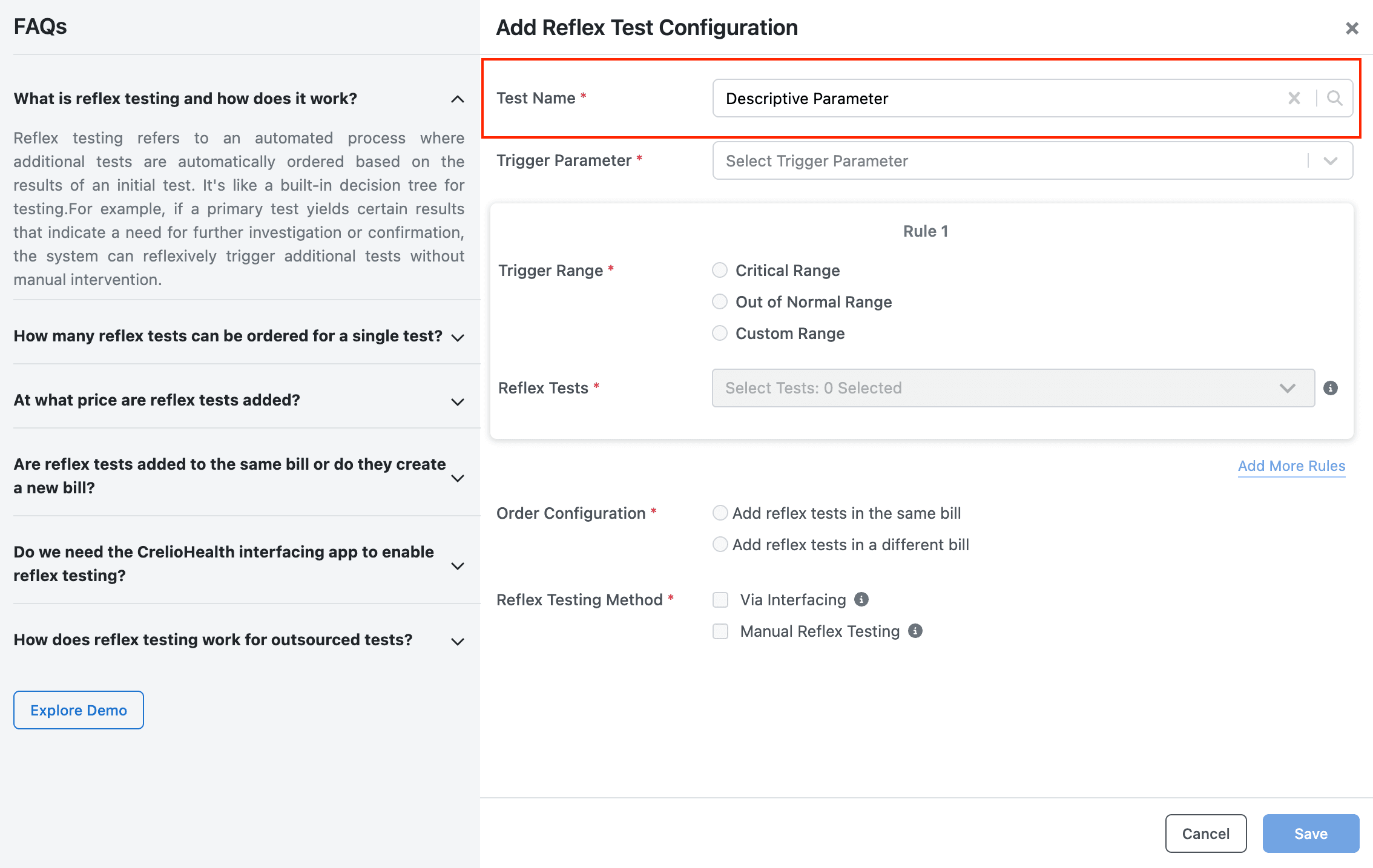
- Select Trigger Parameter – a descriptive parameter.
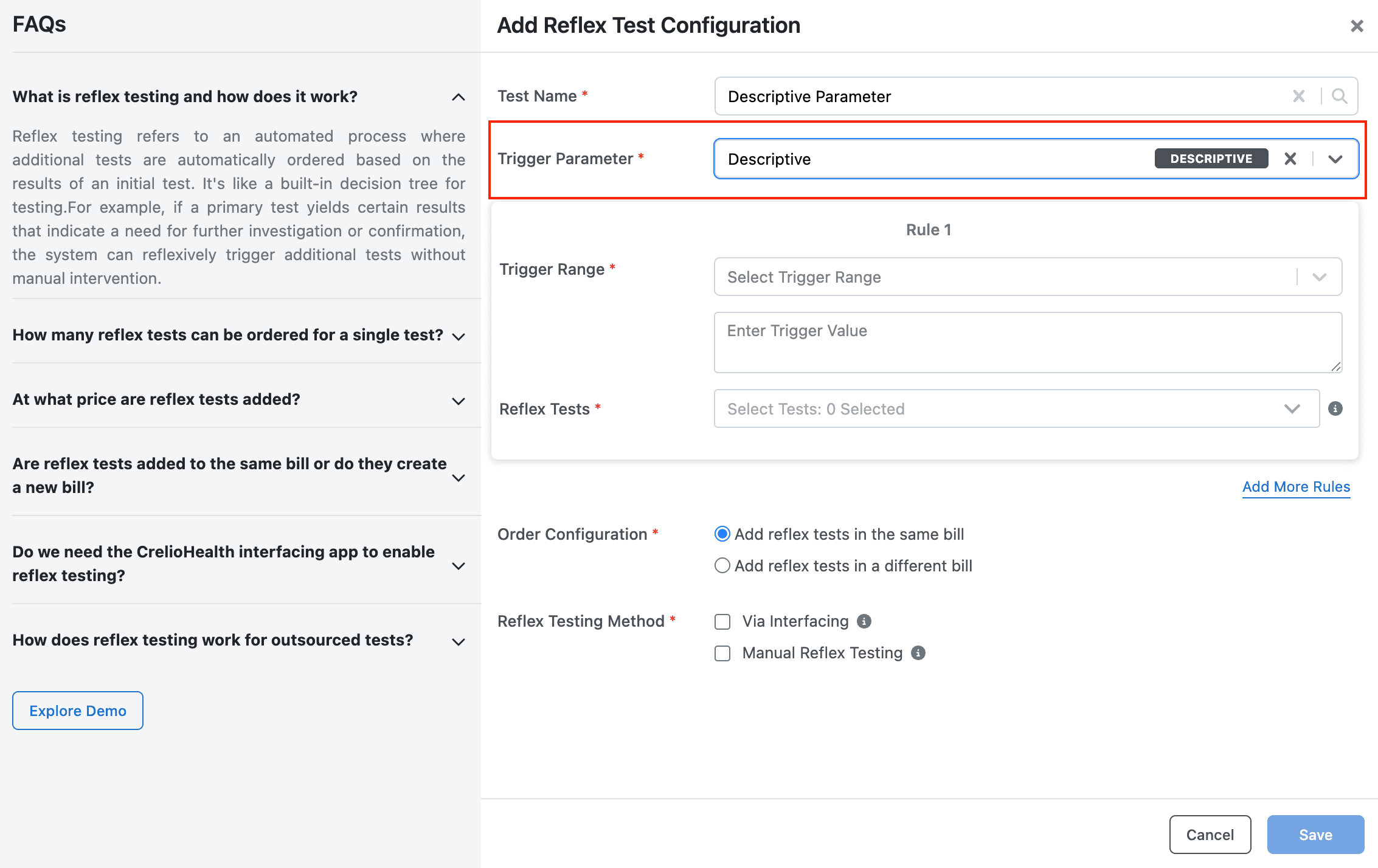
- Define Trigger Condition – same options as List: Contains, Does Not Contain, Is Not, Exact Matches, Contains Multiple Values.
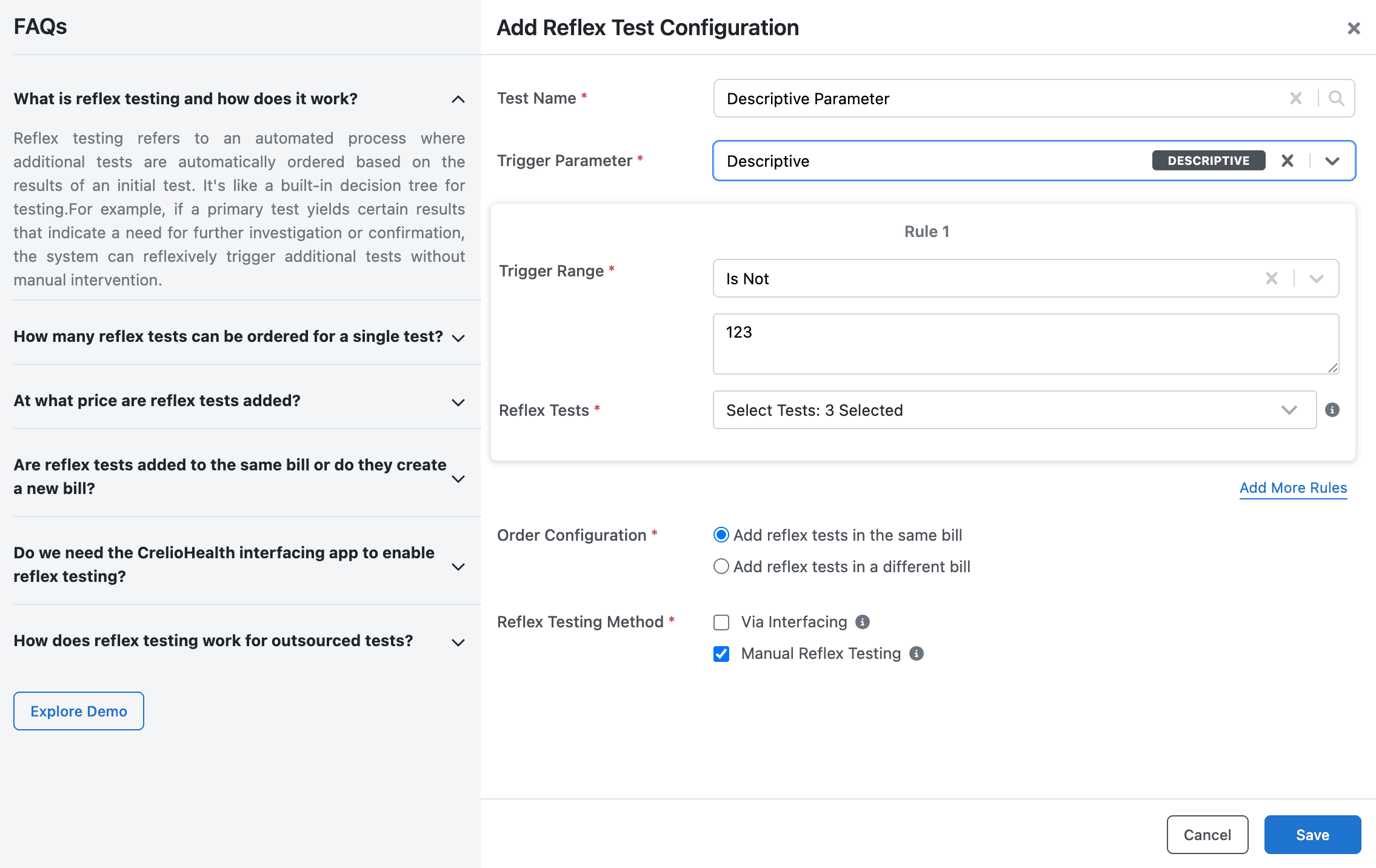
- Configure Condition Values – enter text manually (no dropdown). For Exact Match, enter the exact text. For advanced, use AND/OR logic.
- Add Reflex Test(s) – select one or more tests.
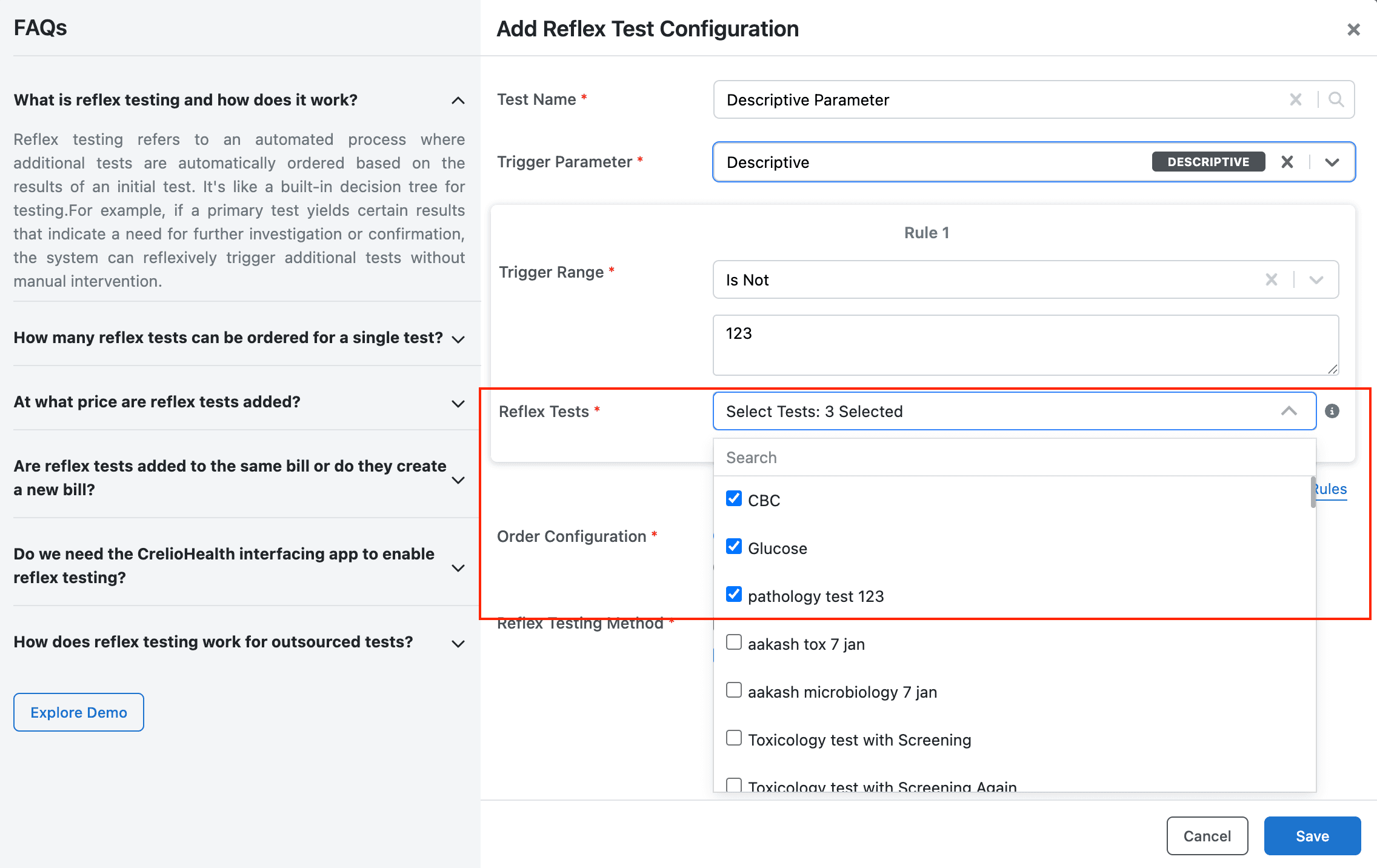
- Configure Billing Behavior – same bill or new bill.
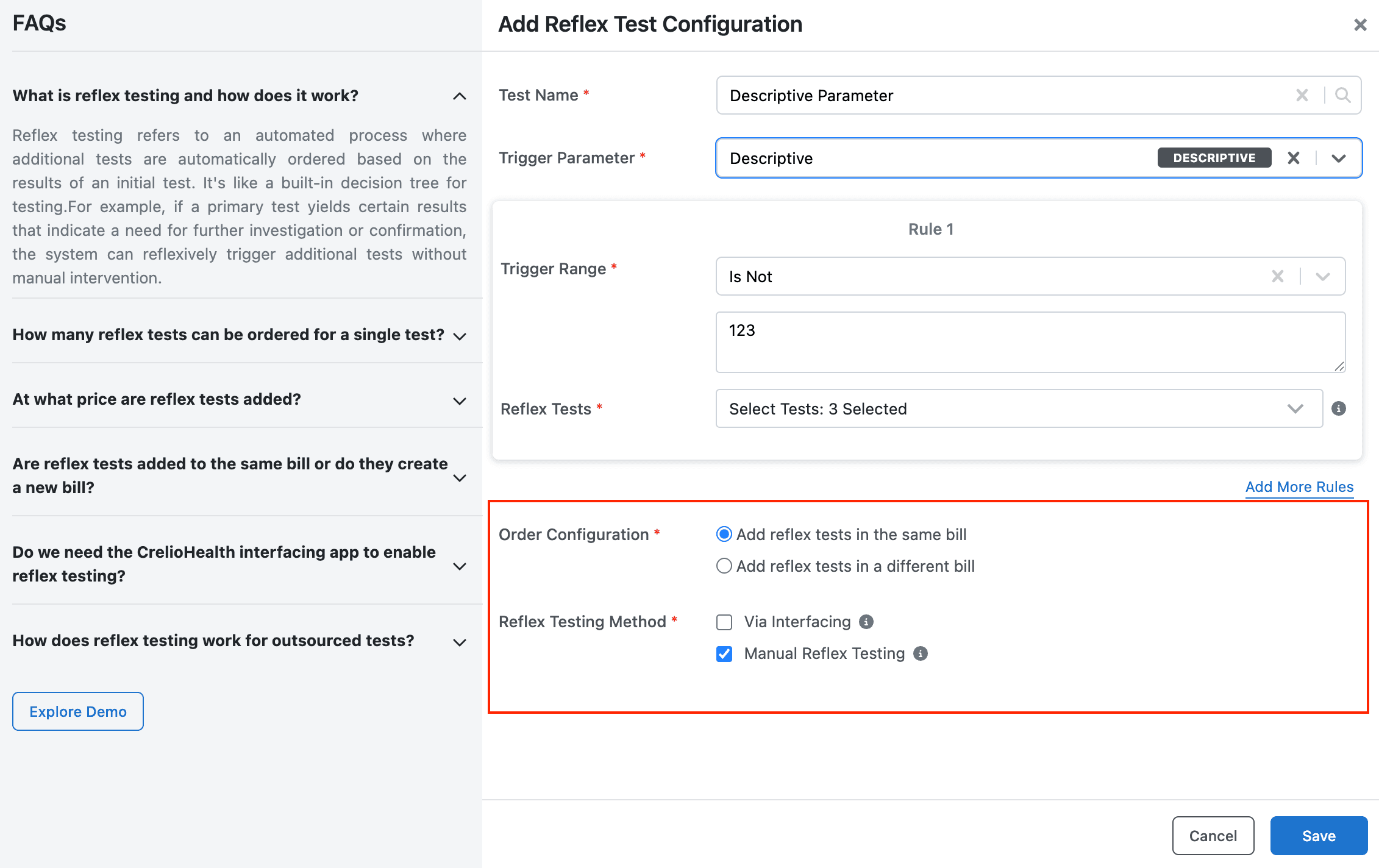
- Select Reflex Method – Interfacing / Manual.
- Save.
You can add multiple conditions by clicking Add More Rules. To remove a condition, use Remove Rule. Always click Save to persist changes.
Best Practices
- Use Range Parameters for numeric thresholds.
- Use List Parameters for categorical results.
- Use Descriptive Parameters for flexible text logic.
- Keep rules simple and clinically relevant.
Enabling or Disabling a Reflex Configuration
Once a reflex rule is created, you can temporarily turn it on or off using the status toggle. This is useful for testing, seasonal adjustments, or clinical reviews.
Steps
-
Go to the Reflex Test Configuration list
(Admin → Profile & Report Management → Reflex Test Configuration) -
Locate the rule you want to enable or disable.
-
Use the status toggle in the Enabled column of the table.
- Toggle ON → rule is active; reflex tests will be triggered when conditions are met.
- Toggle OFF → rule is inactive; no reflex tests will be triggered, but the configuration is preserved.
-
The change takes effect immediately. No need to save separately.
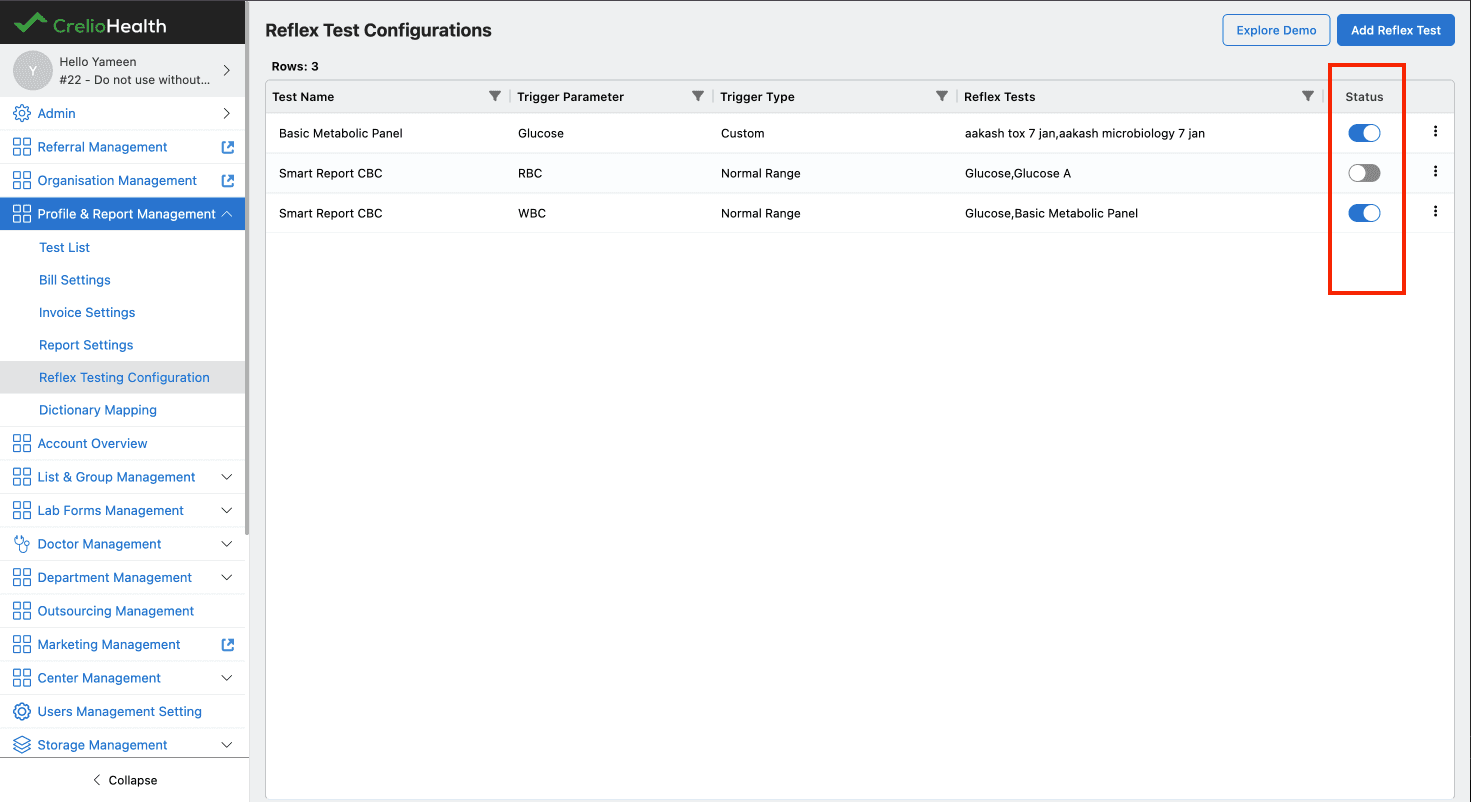
Note: Disabling a rule does not delete it. You can re‑enable it at any time. Disabled rules are not evaluated during result entry or interfacing.
What about the reflex method (Interfacing / Manual)?
Those are set during configuration and determine how the reflex can be triggered.
- Interfacing – automatic trigger from machine results.
- Manual – user‑initiated trigger from the report entry screen.
Both methods respect the enable/disable status of the rule.