Installation Guide
Step-by-step workflow guide for image acquisition and viewing with troubleshooting tips
Installation Guide
This guide covers the complete workflow for medical image acquisition and viewing using the PACS module, including basic troubleshooting steps.
Image Acquisition Workflow
Step 1: Pre-Installation Setup
-
Verify System Requirements
- Ensure PC meets minimum requirements (8GB RAM, i5/i7 12th Gen+ processor)
- Confirm available disk space for image storage
-
Network Configuration
- Set up Windows PC on the same network as the imaging machine
- Assign static IP to the Windows PC
- Verify connectivity:
ping [machine_ip] - ECHO must succeed. If it does not work, get in touch with Machine Engineer.
-
Firewall & Antivirus Setup
- Add PACS applications to Windows Firewall exceptions
- Add PACS applications to Antivirus exception lists
Step 2: Enable PACS for the Lab
Enable PACS for the lab. From support dashboard.
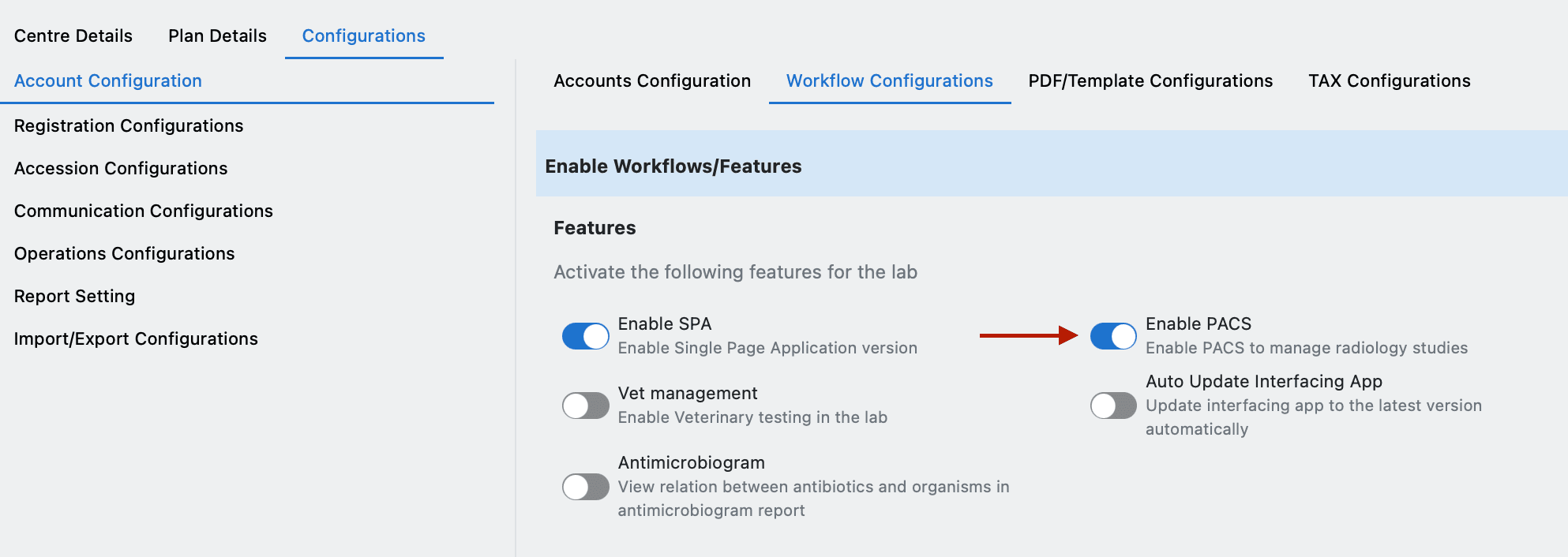
Step 3: Installation
-
Install Dicom Receiver App
- Download Dicom Receiver application
- Configure port settings and network parameters
- Create windows service
NSSM install pacs_receiver
-
Install Orthanc App
- Download Orthanc DICOM server
- Install and configure with appropriate storage settings
- Set up DICOM association parameters
-
Install PACS Client App
- Download and install the PACS Client application
- Modify required settings in
C:\livehealth\common_config.json - Create windows service
NSSM install pacs_client
Downloadable files can be found here : https://drive.google.com/drive/u/0/folders/16m7_tLDH_vHv85FaHSiV7rrqUkfQZScR
Step 4: Machine Configuration
-
RIS Configuration
- Provide AE Title to the Lab Team
- Provide Port Number for DICOM communication
- Provide IP Address for network connectivity
-
Worklist Configuration
- Configure RIS/worklist settings on the imaging machine
- Test worklist functionality
-
Storage Configuration
- Configure storage/ image sending parameters
- Test image transmission to PACS
Step 5: Testing
-
Connectivity Testing
- Ping test from Windows PC to imaging machine
- ECHO test from imaging machine to Windows PC
- Capture screenshots of successful tests
-
DICOM Association Testing
- Test DICOM association between machine and PACS
- Verify image transmission capabilities
- Check image quality and metadata integrity
Basic Troubleshooting Guide
Network Connectivity Issues
Problem: Cannot ping imaging machine from Windows PC
- Verify both devices are on the same network
- Check IP address assignments
- Verify network cables and Wi-Fi connections
- Check if machine firewall is blocking ping requests
Problem: Image transmission fails
- Verify DICOM port is open and accessible
- Check firewall settings for DICOM communication
- Verify AE Title configuration on both ends
- Test DICOM association manually
Image Issues
Problem: Images not loading in viewer
- Verify image storage in Orthanc
- Check database connectivity
- Restart PACS services
Performance Issues
Problem: Slow image loading times
- Check available RAM (minimum 8GB, recommended 16GB)
- Verify network bandwidth (match scan size recommendations)
- Optimize Orthanc storage settings
Problem: Application crashes or freezes
- Check system resource usage
- Verify database connectivity
- Update to latest application version
- Check for application logs and error messages
Problem: Image sequencing does not work
- Check system resource usage
- Check if system is meeting minimum system requirements
- Check internet bandwidth, ensure it is sufficient
- Update to latest application version
Cloud Sync Issues
Problem: Cloud synchronization fails
- Verify internet connectivity
- Check cloud service status
- Verify sync credentials and permissions
- Restart sync services
This workflow guide should help users successfully navigate the PACS module for image acquisition, viewing, and basic troubleshooting. For advanced issues, please contact the technical support team.