Workflow Guide
Step-by-step workflow and setup instructions for MS Word Integration
MS Word Integration Workflow Guide
This guide provides detailed instructions for setting up and using the MS Word Integration feature for radiology reports.
System Requirements
- Operating System: Windows 8 or later
- Microsoft Word: Word 2013 or later must be installed
- Browser: Modern web browser with protocol handler support
This feature is Windows-only due to the winword: protocol handler used to launch Microsoft Word.
Setup Instructions
Test Setup
- Navigate to Admin → Profile and Report Management
- Select the radiology test you want to enable the feature
- Go to the Test Information tab
- Check the "Allow editing in Word" option
- Click Save changes
Template Setup
- Navigate to Operations → Waiting List
- Click on Settings
- Go to Template & Snippet section
- Click Create Template
- Upload a
.docxtemplate file from your system - Configure template settings as needed
- Save the template
Templates must be in .docx format only. Older .doc format is not supported.
Workflow
Step-by-Step Process
-
Register and Bill Patient
- Register the patient in the system
- Bill the patient for a Radiology test
- Complete the billing process
-
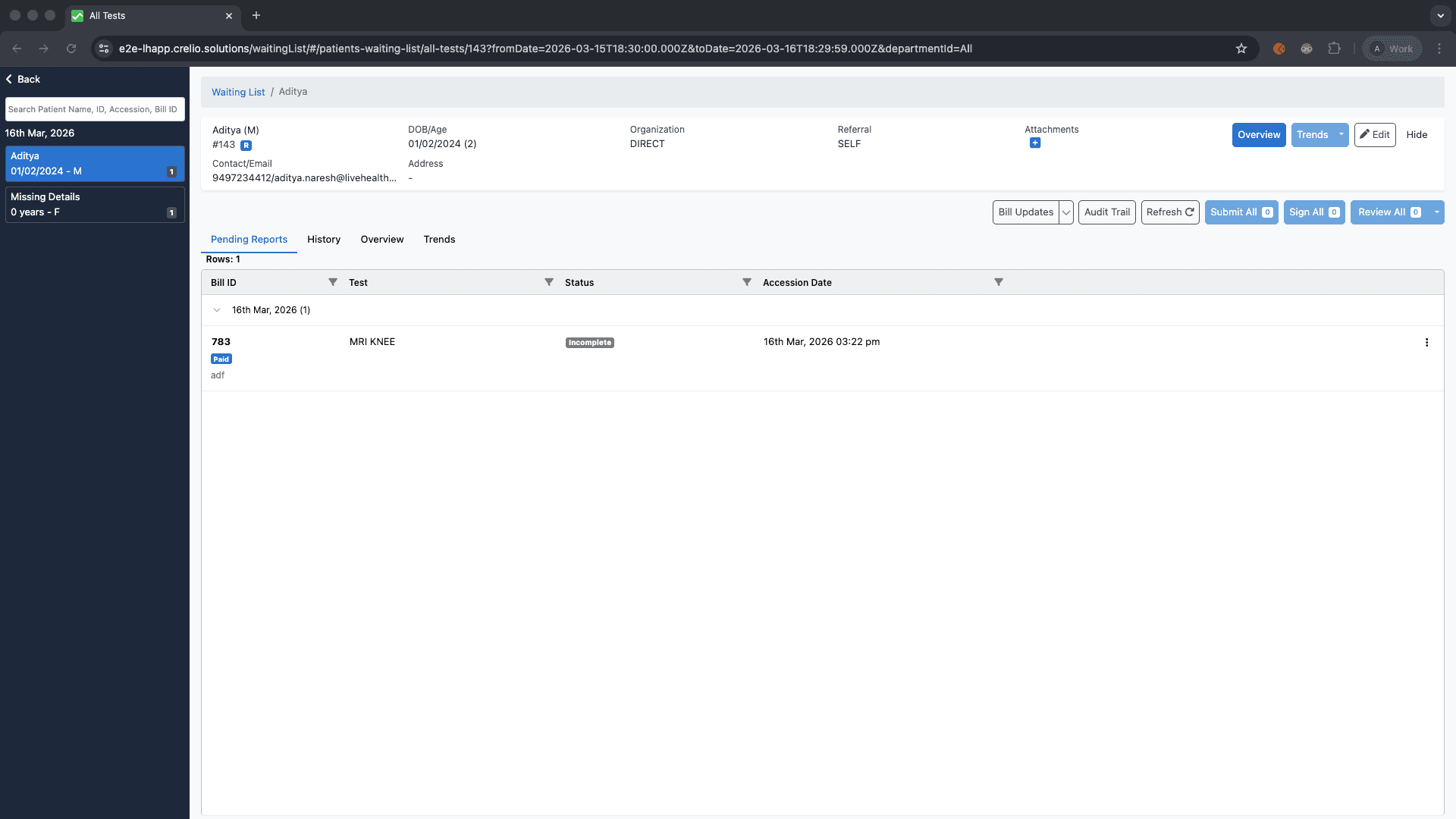
Navigate to Operations
- Go to the Operations module
- Access the Waiting List section
-
Select Test
- Find the patient's test in the waiting list
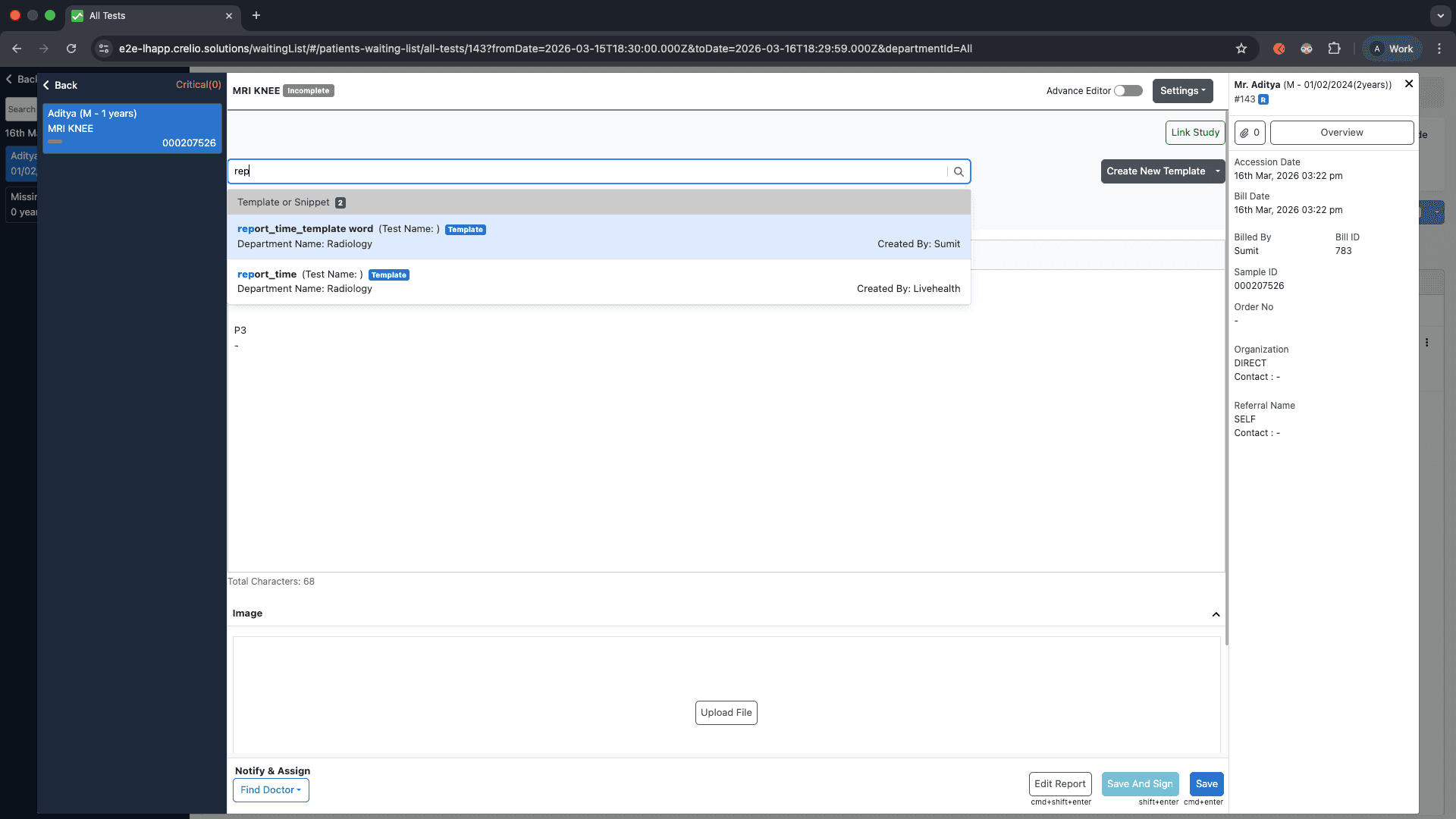
- Click on the test to open the test modal
-
Edit in Microsoft Word
- In the test modal, click the "Edit in Microsoft Word" button
- The system will process the selected template
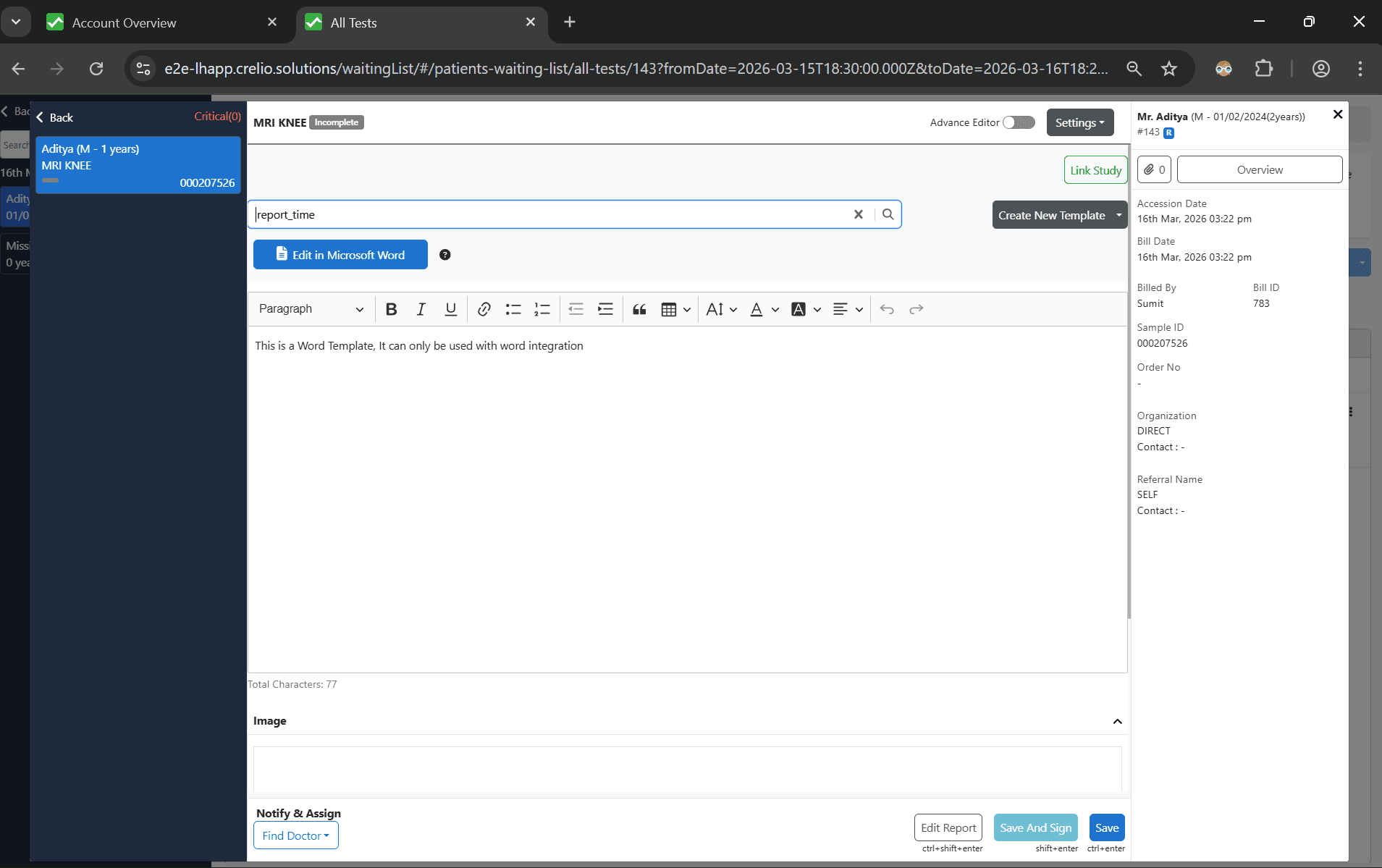
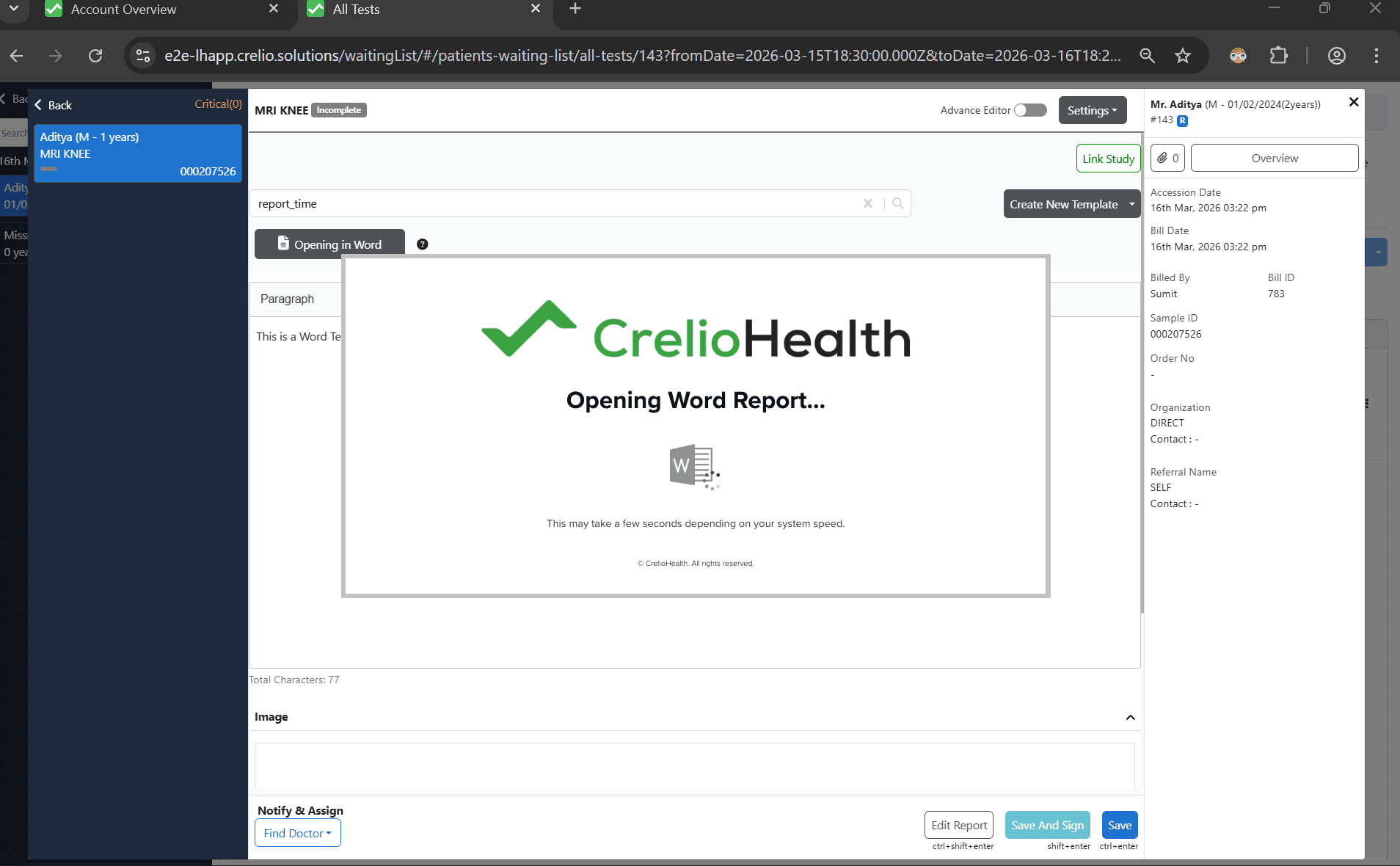
- Microsoft Word will automatically open with the document
-
Edit Document
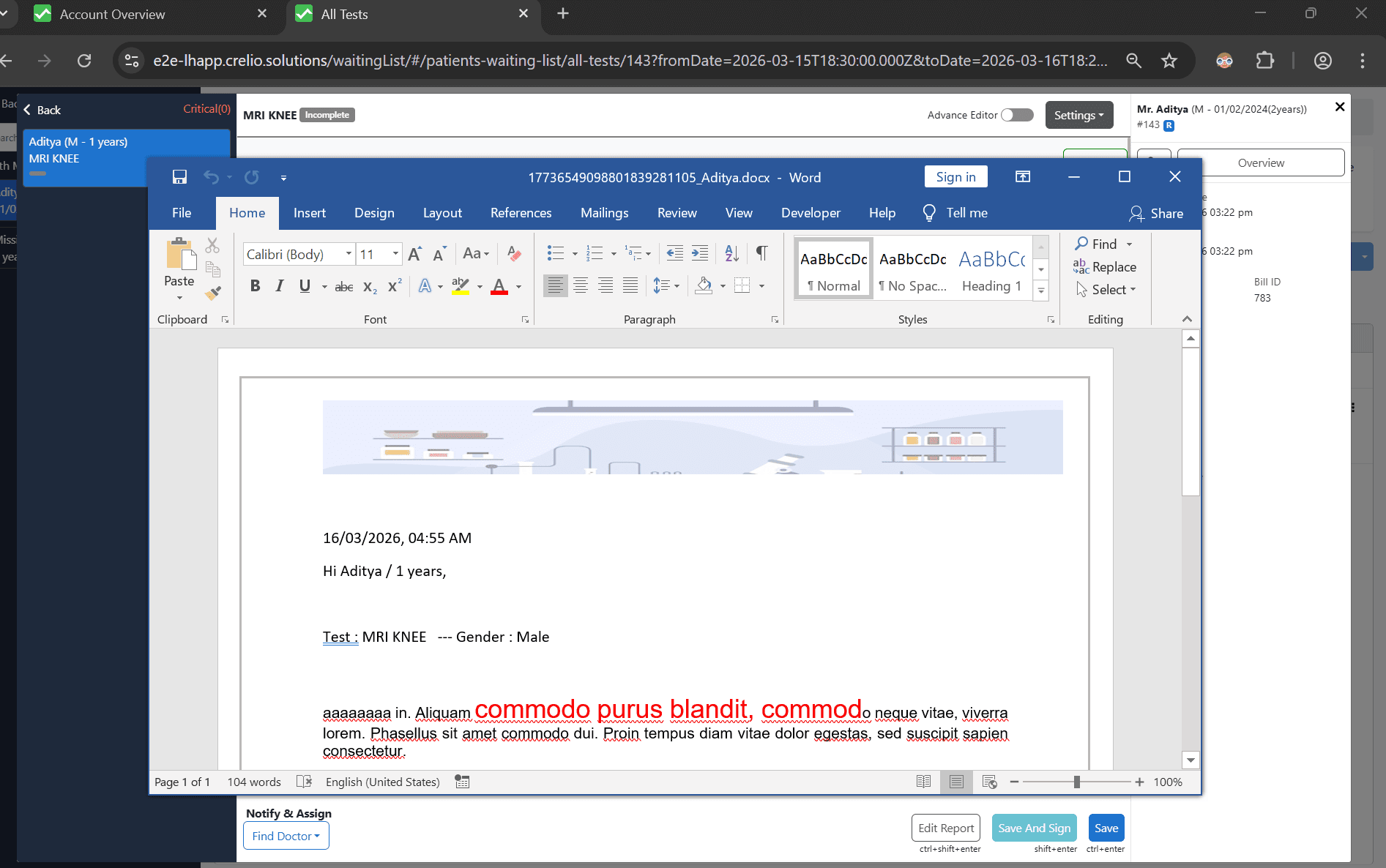
- The Word document will have all variables replaced with actual patient and test data
- You can add images, change formatting, or modify content as needed
- Work with the document using full Microsoft Word functionality
-
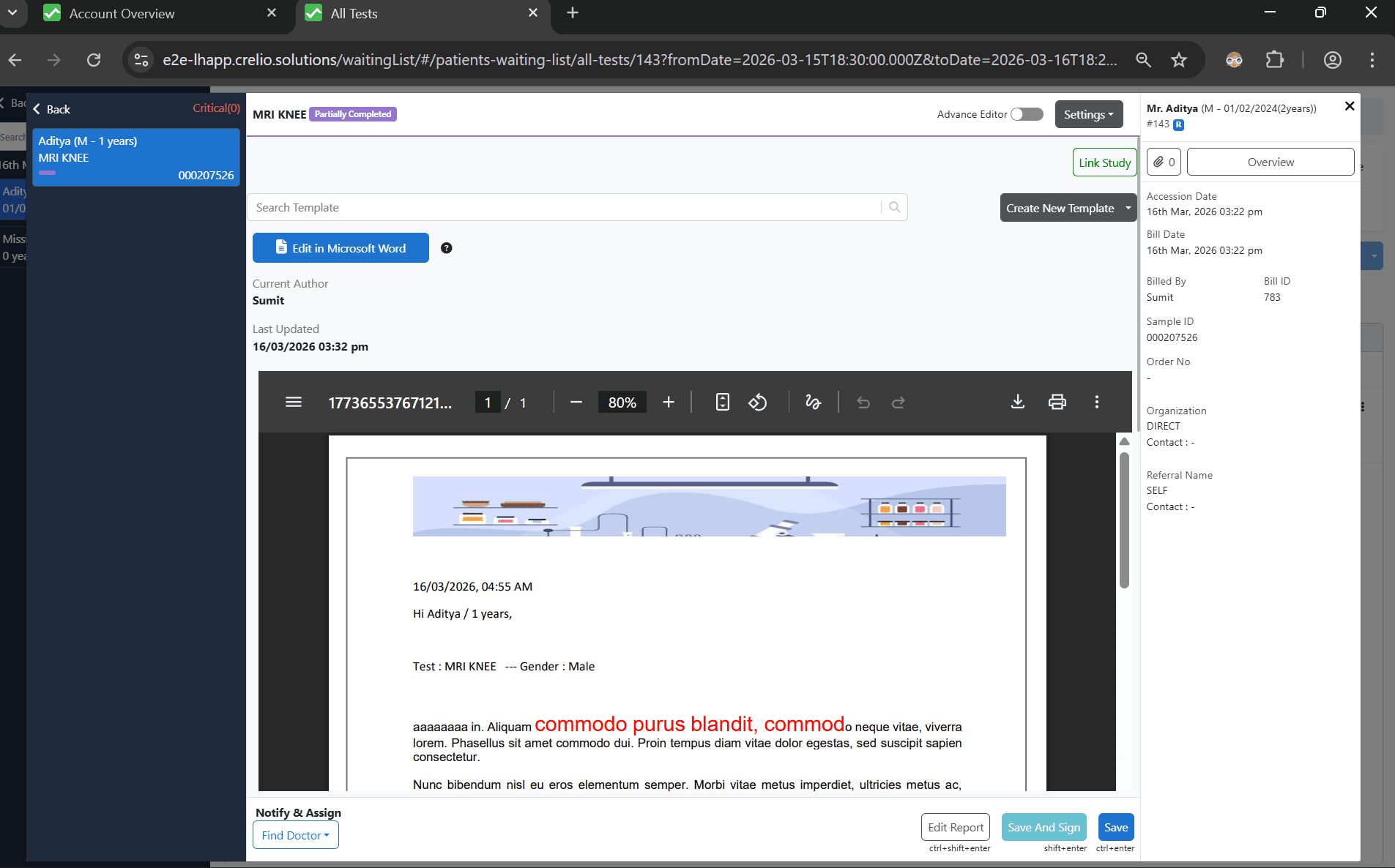
Save Document
- Click Save in Microsoft Word
- The first save action automatically triggers:
- Upload of the Word document to the server
- Conversion of the document to PDF format
- Storage of both files in the system

-
Report Completion
- The PDF version becomes the final radiology report
- The report is marked as completed in the system
- The report is available for viewing and distribution
Dynamic Fields
The following placeholders are automatically replaced with actual data when the template is opened:
| Placeholder | Replaced With |
|---|---|
{{patient_designation}} | Patient's Designation |
{{patient_name}} | Patient's Name |
{{patient_gender}} | Patient's Gender |
{{patient_age}} | Patient's Age |
{{patient_dob}} | Patient's Date of Birth |
{{patient_id}} | Patient's ID |
{{patient_mrn}} | Patient's MRN |
{{patient_contact}} | Patient's Contact |
{{patient_address}} | Patient's Address |
{{test_name}} | Test Name |
{{test_code}} | Test Code |
{{sample_type}} | Sample Type |
{{department}} | Department |
{{lab_name}} | Lab Name |
{{lab_address}} | Lab Address |
{{lab_contact}} | Lab Contact |
{{referral_doctor}} | Referral Doctor |
{{organization_name}} | Organization Name |
{{organization_address}} | Organization Address |
{{organization_contact}} | Organization Contact |
{{report_time}} | Report Time |
{{sample_id}} | Sample ID |
{{sample_collected_on}} | Sample Collected On |
{{registration_time}} | Registration Time |
Troubleshooting
Common Issues
-
Word doesn't open
- Ensure Microsoft Word 2013+ is installed
- Check that the
winword:protocol is registered - Verify browser settings allow protocol handlers
-
Template not found
- Verify the template was uploaded successfully
- Check that a template is selected for the test
- Ensure the template file is in
.docxformat
-
Placeholders not replaced
- Check template syntax (use
{{variable}}format) - Verify patient and test data is available
- Ensure template is properly formatted
- Check template syntax (use
-
Upload fails
- Check network connectivity
- Verify file size is within limits (50MB for Word, 100MB for PDF)
- Ensure sufficient storage space
Error Messages
-
"Microsoft Word must be installed and configured on your machine for this to work"
- Word is not installed or protocol handler is not registered
-
"Select the appropriate template to edit in word"
- No template selected or template not found
-
"Failed to fetch existing report"
- Network or server error during session creation
Session Management
Active Sessions
- Only one user can edit a report at a time
- Sessions automatically expire after 2 hours of inactivity
- Users can transfer authorship using "Take Authorship" feature
- Session status is displayed in the test modal
File Storage
- Word documents and PDFs are stored securely in S3
- Files are organized by patient ID and timestamp
- Access is controlled through authenticated sessions
- Files are automatically cleaned up according to retention policies
Best Practices
Template Creation
- Use clear, descriptive placeholder names
- Test templates with sample data before production use
- Include all necessary fields for complete reports
- Consider formatting and layout for professional appearance
Workflow Optimization
- Enable Word editing only for tests that require extensive formatting
- Train staff on Word editing procedures
- Monitor session usage and template effectiveness
- Regularly update templates based on feedback
Security Considerations
- Ensure Word installations are up to date
- Use strong authentication for user accounts
- Monitor file access and editing activities
- Follow data privacy regulations for patient information