Workflow Guide
Step-by-step operator and developer workflow for Molecular.
Workflow Guide
This section explains how the Molecular feature is used in practice before diving into implementation details.
Important: Document Db should be enabled for this feature to work.
Prerequisite Master Data Setup
Before Molecular configuration is used, the lab needs prerequisite master data for genes, antibiotics, and organisms.
Where the user goes
- Open the application sidebar.
- Expand
Drug Master / Panel Master. - Open
Gene Master,Antibiotic Master, orOrganism Masterdepending on the master data being configured.
What the controls do
| Control | What it does |
|---|---|
Add Gene | Opens gene creation flow |
Add Antibiotic | Opens antibiotic creation flow |
Add Organism | Opens organism creation flow |
Download List | Downloads visible master data |
Bulk Actions | Applies supported operations to selected master rows |
Request New ... For System Default List | Requests a new system default gene, antibiotic, or organism |
Gene Master
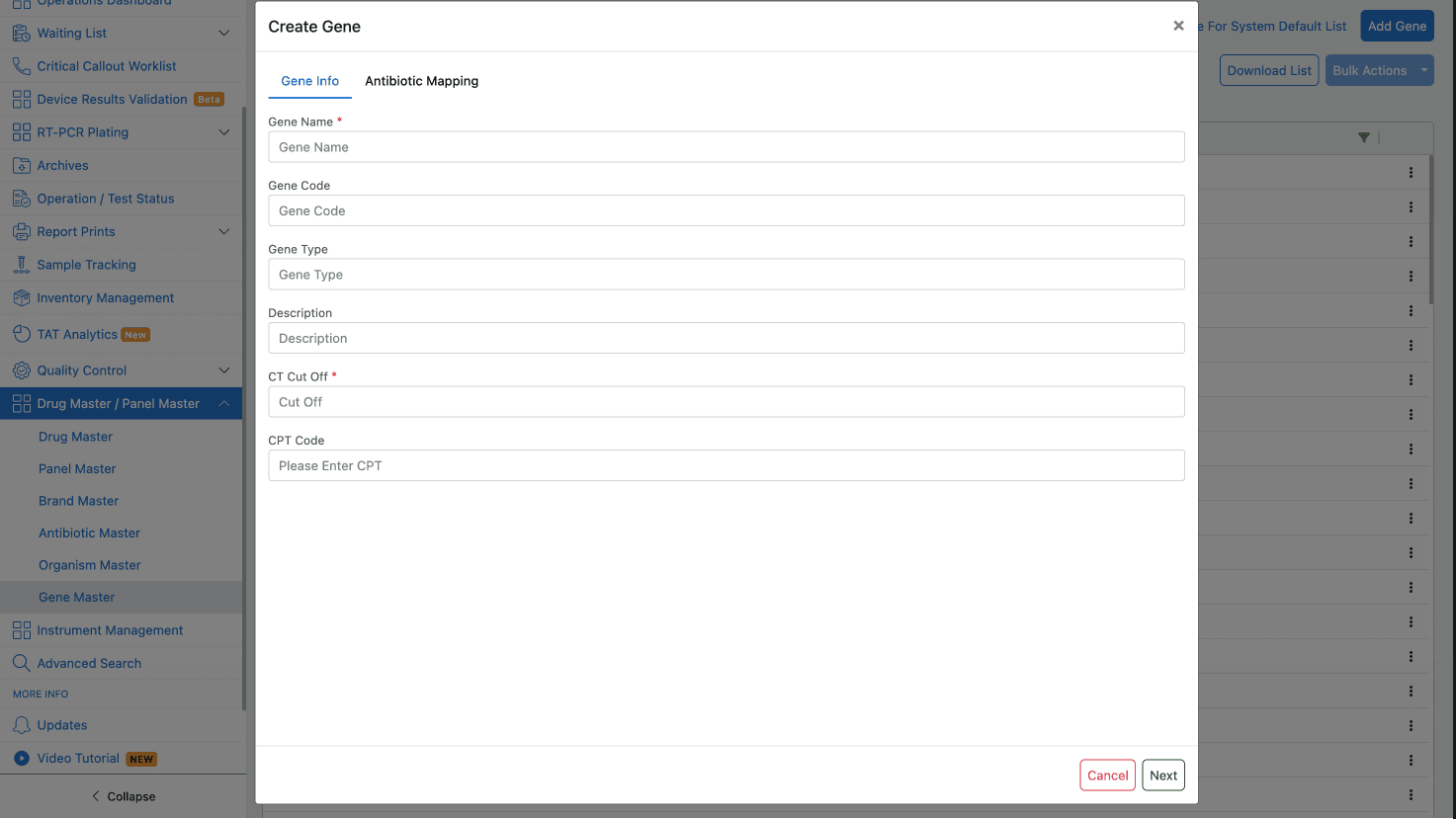
Gene Master is the base catalog for genetic markers. Each gene record represents a genetic target that may be detected in a biological sample.
The list view shows:
- gene name,
- gene code,
- description,
- type,
- status/action controls.
The screen supports tabs such as All Genes, System Defaults, Custom Genes, and Disabled Genes.
When creating or updating a gene, the user can map the gene to specific antibiotics to define antibiotic resistance mappings. This linkage is required for the Antibiotic Resistance report component to function correctly.
Antibiotic Master
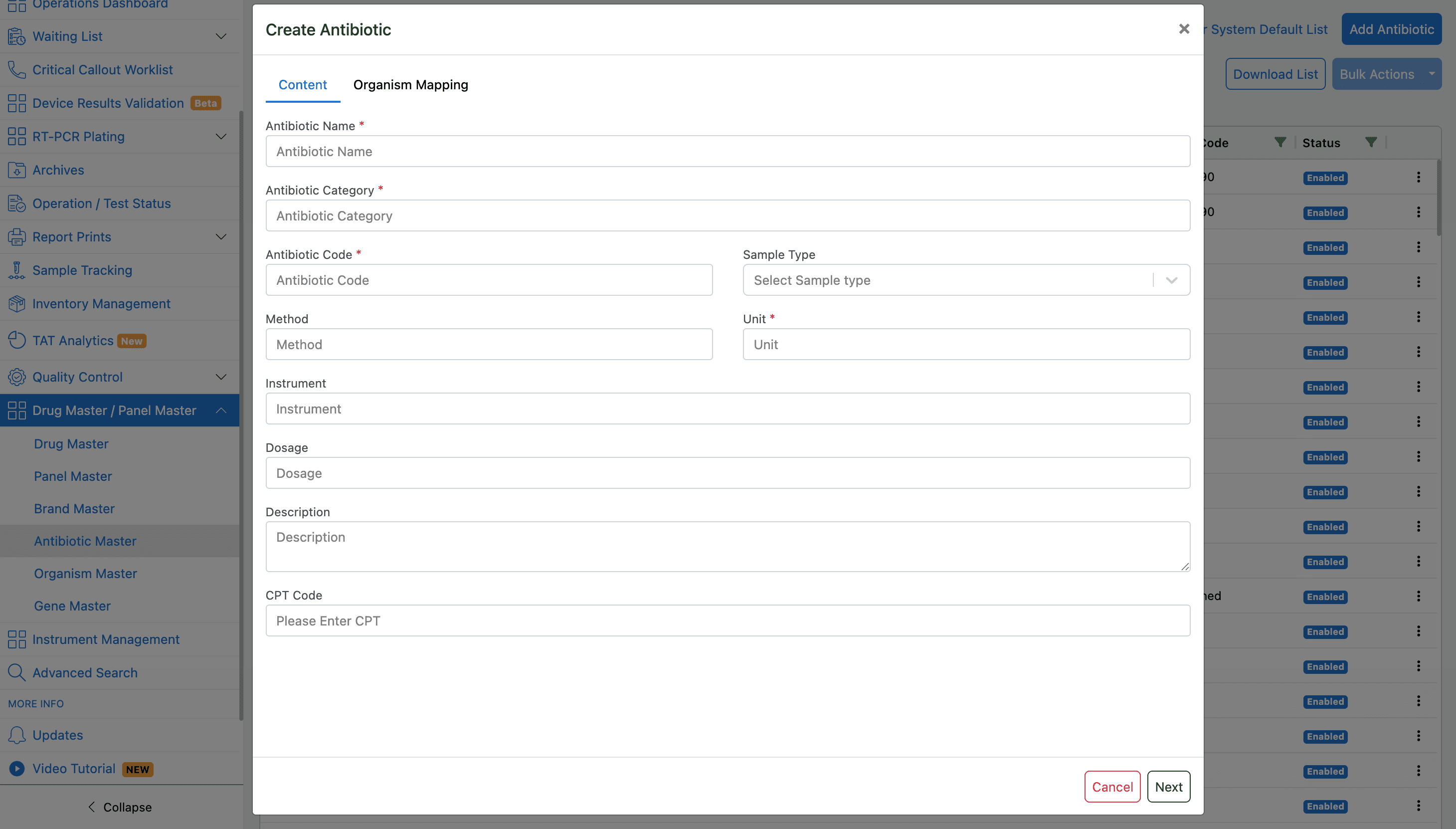
Antibiotic Master defines the antimicrobial drugs used in susceptibility testing.
The list view shows:
- antibiotic name,
- sample type,
- antibiotic category,
- antibiotic code,
- status/action controls.
Antibiotics can be mapped to both genes (for resistance marker tracking) and organisms (for standard and molecular antibiograms).
When disabling an antibiotic, the system checks for any linked organisms and displays them in a warning modal to prevent accidental disruption of antibiogram mappings.
Organism Master
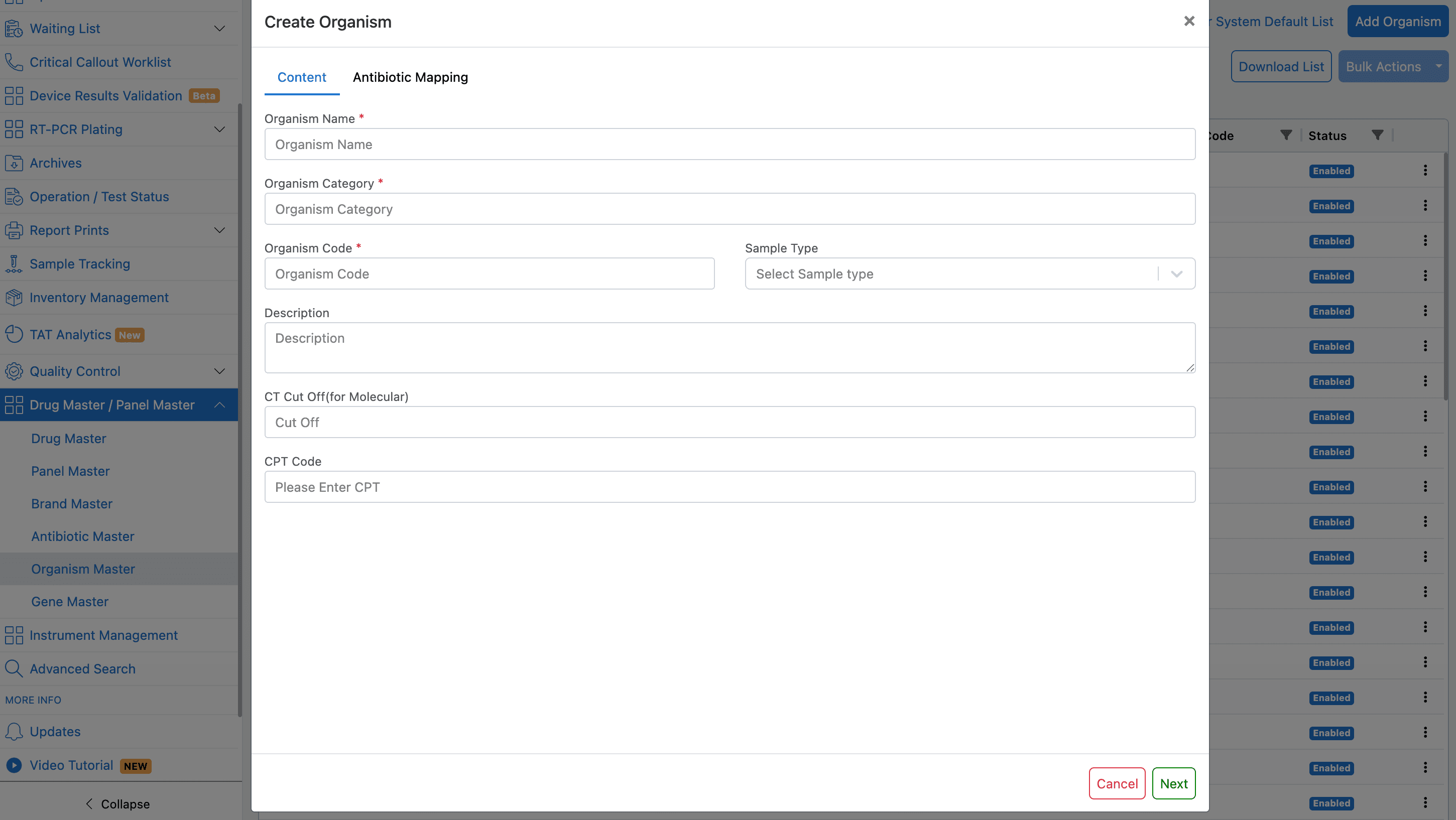
Organism Master defines the microorganisms that may be detected in a sample.
The list view shows:
- organism name,
- sample type,
- organism category,
- organism code,
- status/action controls.
When creating or updating an organism, the user can map antibiotics to the organism. There are two types of mappings managed here:
- Standard Antibiogram mappings (stored in
OrganismAntibiotics). - Molecular Mapping (stored in
MolecularOrganismAntibiotics), which includes sequence ordering and an active state.
When disabling an organism, the system checks for linked antibiotics and displays them in a warning modal.
Molecular Report / Test Setup
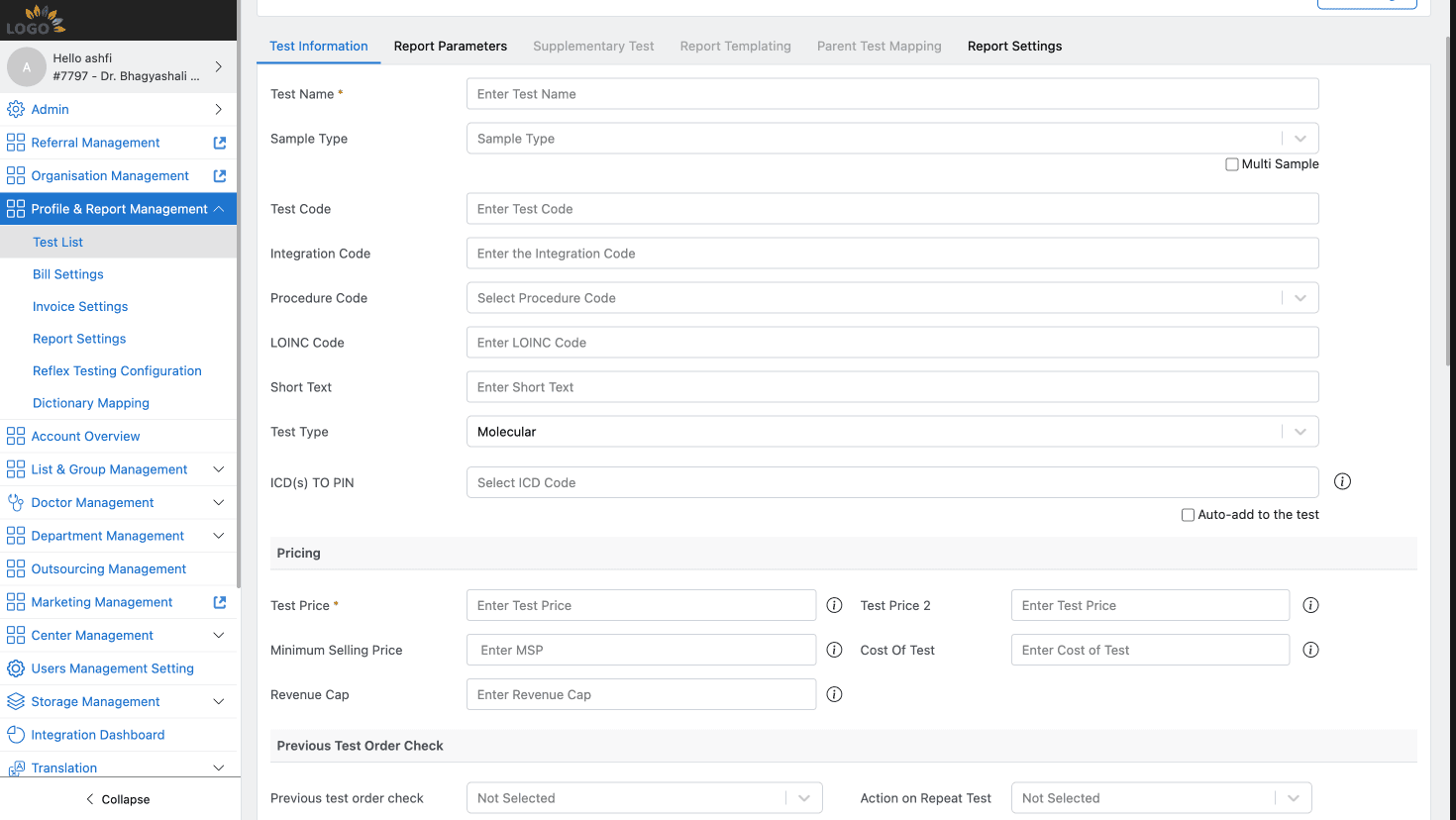
After master data is configured, create a molecular report from the Test List.
Where the user goes
- Open
Profile & Report Management. - Open
Test List. - Click
Add New Test. - On
Test Information, setTest TypetoMolecular. - Save the test/report after report parameters are configured.
Selecting Molecular as the test type enables molecular-specific report components in the Report Parameters tab.
Molecular Report Components
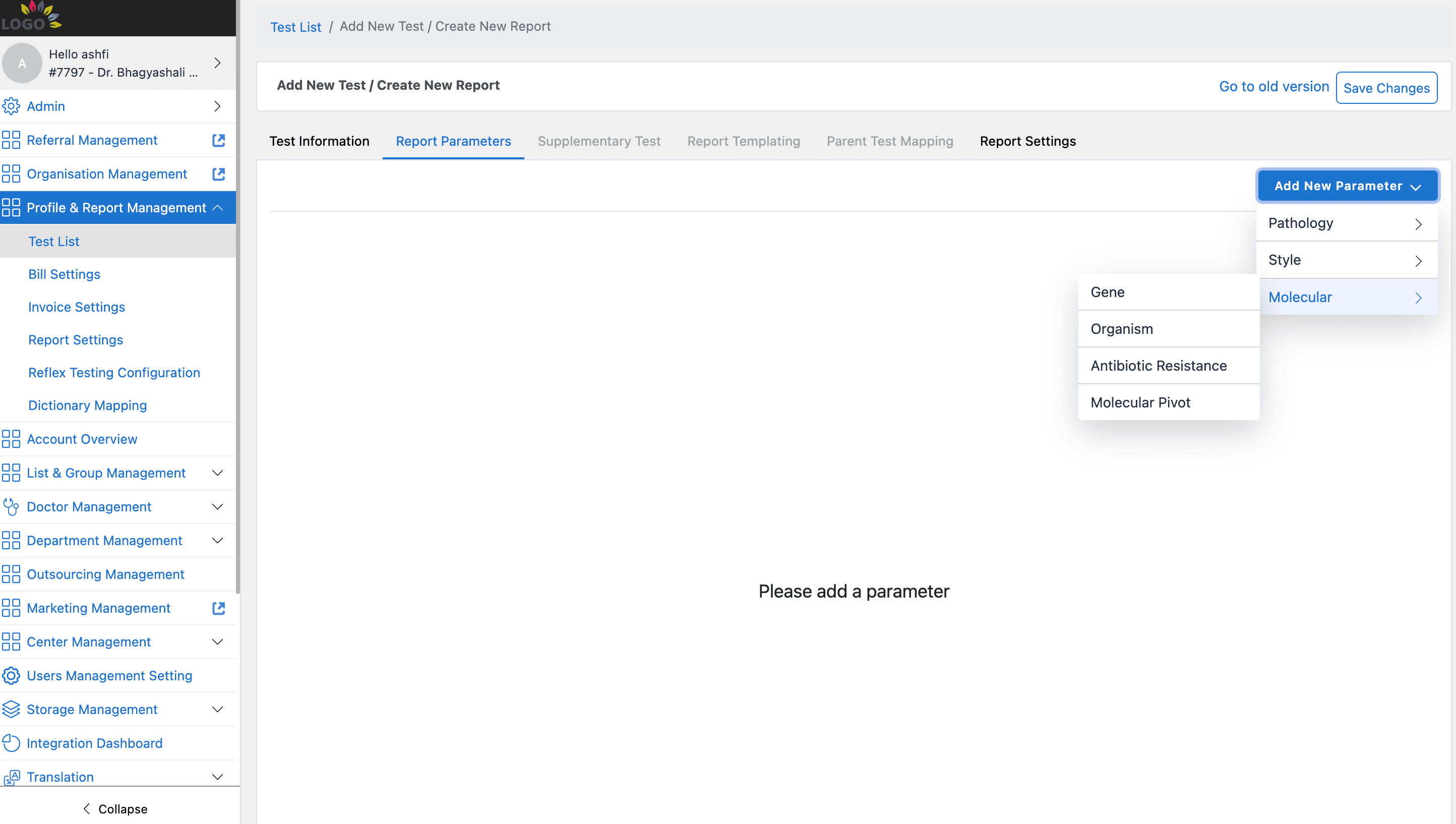
The Add New Parameter menu exposes molecular components:
GeneOrganismAntibiotic ResistanceMolecular Pivot
Note: There are default columns like Name, Result, Interpretation, Cut off, Viral Load and more fields can be added by the Select fields dropdown.
Gene Component
The Gene component is used to detect genetic markers in the sample.
Key behavior:
- Includes default and customizable fields configured via the Select fields dropdown.
- The detection logic uses an inverted cut-off comparison: if the entered result is at or below the cut-off (or non-numeric), the gene is considered
Detected. If it is above the cut-off, it isNot Detected. Detectedrows are highlighted in the report entry UI.
Organism Component
The Organism component is used to identify microorganisms in the sample.
Key behavior:
- Includes default and customizable fields configured via the Select fields dropdown.
- Uses the same inverted detection logic as Gene (
≤ cut_off=Detected).
Antibiotic Resistance Component
The Antibiotic Resistance component shows the susceptibility patterns for detected genes. It must be linked to a Gene component in the same report.
Key behavior:
- Displays an antibiogram-style grid.
- Features a
Calculatebutton that automatically pulls in resistance data based on the linked Gene component's results and the master data mappings. - Provides filter toggles:
Show All Antibiotics,Only Resistant,Only Sensitiveto refine the view during report entry.
Molecular Pivot Component
The Molecular Pivot component consolidates the findings from Antibiotic Resistance components into a summary table. It must be linked to an Antibiotic Resistance component.
Key behavior:
- Displays the antibiotic name alongside the configured fields.
- Respects
Group By,Sort By, andOrder Bymeta settings to format the summary output for the final report.
Primary User Workflow
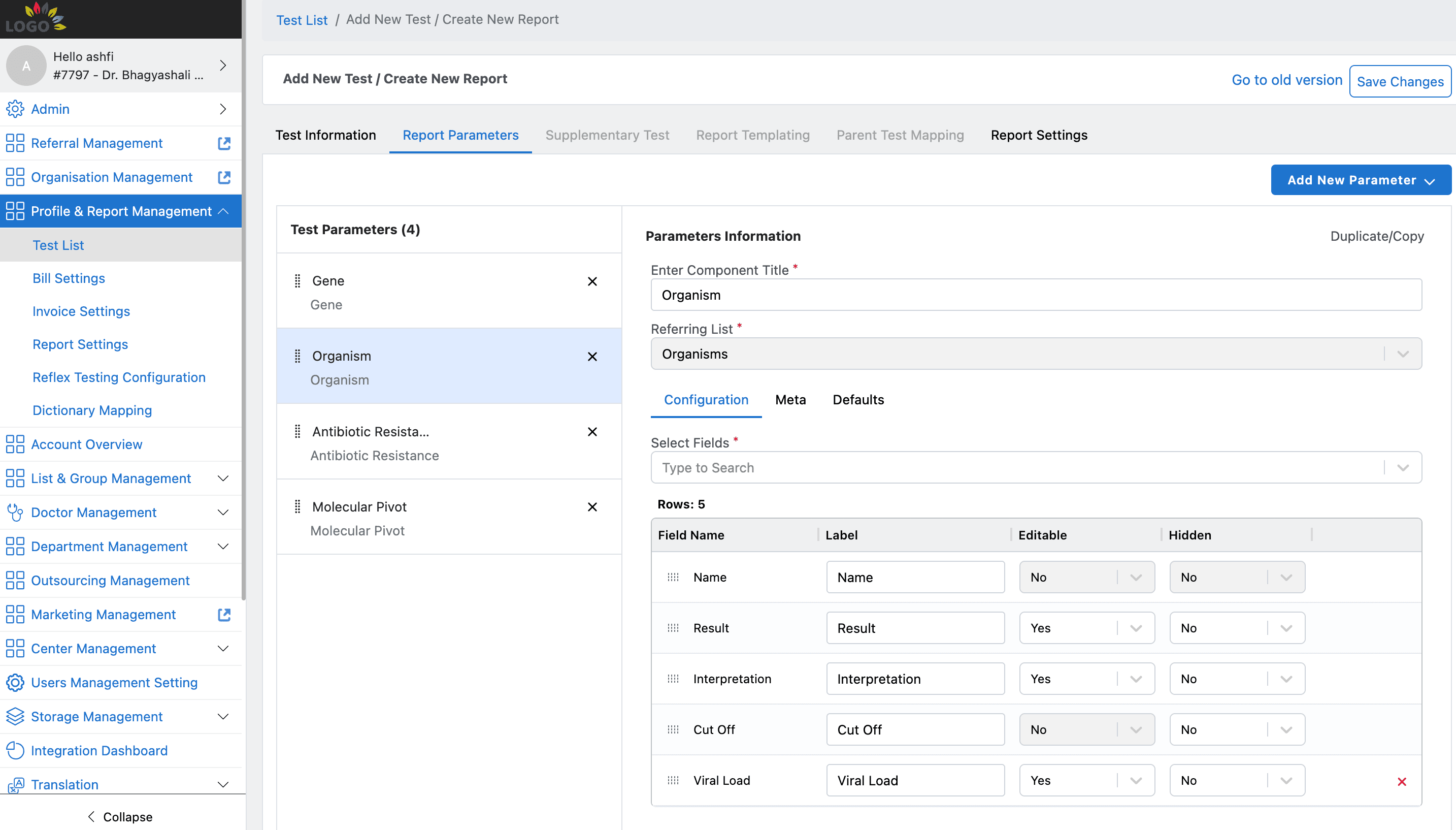
- User opens
Drug Master / Panel Master. - User ensures required antibiotics are present in
Antibiotic Master. - User creates genes in
Gene Masterand maps them to antibiotics to establish resistance rules. - User creates organisms in
Organism Masterand maps them to antibiotics for antibiogram workflows. - User opens
Profile & Report Management > Test List. - User creates a new test and selects
Molecularas the test type. - User adds molecular report components: Gene, Organism, Antibiotic Resistance, and Molecular Pivot.
- User configures the fields, metadata, and default values for the components.
- Backend validates and persists the master data and report configuration.
- The configured molecular parameters become available for billing and report entry, where the system will automatically handle detection logic and resistance calculation.
Validation And Edge Cases
| Case | Expected behavior | Notes |
|---|---|---|
| Duplicate mapping | Save should be blocked with "Cannot map same antibiotic/organism twice!" | Enforced by the backend during save |
| Disable antibiotic with linked organisms | Warning modal displays linked organisms | User must confirm to proceed; mappings are cleared upon disable |
| Disable organism with linked antibiotics | Warning modal displays linked antibiotics | User must confirm to proceed; mappings are cleared upon disable |
| Molecular component without Molecular test type | Components do not appear in menu | Handled by frontend test type condition |
| Non-numeric Gene/Organism result | Treated as Detected | Evaluated by frontend detection logic |
| Antibiotic Resistance without Gene | Cannot calculate resistance | Component must be linked to a Gene component |
| Molecular Pivot without Antibiotic Resistance | Cannot display summary | Component must be linked to an Antibiotic Resistance component |