Workflow Guide
Step-by-step operator and developer workflow for Microbiology.
Workflow Guide
This section explains how the Microbiology feature is used in practice before diving into implementation details.
Important: Document Db should be enabled for this feature to work.
Prerequisite Master Data Setup
Before Microbiology configuration is used, the lab needs prerequisite master data for organisms and antibiotics.
Where the user goes
- Open the application sidebar.
- Expand
Drug Master / Panel Master. - Open
Antibiotic MasterorOrganism Masterdepending on the master data being configured.
What the controls do
| Control | What it does |
|---|---|
Add Antibiotic | Opens antibiotic creation flow |
Add Organism | Opens organism creation flow |
Download List | Downloads visible master data |
Bulk Actions | Applies supported operations to selected master rows |
Request New ... For System Default List | Requests a new system default antibiotic or organism |
Antibiotic Master
Antibiotic Master defines the antimicrobial drugs used in susceptibility testing.
The list view shows:
- antibiotic name,
- sample type,
- antibiotic category,
- antibiotic code,
- status/action controls.
Antibiotics are mapped to organisms for standard antibiogram purposes. When disabling an antibiotic, the system checks for any linked organisms and displays them in a warning modal to prevent accidental disruption of antibiogram mappings.
Organism Master
Organism Master defines the microorganisms that may be detected in a clinical sample.
The list view shows:
- organism name,
- sample type,
- organism category,
- organism code,
- status/action controls.
When creating or updating an organism, the user can map antibiotics to the organism. The Antibiotic Mapping tab inside the organism creation/edit modal contains two sub-tabs:
- Molecular Mapping — used by the Molecular feature's Antibiotic Resistance component. Antibiotics are added and prioritized with drag-and-drop sequence ordering.
- Microbiology Ranges — used by the Microbiology feature's report-entry antibiogram grid. Antibiotics are added here and each mapping has an editable RIS range grid.
Microbiology Ranges Tab
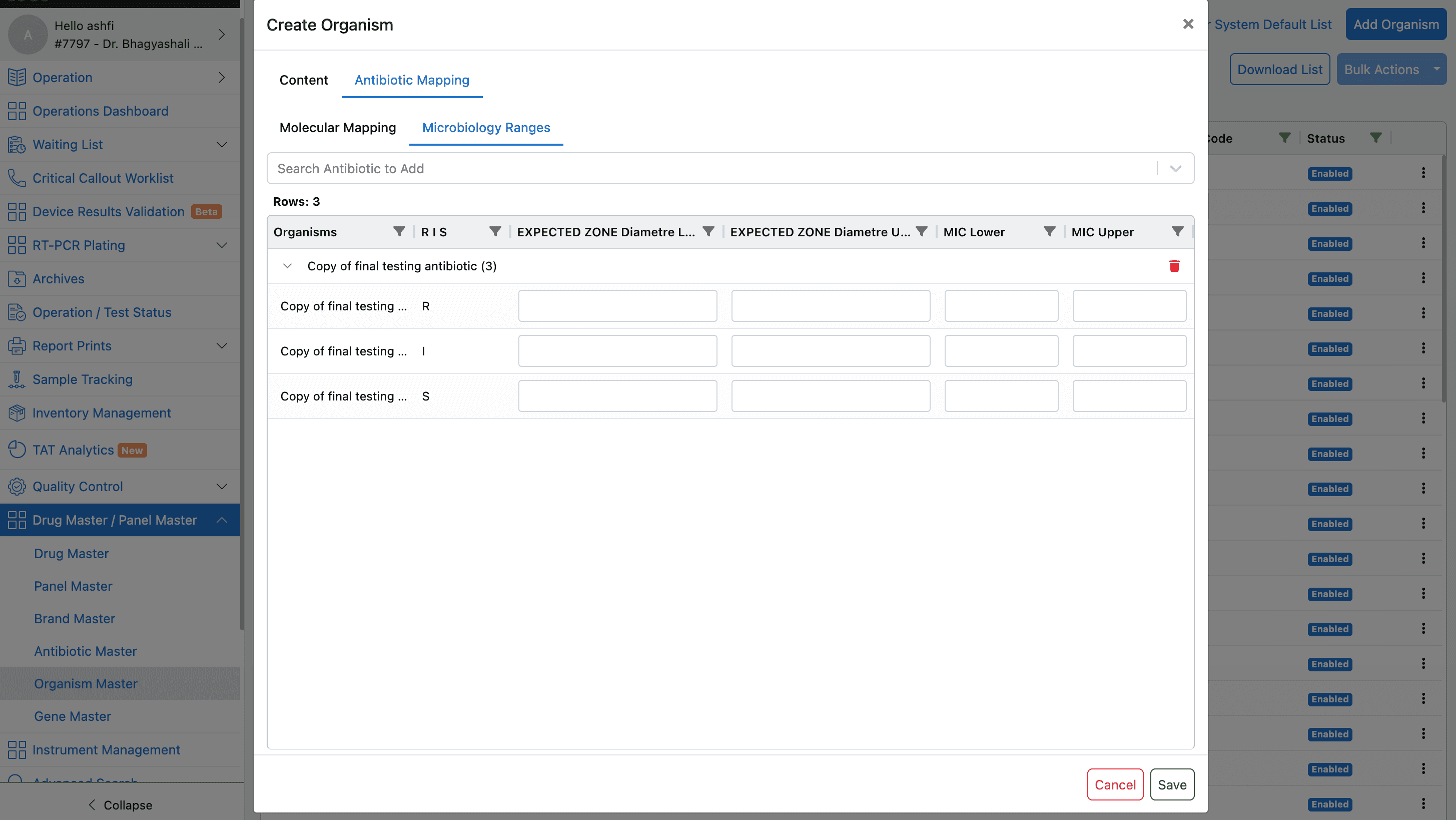
After adding an antibiotic to the Microbiology Ranges sub-tab, the grid shows three rows per antibiotic — R (Resistant), I (Intermediate), and S (Sensitive) — each with four configurable fields:
| Column | Description |
|---|---|
Diameter Upper | Upper bound of disk diffusion diameter (mm) for this susceptibility category |
Diameter Lower | Lower bound of disk diffusion diameter (mm) for this susceptibility category |
MIC Upper | Upper bound of Minimum Inhibitory Concentration for this susceptibility category |
MIC Lower | Lower bound of Minimum Inhibitory Concentration for this susceptibility category |
The system validates that lower values are less than upper values. These configured ranges are used at report entry to auto-interpret the entered result as Sensitive, Intermediate, or Resistant.
How RIS interpretation works at report entry:
- When Detection Window is selected as the method type, the entered
result_1value is compared against the diameter breakpoints.- If the value falls within
sensitive_diameter_lower ≤ result_1 ≤ sensitive_diameter_upper, the interpretation is Sensitive. - If the value falls within
intermediate_diameter_lower ≤ result_1 ≤ intermediate_diameter_upper, the interpretation is Intermediate. - If the value falls within
resistance_diameter_lower ≤ result_1 ≤ resistance_diameter_upper, the interpretation is Resistant.
- If the value falls within
- When MIC is selected, the same logic applies using the corresponding
_mic_lowerand_mic_upperfields. - When Interpretation Only is selected, there is no automatic calculation; the user manually enters the interpretation text.
Note: The
result_r,result_i, andresult_scolumns in the report entry grid are read-only and show the configured breakpoint ranges as reference strings in the formatlower - upper.
When disabling an organism, the system checks for linked antibiotics and displays them in a warning modal.
Microbiology Report / Test Setup
After master data is configured, create a microbiology report from the Test List.
Where the user goes
- Open
Profile & Report Management. - Open
Test List. - Click
Add New Test. - On
Test Information, setTest TypetoMicrobiology. - Save the test/report after report parameters are configured.
Selecting Microbiology as the test type (internally isRadiology: 4, test_type: "Microbiology") enables the microbiology-specific report component in the Report Parameters tab.

Microbiology Report Component
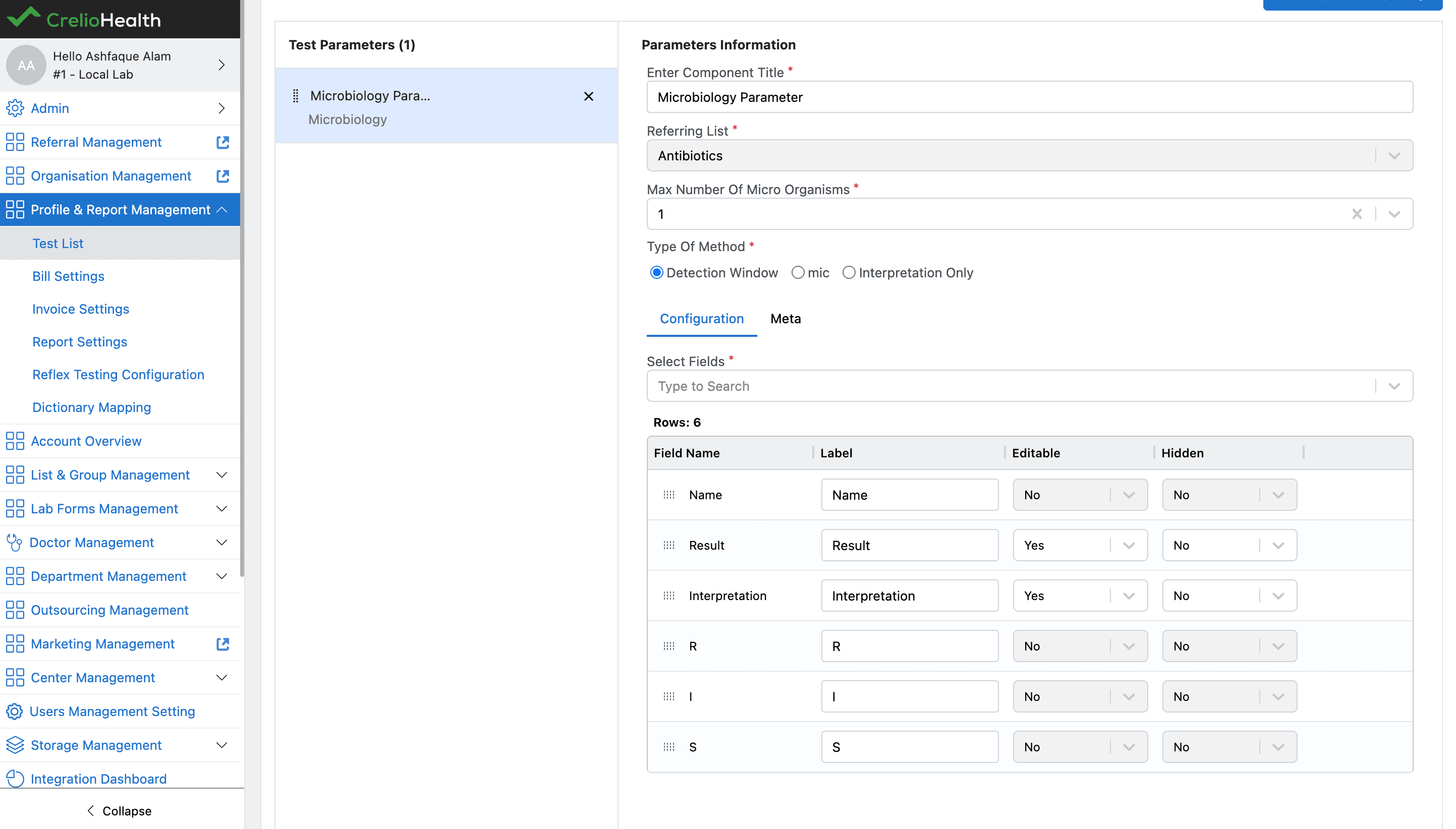
The Add New Parameter menu exposes the Microbiology category with one sub-component: Microbiology Parameter (component_type: "microbiology", type: 20).
Microbiology Form Fields
The Microbiology Parameter form includes the following configuration fields:
| Field | Purpose |
|---|---|
| Component Name | Display name for the microbiology section in the report |
| Referring List | The master data source (must be set to Organisms) |
| Max Number Of Micro Organisms | Maximum number of organisms a report-entry user can add (1–8). If the user tries to add more, the system shows an alert and blocks the addition |
| Type Of Method | Determines how result interpretation is computed: Detection Window (disk diffusion diameter), MIC (Minimum Inhibitory Concentration), or Interpretation Only (manual text) |
| Configuration tab | Lets the user select and arrange display columns for the antibiotic grid |
| Meta tab | Controls Render Pivot Table on PDF, Sort By, and Order By for the pivot output |
Note: If
Max Number Of Micro Organismsis set to1, theRender Pivot Table on PDFcheckbox is automatically disabled.
Max Number Of Micro Organisms Enforcement
At report entry, when the user selects an organism from the Add Organism dropdown, the system counts the current number of distinct organisms already added. If the count equals or exceeds the configured max_allowed_microorganism, an alert is shown:
"Maximum {n} organism allowed"
and the organism is not added.
Type Of Method Behavior
| Method | Columns shown | Auto-interpretation |
|---|---|---|
Detection Window | result_1 (editable), result_2 (auto-filled), result_r / result_i / result_s (read-only range display) | Yes — result is matched against diameter breakpoints |
MIC | Same column set as Detection Window | Yes — result is matched against MIC breakpoints |
Interpretation Only | name + result_2 (manual interpretation) only; result and RIS columns are hidden | No — user types interpretation manually |
When the Method Type is changed, updateMicroEditables(...) is called to hide or unhide the result/RIS columns accordingly. For Interpretation Only on a new report, the configuration is reduced to only name and result_2.
Primary User Workflow
- User opens
Drug Master / Panel Master. - User ensures required antibiotics are present in
Antibiotic Master. - User creates organisms in
Organism Master. - Inside each organism's
Antibiotic Mappingtab, user opens theMicrobiology Rangessub-tab, searches and adds antibiotics, and configures the R/I/S diameter and MIC breakpoints. - User opens
Profile & Report Management > Test List. - User creates a new test and selects
Microbiologyas the test type. - User adds the
Microbiology Parametercomponent from theAdd New Parametermenu. - User sets
Referring ListtoOrganisms, setsMax Number Of Micro Organisms, and selectsType Of Method. - User configures display columns in the
Configurationtab. - Backend validates and persists the master data and report configuration.
- At report entry, the user selects organisms from the
Add Organismdropdown (limited bymax_allowed_microorganism), and for each organism adds antibiotics from the organism's configured mapping. - When the user enters a result value in
result_1, the system automatically fills in theresult_2interpretation based on the configured RIS ranges and method type.
Validation And Edge Cases
| Case | Expected behavior | Notes |
|---|---|---|
| Adding more organisms than the max | Alert shown: "Maximum {n} organism allowed"; organism not added | Enforced at report-entry level using max_allowed_microorganism from component meta |
| Duplicate antibiotic mapping | Save blocked with "Antibiotic already exists" | Enforced during organism save on the Microbiology Ranges tab |
| Disable antibiotic with linked organisms | Warning modal displays linked organisms | User must confirm to proceed; mappings are cleared upon disable |
| Disable organism with linked antibiotics | Warning modal displays linked antibiotics | User must confirm to proceed; mappings are cleared upon disable |
| Microbiology component without Microbiology test type | Component does not appear in the menu | Handled by frontend test type condition |
| Interpretation Only method type | Result and RIS columns are hidden; only name and manual interpretation are shown | Controlled by updateMicroEditables(...) |
| RIS ranges not configured | result_r, result_i, result_s display - - - (empty lower/upper) | No error; interpretation stays blank if no range matches |
| Max organisms = 1 | Render Pivot Table on PDF checkbox is disabled and should_pivot is forced to false | Enforced in MicrobiologyForm onChange handler |
| Missing Referring List or Method Type | Validation error shown; save blocked | Enforced by reportParamterValidation in helpers.ts |