Workflow Guide
End-to-end workflow for configuring, processing, storing, and viewing Machine Flags in LIMS.
Machine Flags Workflow Guide
This guide explains the complete workflow required to configure, process, and view Machine Flags inside the LIMS platform.
The workflow includes:
- Enabling Machine Flags for a pathology test
- Mapping the test to a device
- Sending Machine Flags from the interfacing application
- Processing and storing flags in LIMS
- Viewing Machine Flags in the UI
High Level Workflow
Enable Machine Flags for Test
            ↓
Map Test with Device
            ↓
Bill Patient with Configured Test
            ↓
Device Processes Sample
            ↓
Interfacing Parses Raw String
            ↓
Machine Flags Sent to LIMS API
            ↓
LIMS Stores Flags in MongoDB
            ↓
Flags Visible in Report UI
Step 1 - Enable Machine Flags for a Test
Machine Flags can only be configured for Pathology Tests.
Configuration Steps
1. Open Profile & Report Management
Go to Admin Module → Profile & Report Management
2. Select the Required Pathology Test
Open the pathology report/test for which Machine Flags should be enabled.
Example:
- CBC
- Lipid Profile
- Total Cholesterol
3. Open Test Information Config Section
Inside the selected test Test Information → Config
4. Enable Device Flags Option
Enable the checkbox Enable Device Flags (Store results in MongoDB)
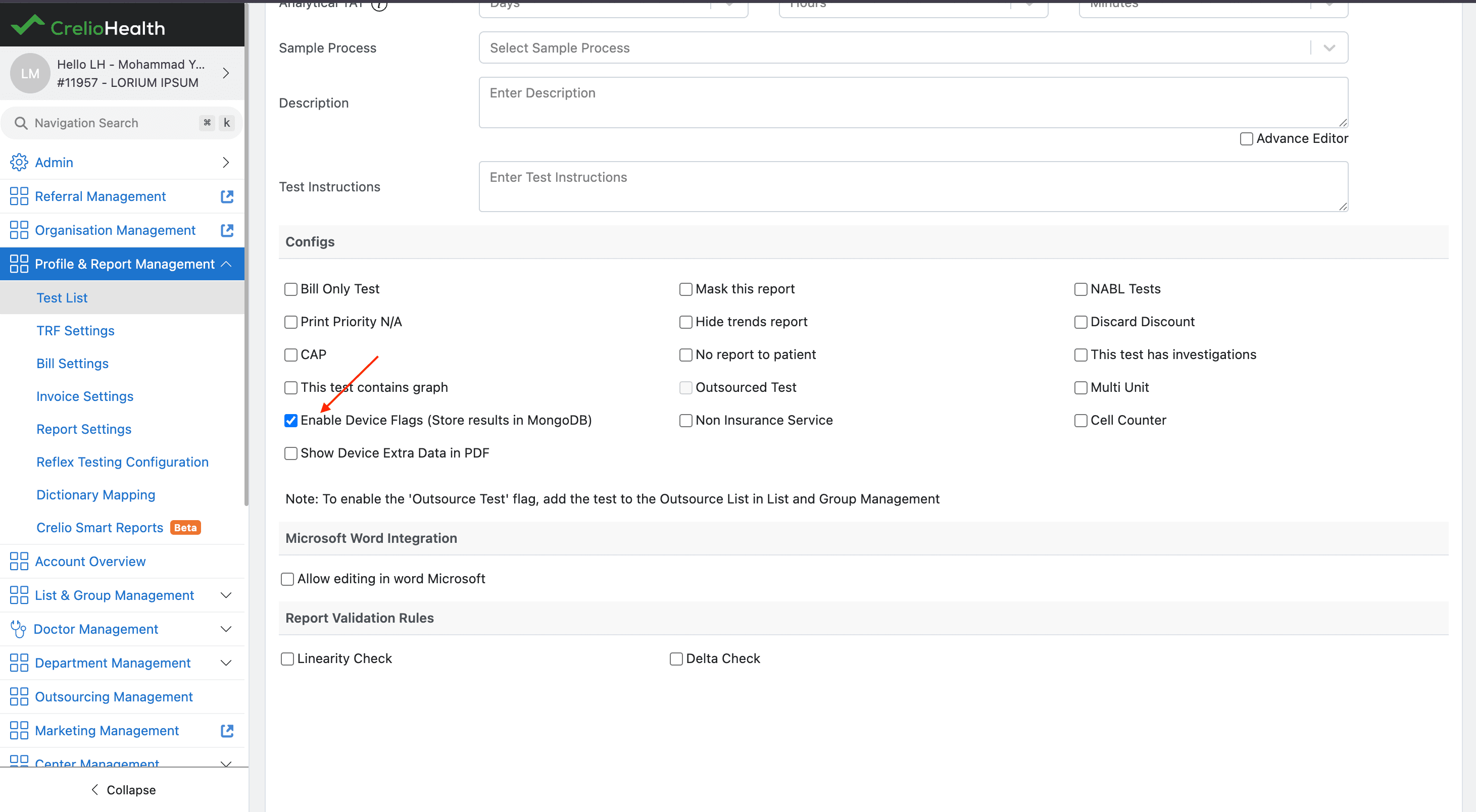
5. Save Changes
Click Save to apply the configuration.
[!NOTE] The Enable Device Flags checkbox is only visible for Pathology Tests.
[!IMPORTANT] Enabling this option converts the test into a document test, meaning parameter values and Machine Flags are stored inside MongoDB.
Step 2 - Configure Device Test Mapping
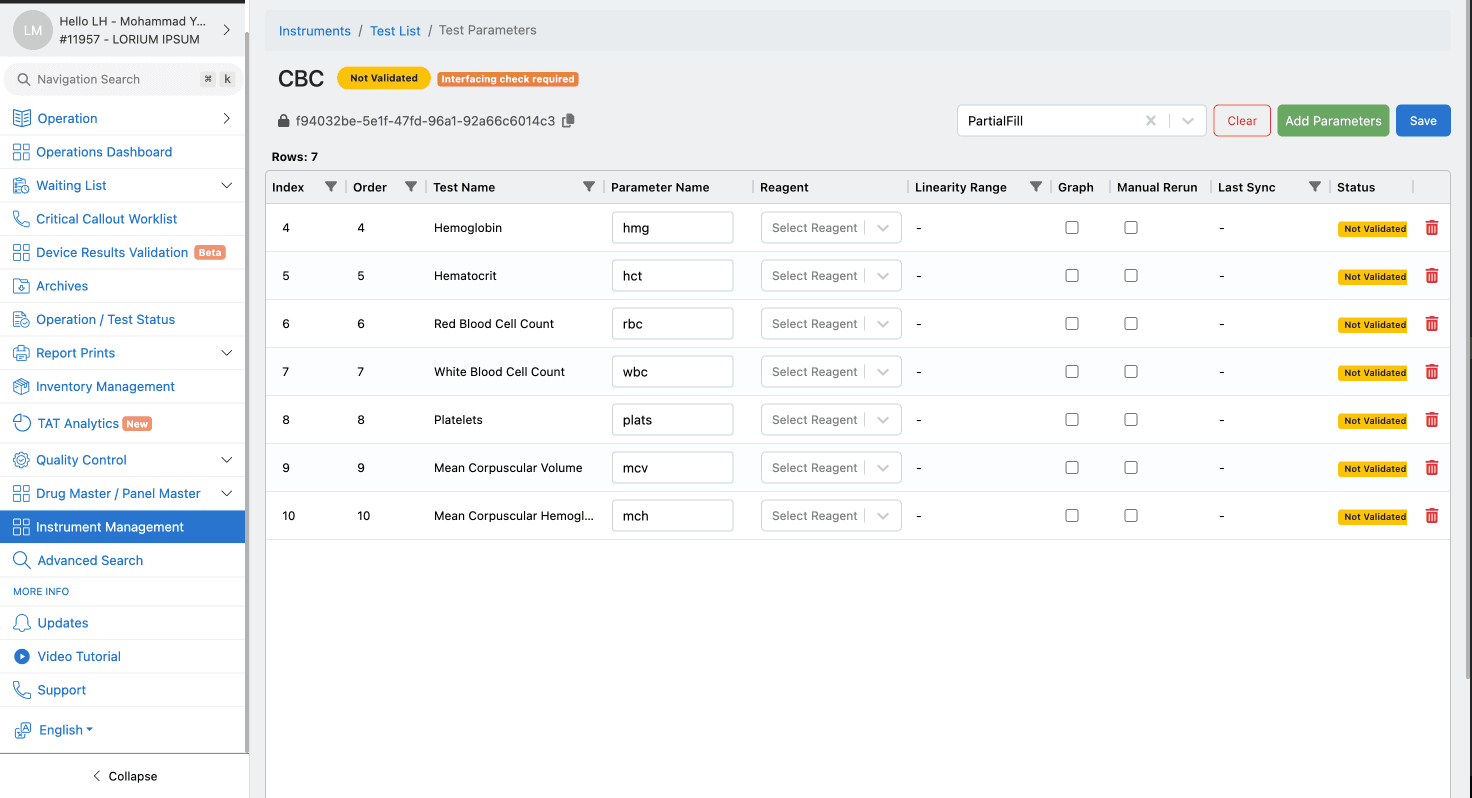
Before Machine Flags can be received from interfacing, the test must be mapped to a lab device and its parameters.
Why Mapping Is Required
The interfacing application sends results using device-specific parameter identifiers such as:
- HGB
- HCT
- PLT
LIMS must know which report parameter each identifier corresponds to.
Example Mapping
| LIMS Parameter | Device Parameter |
|---|---|
| Hemoglobin | HGB |
| Hematocrit | HCT |
| Platelets | PLT |
Configuration
Navigate to Operation Module → Device / Instrument Management
- Open the required device.
- Add the pathology test.
- Configure parameter mappings.
- Save the mapping.
Once completed, incoming device results can be matched with the correct report parameters.
Step 3 - Bill Patient with Configured Test
After enabling Machine Flags:
- Create a patient bill
- Add the Machine Flag enabled pathology test
- Complete sample collection
Example: Patient Bill → CBC Test Added → Sample Collected
Step 4 - Device Generates Results
After a patient sample is processed, the lab device generates a raw result payload containing the test results and any associated machine-generated indicators.
The format of this payload varies between devices and may use protocols such as HL7, ASTM, or vendor-specific formats. In addition to parameter values, the payload can also contain:
- Parameter values
- Test-level flags
- Parameter-level flags
Example:
OBX|25|NM|718-7^HGB^LN||11.3|g/dL|11.5-17.5|L~A|||FStep 5 - Interfacing Parses Machine Flags
The interfacing application receives the raw device string and passes it to the device parser.
The parser:
- Extracts parameter values
- Extracts sample-level flags
- Extracts parameter-level flags
- Generates structured JSON payload
Parsed Payload Example
{
    "labId": 11957,
    "sampleId": "000114626",
    "deviceAuth": "f94032be-5e1f-47fd-96a1-92a66c6014c3",
    "test_flags": [
        "DUMMY TEST FLAG1",
        "FLAG2"
    ],
    "data": {
        "values": [
            {
                "testName": "hmg",
                "value": 110.12,
                "param_flags": [
                    "P1",
                    "H~N"
                ]
            },
            {
                "testName": "hct",
                "value": 123.12
            },
            {
                "testName": "rbc",
                "value": 11.1
            },
            {
                "testName": "wbc",
                "value": 45.34
            },
            {
                "testName": "plats",
                "value": 220000,
                "param_flags": [
                    "A++"
                ]
            },
            {
                "testName": "mcv",
                "value": 19
            },
            {
                "testName": "mch",
                "value": 22
            }
        ]
    }
}
Payload Structure
Sample level flags are Stored at root level "test_flags": [] These flags apply to the entire test/sample.
Parameter level flags are stored inside parameter object "param_flags": [] These flags apply only to that specific parameter.
Important Behaviour
Device behaviour may vary. A device can send:
| Scenario | Supported |
|---|---|
| Only Test Flags | ✅ |
| Only Parameter Flags | ✅ |
| Both Test + Parameter Flags | ✅ |
| Partial Parameter Flags | ✅ |
| No Flags | ✅ |
[!NOTE] It is completely valid for some parameters to contain flags while others do not.
Step 6 - LIMS API Processing
After payload generation, the interfacing application sends the payload to the LIMS Data Partial API.
- Validates device authentication
- Matches sample ID
- Maps device parameters
- Processes parameter values
- Stores Machine Flags
- Saves report values into MongoDB
Step 7 - Viewing Machine Flags in LIMS
Machine Flags become visible after report values are processed successfully.
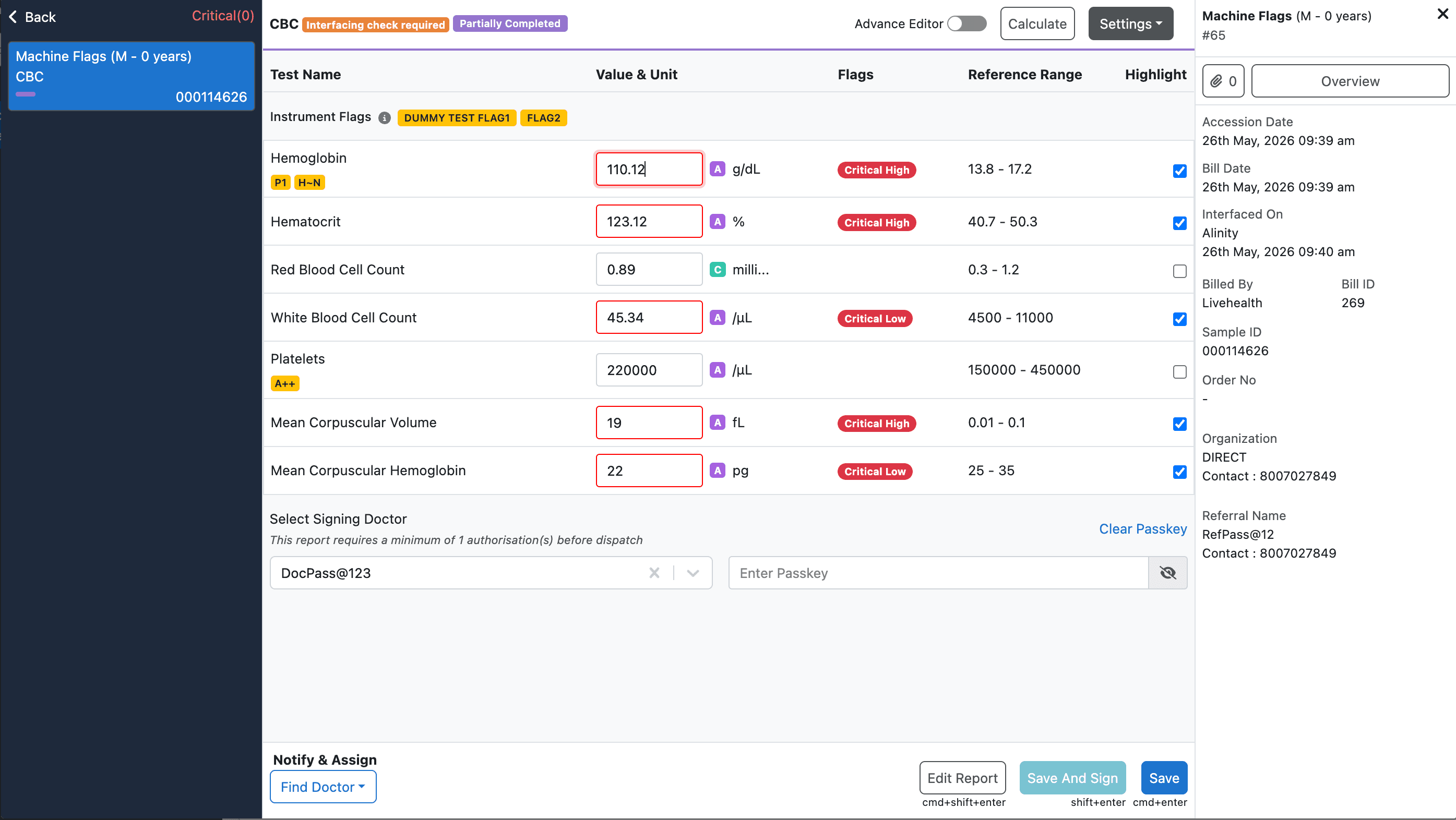
Pending Report Screen
To view Machine Flags Operation Module → Pending Report
Open the report for which Machine Flags were received.
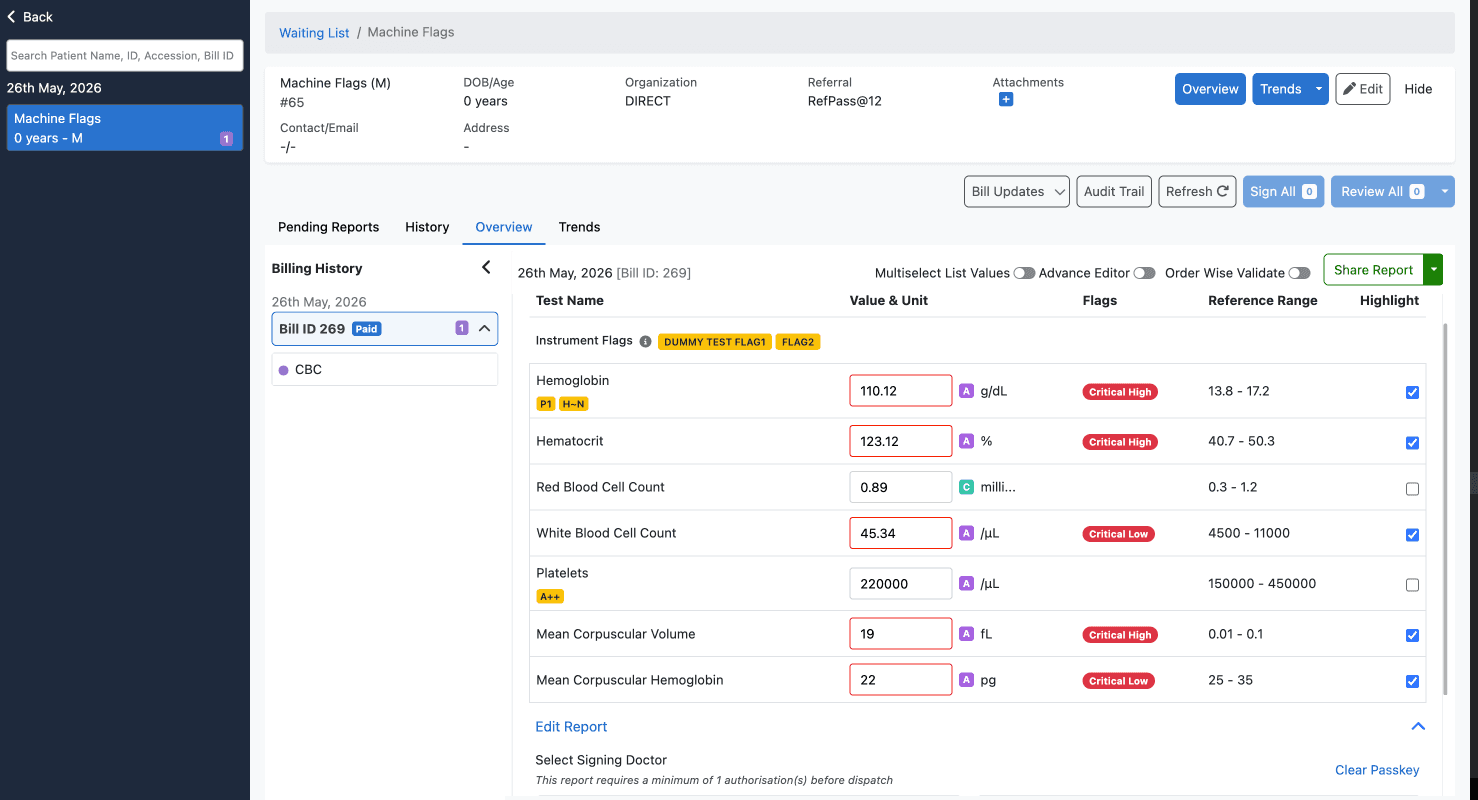
Overview Tab
Machine Flags are also visible in the report Overview tab.
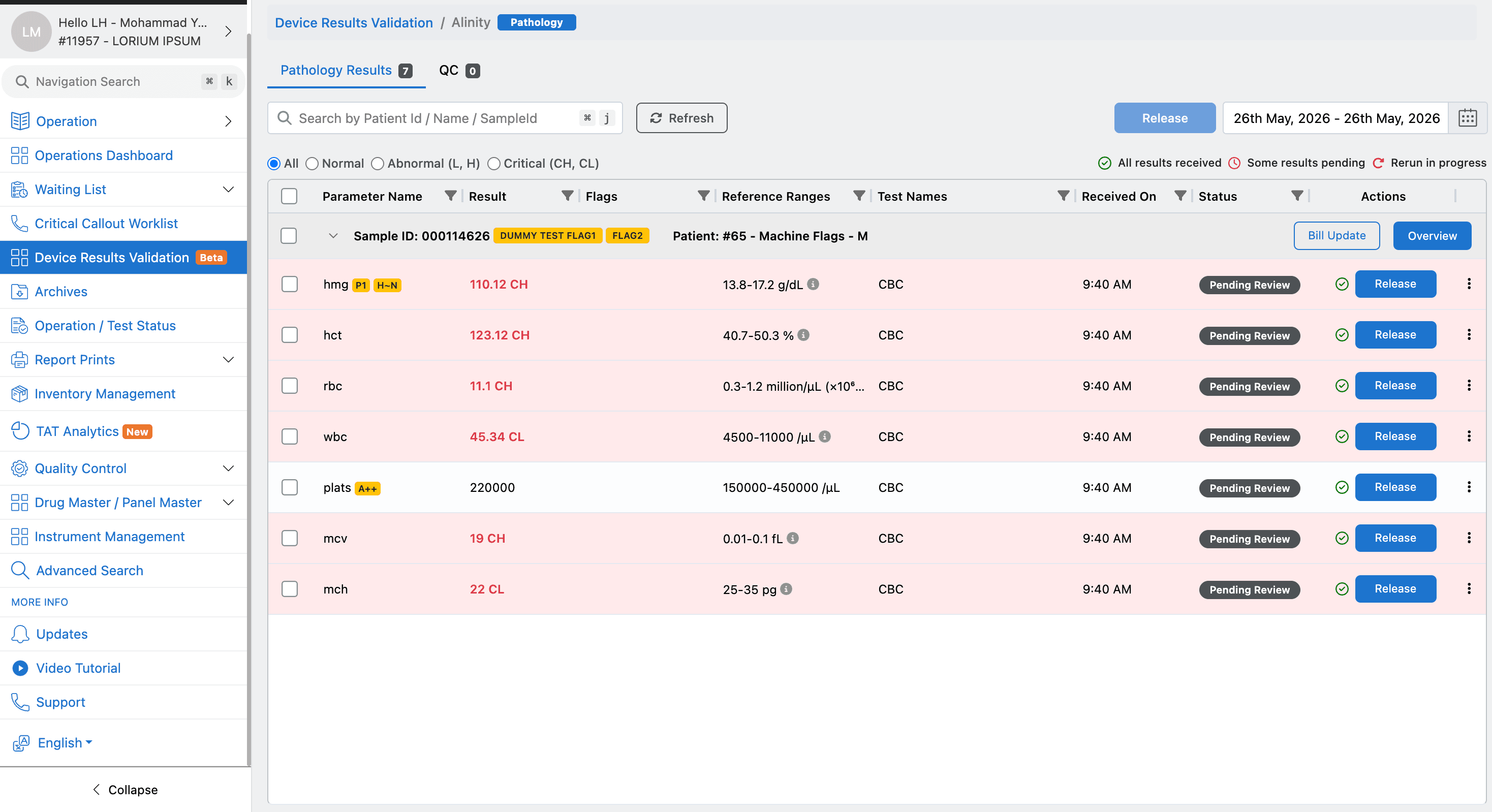
Device Results Validation Screen
Machine Flags are also shown in Device Results Validation screen.
PDF Preview Behaviour
Machine Flags are not visible when the report is opened in PDF Preview Mode
[!IMPORTANT] Machine Flags are not displayed in normal PDF report preview mode.
End-to-End Example
CBC Test Configured
        ↓
CBC Mapped with Alinity
        ↓
Patient Sample Processed
        ↓
Alinity Sends Raw Result String
        ↓
Interfacing Parser Extracts Flags
        ↓
Parsed Payload Sent to LIMS API
        ↓
LIMS Stores Flags in MongoDB
        ↓
Flags Visible in Report UI
Summary
Machine Flags workflow involves:
- Configuring pathology tests
- Mapping tests with devices
- Parsing raw device data
- Sending structured payloads
- Storing flags in MongoDB
- Displaying flags in report UI
This workflow enables laboratories to preserve and display device-generated abnormalities, warnings, and review indicators directly inside the LIMS ecosystem.
Overview
Machine Flags represent device-generated warnings, abnormalities, and review indicators received alongside parameter results during lab device interfacing.
Frontend
Frontend implementation details and component hierarchy for Machine Flags across Report Configuration, Report Entry, Overview, and Device Results Validation screens.