Workflow Guide
Step-by-step Inventory Admin workflow with screenshots for managing stock, variants, suppliers, approvals, and bulk actions.
Inventory Admin Workflow Guide
This guide explains the Inventory Admin workflow and key admin screens used to manage inventory operations, including notification settings, brand variants, supplier mapping, approval setup, and bulk inventory actions.
1. Add New Inventory Item
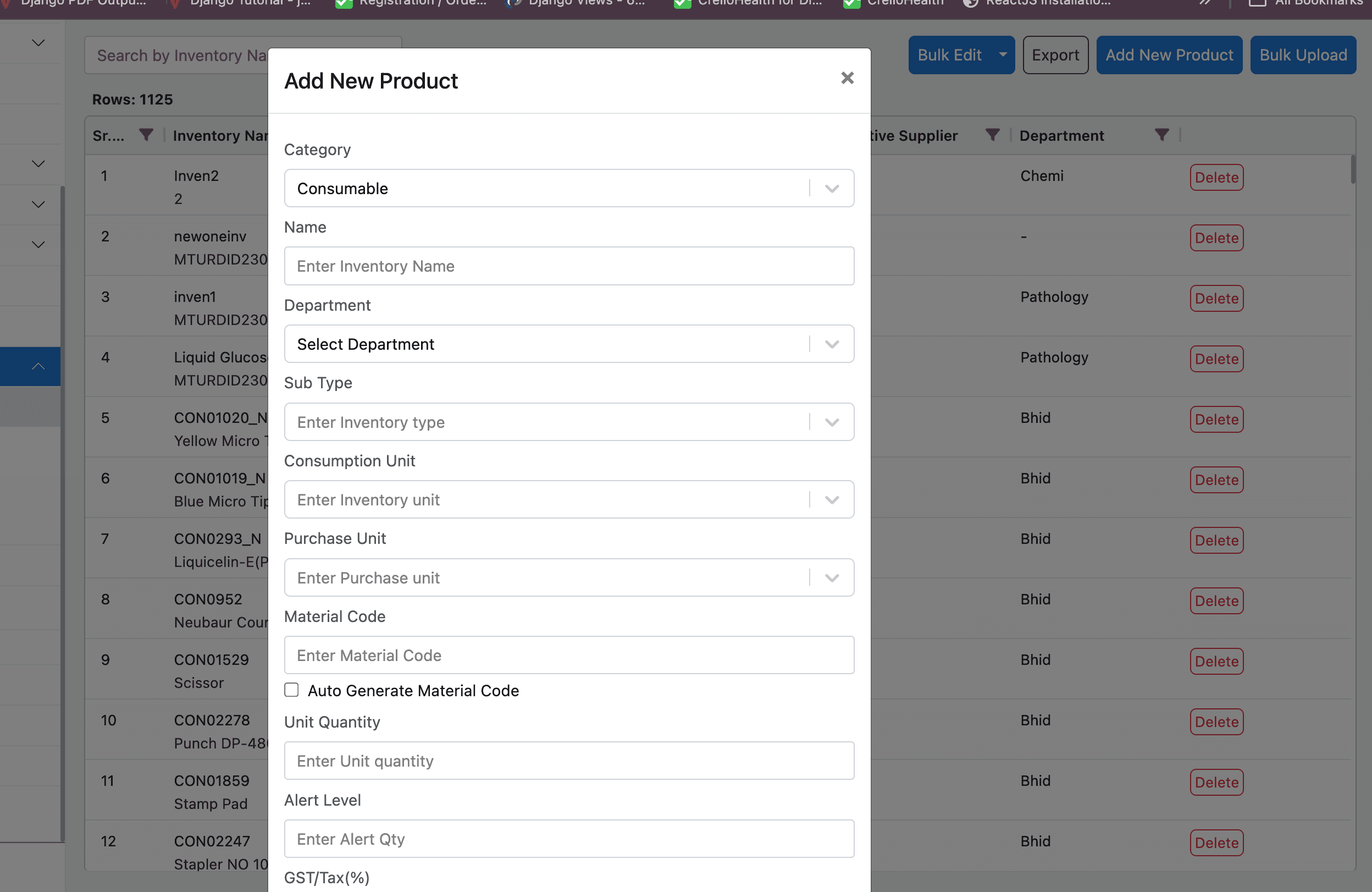
Use the Add New Product screen to create inventory items. Configure category, department, subtype, consumption and purchase units, material code generation, alert levels, and tax settings.
2. Add Brand / Variant
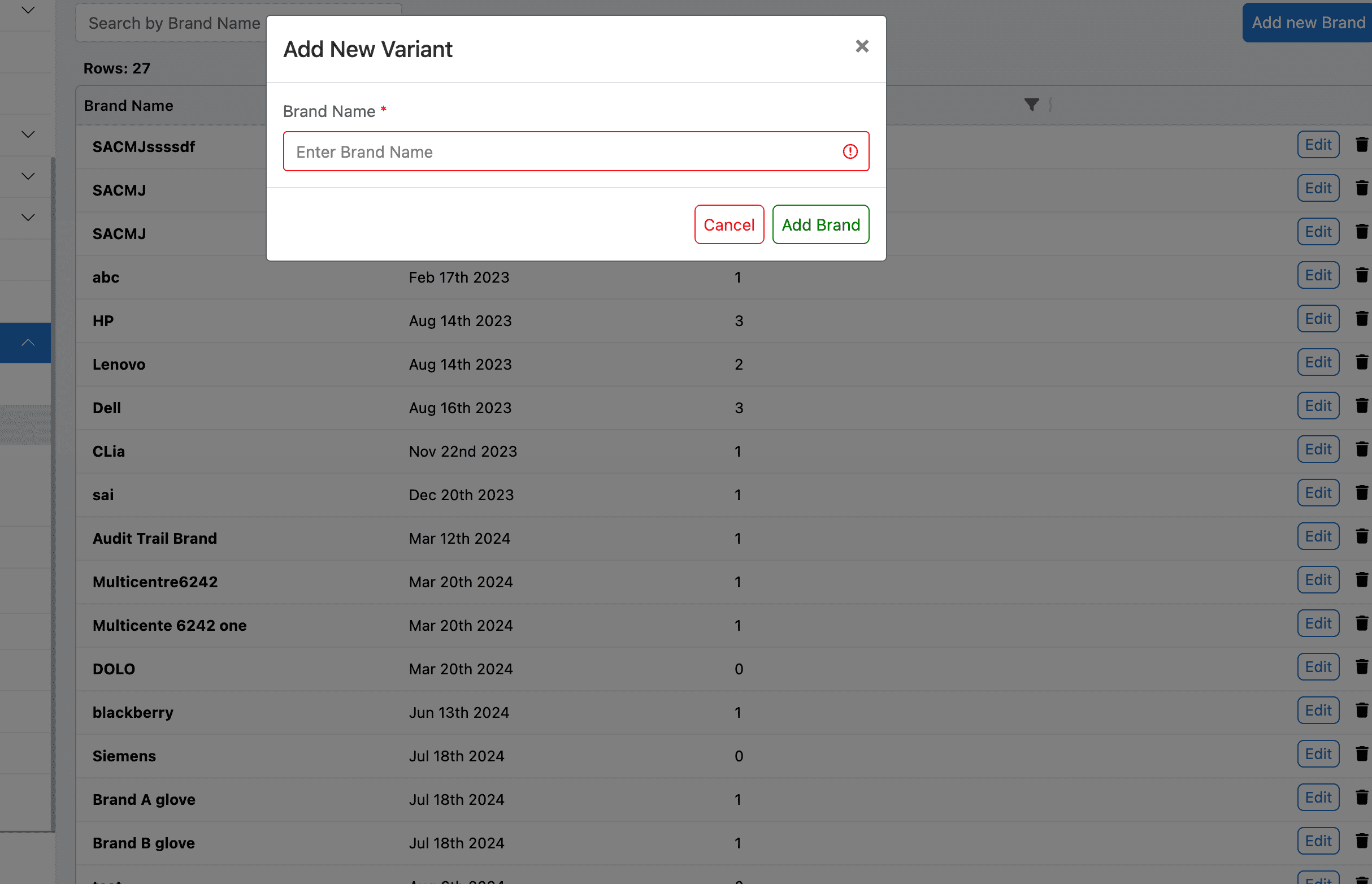
This screen allows admins to add brand and variant combinations for existing inventory items. Variants help track the same product across different sizes, packaging, and vendor-specific SKUs.
4. Bulk Upload and Bulk Edit
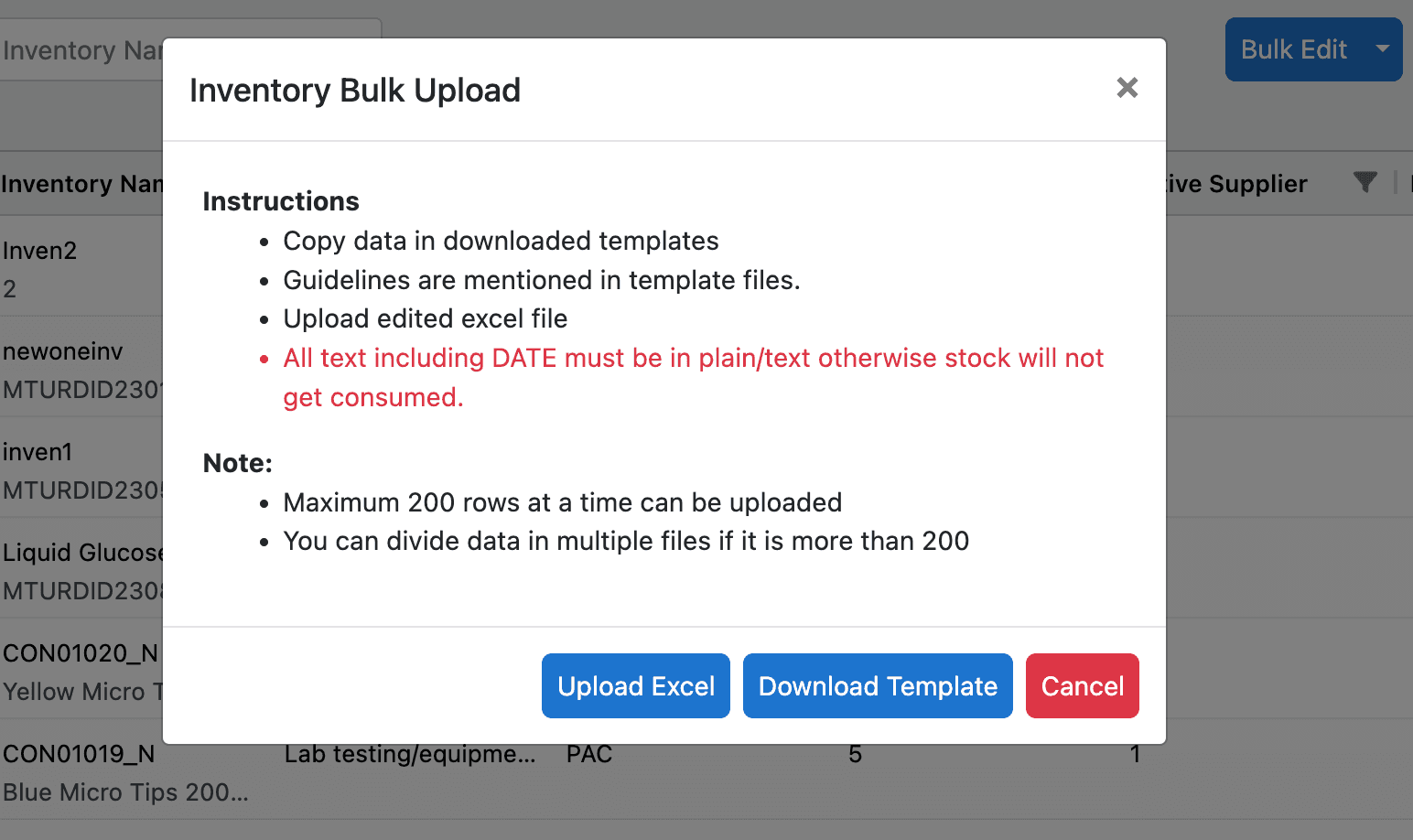
For large inventory updates, use the bulk upload workflow. Download the template, fill inventory data in the prescribed format, and upload it back into the system.
5. Inventory List and Bulk Edit
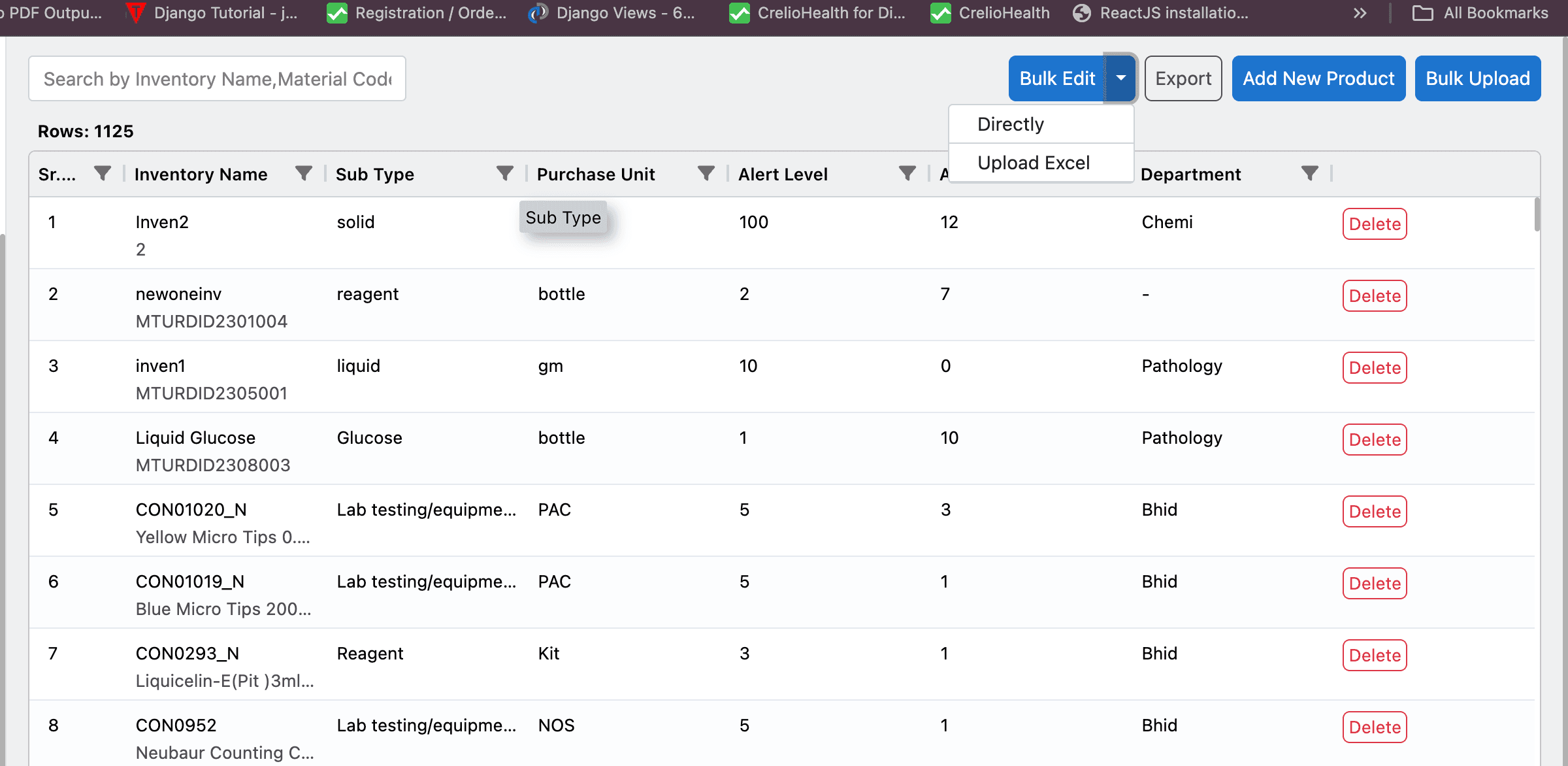
The inventory list screen is the central place to review stock, filter by item, and apply bulk edits. It includes in-line search, filters, export options, and row-level actions.
6. Inventory Notifications & Settings
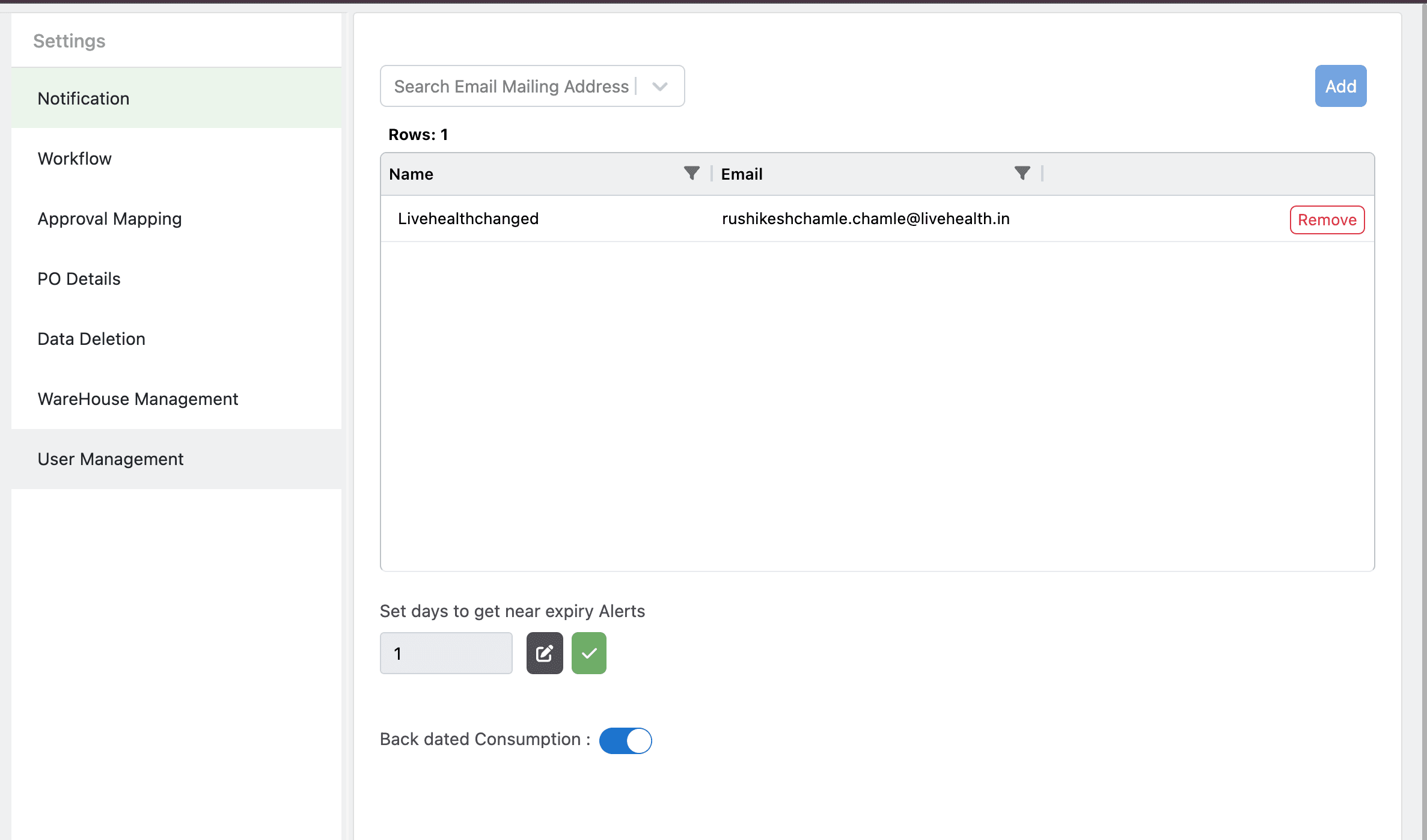
This settings screen allows administrators to configure email notifications for near-expiry alerts based on the configured expiry thresholds. It also controls inventory workflow behaviour such as automatic stock consumption and alert delivery.
7. Approval Mapping
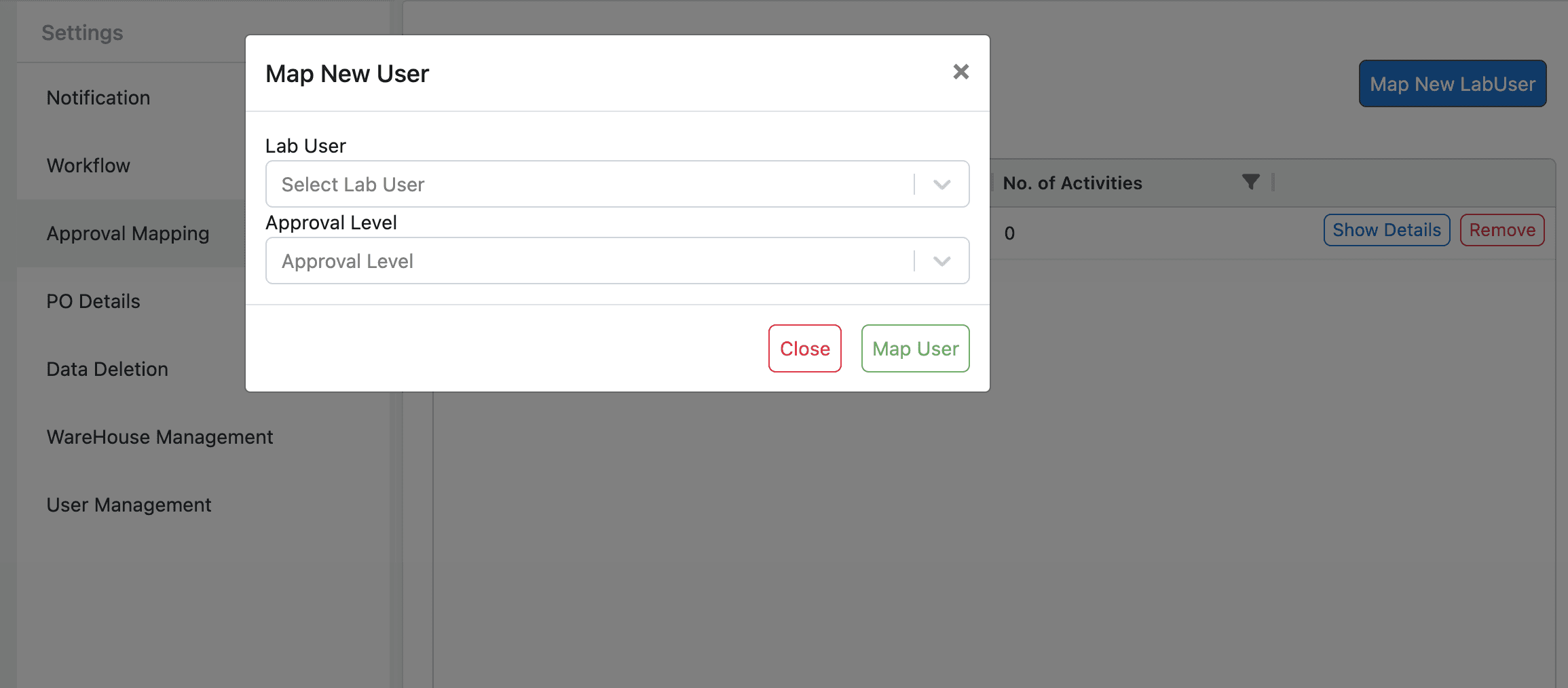
This screen is about approval mapping, not supplier mapping. Approvals are assigned to users with weighted approval levels that determine who can approve each request and at what stage.
8. Data and User Management
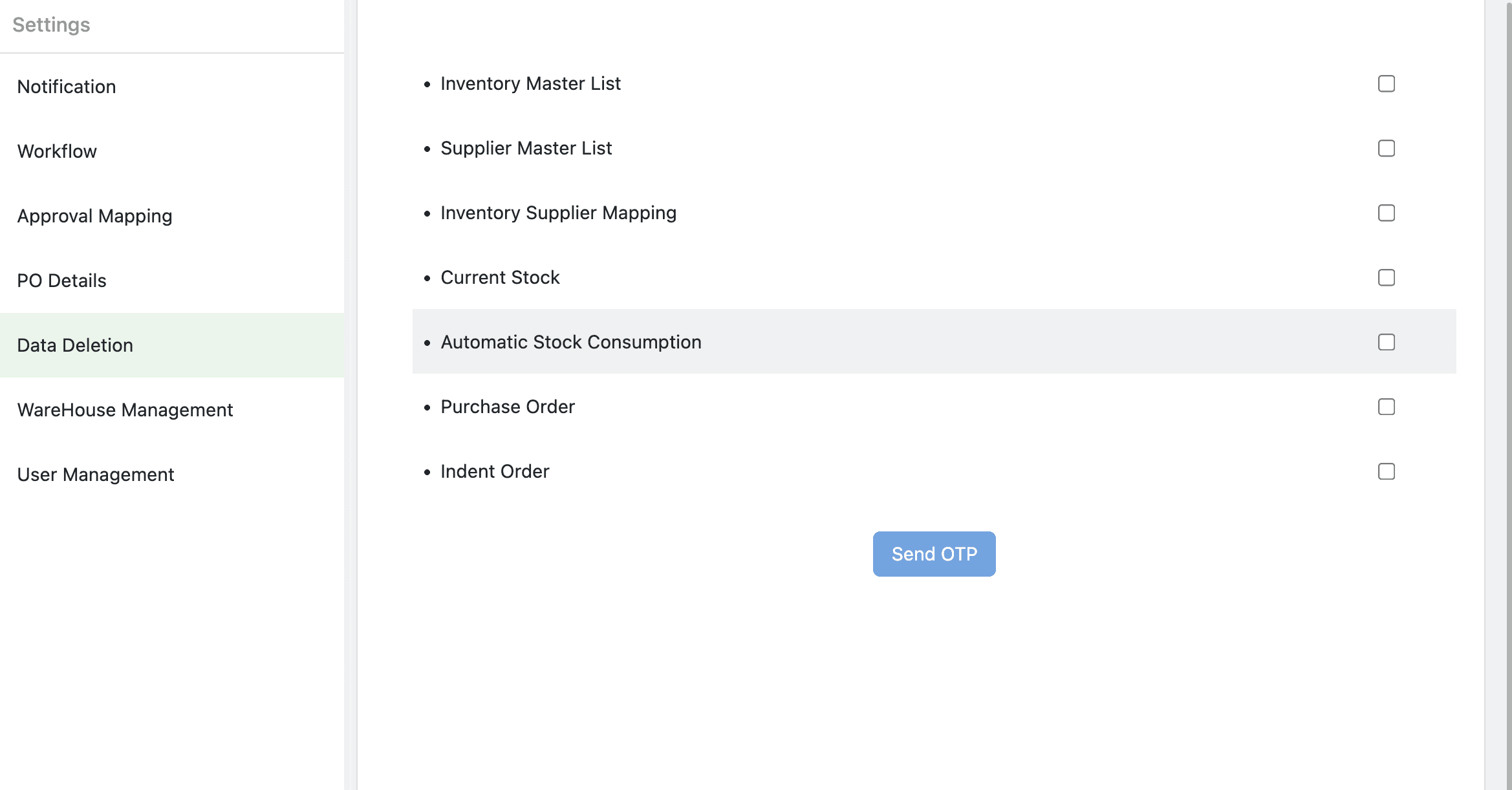
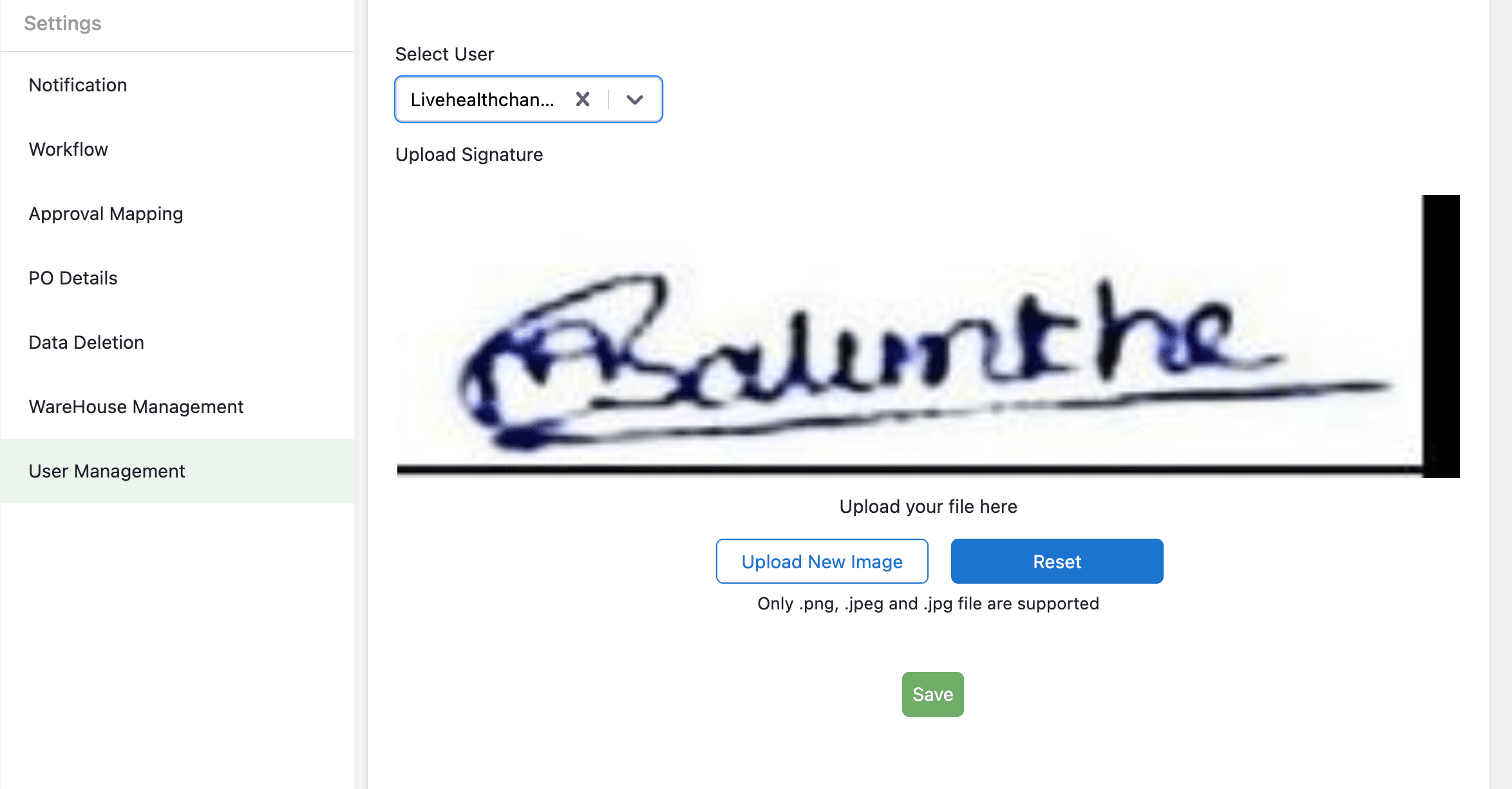
Admin screens also include data deletion controls and user management options for admin users with the correct permissions. These are part of the broader governance capabilities in Inventory Admin.
9. Workflow Summary
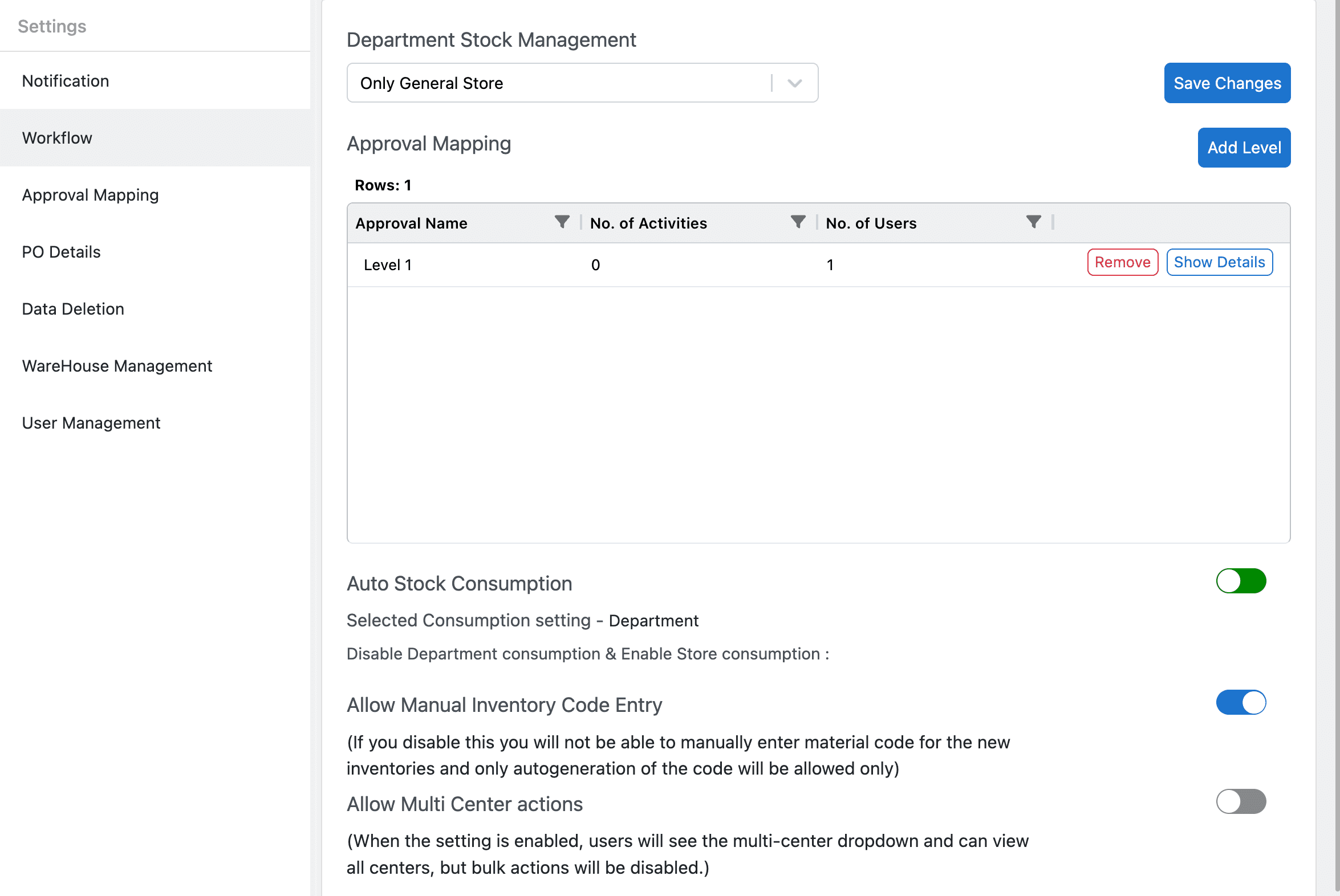
The Inventory Admin workflow begins with inventory setup, then moves through brand/variant creation, approval mapping, and finally bulk operations and stock management. This workflow also highlights key admin controls like automatic stock consumption, manual inventory code entry, and the ability to support multiple center actions.