Workflow Guide
End-to-end walkthrough of the Integration Dashboard — from setting up an integration trigger in the Support CRM to reading log outcomes and retrying failures.
Integration Dashboard — Workflow Guide
This guide walks through the full lifecycle of an integration from a user's perspective: configuring the trigger, watching logs appear on the dashboard, reading outcomes, and retrying failures. For the underlying backend execution sequences, see the Backend Workflow Guide.
Step 1: Adding an Integration Trigger via manageIntegrations
The starting point for all integrations is the Manage Integrations tool inside the CrelioHealth Support Dashboard CRM. This is where the trigger configuration (which lab, which action, which endpoint) is created or updated.
URL: https://livehealth.solutions/supportdashboard/manageIntegrations/
How to configure an integration
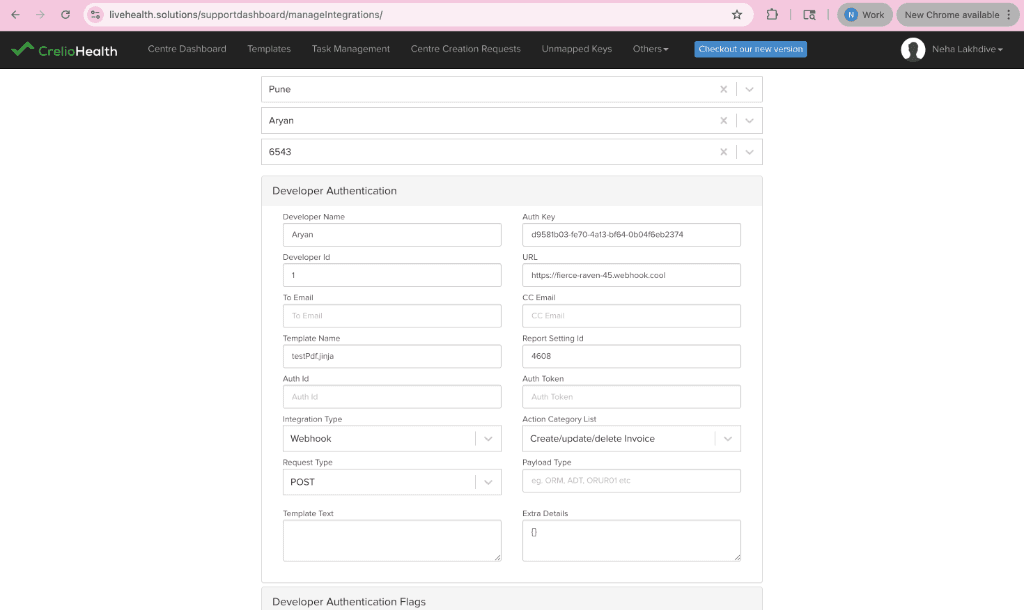
1. Search for the Lab
Open the manageIntegrations page. Use the Search by Lab Name, Id dropdown (powered by AsynchronousSelect) to find the lab you want to configure. Once selected, the tool auto-loads all existing DeveloperAuthentication entries for that lab.
2. Select a Developer
From the Select Developer Name dropdown, pick the developer/integration partner whose authentication key (authKey) the integration will use. Selecting a developer loads all existing labIntegration rows associated with that developer context.
3. Select or Create an Integration ID
From Select Integration Id, pick an existing labIntegration row to edit — or leave blank to create a new one.
4. Fill in the Configuration Panels
Two accordion panels appear:
Developer Authentication panel — captures the core integration identity:
| Field | Purpose |
|---|---|
| Developer Name | Display name for the integration partner |
| Auth Key | Token that third-party systems present for inbound calls |
| URL / Endpoint | The third-party endpoint payloads are delivered to (e.g., https://fierce-raven-45.webhook.cool) |
| Integration Type | The integration platform/service (e.g., Webhook, API) |
| Action Category List | The trigger — maps a LiveHealth business event (e.g., "Bill Generated") to this integration |
| Request Type | GET or POST (or the enum value 0/1 for outbound webhooks) |
| Payload Type | HL7 message type if applicable (e.g., ORM, ADT, ORUR01) |
| Template Text | Optional payload template for structured message formats |
| Extra Details | JSON blob for extended config — Mirth host/port, vendor, x-api-key, etc. |
| Organisation | Visible only when isOrg=1; scopes the trigger to a specific org rather than the whole lab |
Developer Authentication Flags panel — boolean toggles for advanced behaviours:
| Flag | Meaning |
|---|---|
isOrg | Scope trigger to an organisation instead of the full lab |
isIntegrationEnable | Master enable/disable switch for this auth entry |
isDisable | Soft-disable a specific labIntegration row without deleting it |
| (others) | Additional feature flags as needed |
5. Save
Click Add/Update Integration. The button calls addUpdateIntegration(...) which writes:
- A
developerAuthenticationrow (resolved byauthKey) - One or more
labIntegrationrows keyed byactionCategoryListId
On success, the response returns the generated authKey and a 200 toast.
What happens after saving?
Once the labIntegration row is active (isIntegrationEnable=1, isDisable=0), the next time the mapped business event fires for that lab, the trigger functions (e.g., commomFunctionForIntegrationBillCategory) will detect this row and begin dispatching payloads and creating logs automatically. No code change is required.
Local Development Setup
On local environments you don’t need to use manageIntegrations. Instead:
- Open the
labIntegrationstable in your database. - Add (or update) a row with the required
actionCategoryListId_idthat maps to the business event you want to test. - Set the
url/ endpoint field to your test webhook receiver (e.g., a webhook.cool or similar tool). - If the integration type is Mirth, also populate
integrationExtraDetailswith the host and port JSON:
{
  "host": "127.0.0.1",
  "port": 6661
}- Ensure
isDisable=0andisIntegrationEnable=1on the relateddeveloperAuthenticationrow. - The next business event matching that
actionCategoryListIdwill automatically trigger the integration.
No server restart is needed — the trigger functions query the database on every event.
Step 2: How a Log Gets Created
After an integration is configured and a business event fires, the log lifecycle proceeds automatically:
Key observations:
- The log is pre-created as
QUEUEDbefore the HTTP call is made. This ensures the record is never lost even if the worker times out. - The
log_id(DocumentDB_id) travels through the entire chain — fromget_integration_payload()→ Fusion task payload → handler → decorator → DocumentDB update. - Logging is always a passive side-effect. It cannot break the business event that triggered it.
Step 3: Reading Integration Logs on the Dashboard
Once events are firing, operators and support staff can observe the outcomes on the Integration Dashboard.
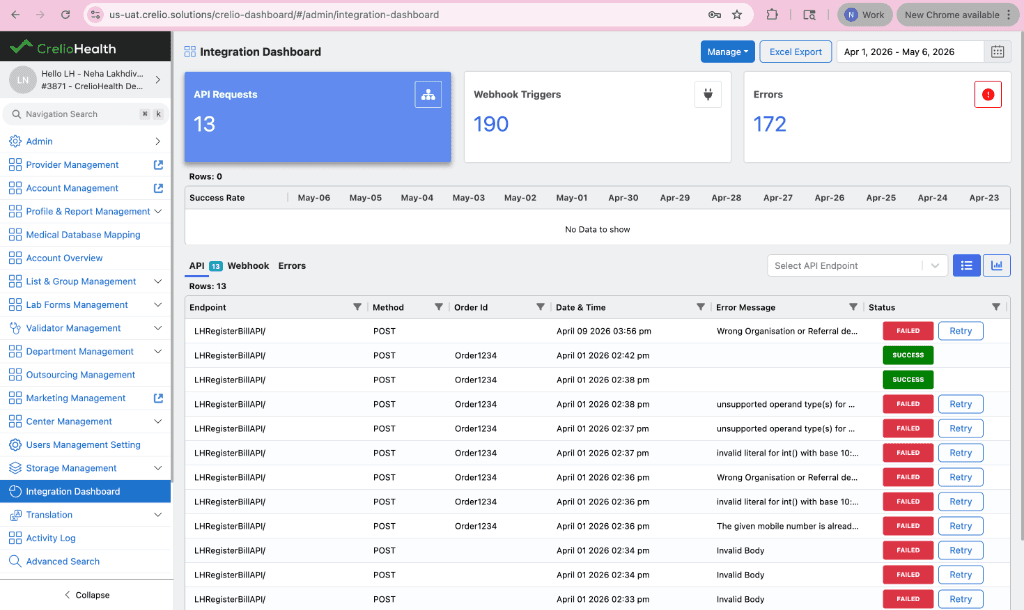
API tab — shows inbound third-party API calls captured by IntegrationDirectoryLogger:
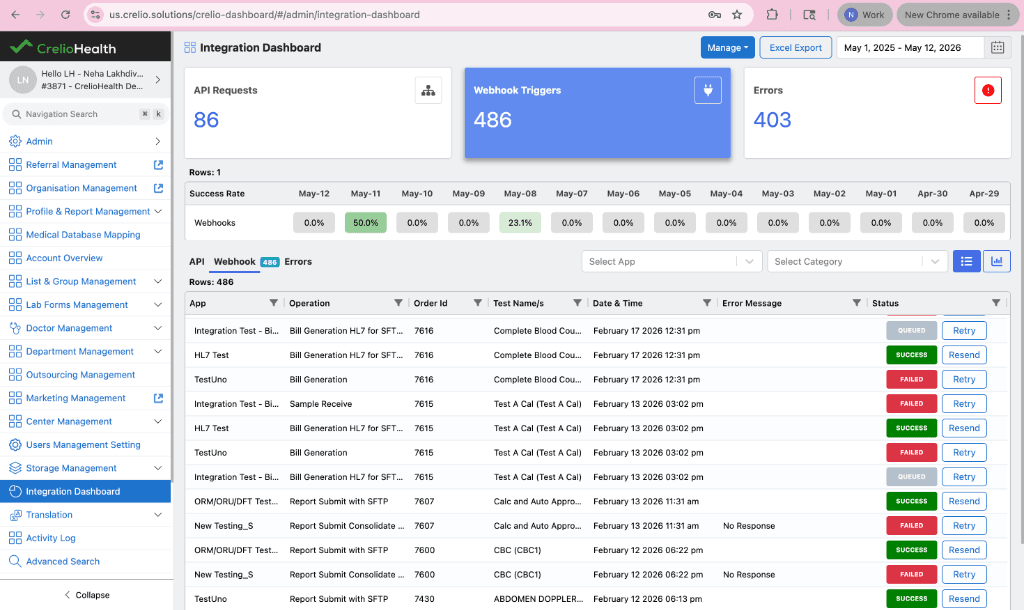
Webhook tab — shows outbound webhook dispatch events, one row per trigger per integration:
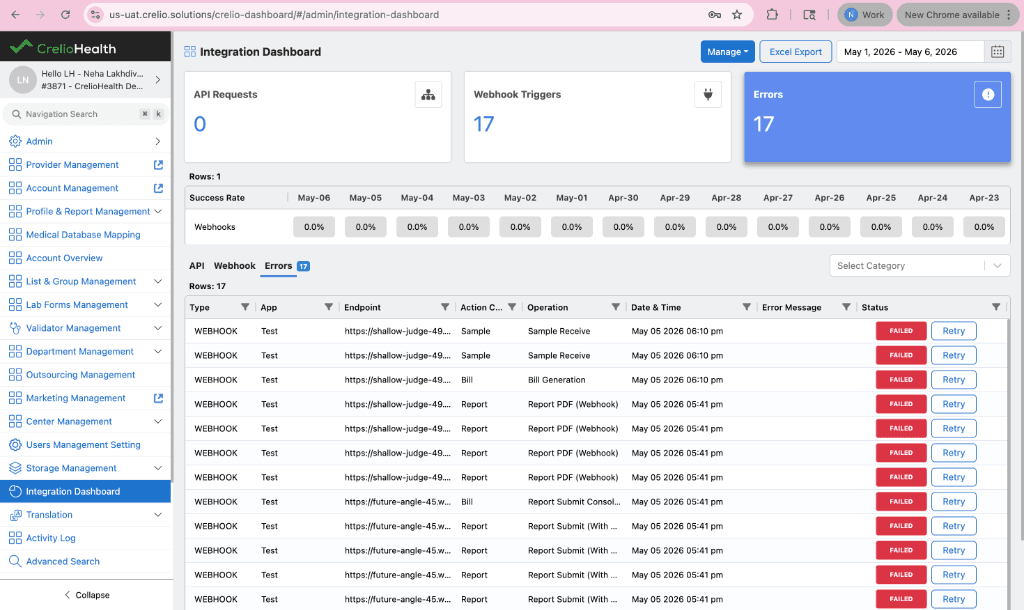
Errors tab — filtered view showing only FAIL/QUEUED records across both API and Webhook types:
Log status values
| Status | Meaning |
|---|---|
QUEUED | Pre-created — the HTTP call hasn't returned yet, or is pending for an async vendor (e.g., HumbleFax) |
SUCCESS | HTTP 2xx received and (for Mirth) sent_to_mirth=True confirmed |
FAIL | Non-2xx response or exception during dispatch |
| (blank) | Suppressed — response code 209 or #NOTFORDASHBOARD in body; intentionally hidden |
Key fields to inspect
| Field | What to look at |
|---|---|
error_message | First error description — often the third-party's error body |
response_body | Full JSON response from the third-party endpoint |
response_status_code | Raw HTTP status code returned |
response_time | Round-trip time in milliseconds |
fusion_log | Mirth-specific: "Sent to Mirth" or "Failed at Livehealthapp" / "Failed at Crelio-app" |
retry_count | Number of manual retry attempts made |
auto_retry_count | Number of auto-retry attempts made by the scheduler |
triggered_by_py3 | true if the log was created from crelio-app (py3); affects retry routing |
inserted_at | UTC timestamp of when the log was first pre-created |
activity_date | Business date of the event that triggered the integration |
Step 4: Retrying a Failed Integration
Failed integrations can be retried manually from the dashboard or automatically by the scheduler.
Manual retry flow
- Locate the failed log — find the
IntegrationDirectorydocument withstatus=FAILand note thelog_id(_id). - Trigger the retry — click the Retry action in the dashboard UI. This calls
RetryIntegrationViewwith thelog_id,retry_id, andlab_id. - System re-fetches live domain context — the system reads
retry_context(serialized at first execution) and calls the appropriate_prepare_kwargs_*function to re-fetch live objects from the database, ensuring the retry uses fresh data, not a stale snapshot. - Integration re-dispatched — the original trigger function is called with the freshly rebuilt arguments. The outcome is written to an
IntegrationRetryLogrecord. - Dashboard updated in real time — a Pusher event (
UpdateRetryIntegrationStatus) fires immediately, updating the retry count and status on the dashboard without a page refresh.
Auto-retry
The auto-retry scheduler runs periodically and checks for logs that:
- Are in
FAILorQUEUEDstatus - Were created within the past 24 hours (or within a configured date range)
- Have an
auto_retry_countbelow the allowed maximum - Match one of the auto-retry error patterns (e.g.,
"No response", socket timeout errors, or MirthQUEUEDlogs older than 10 minutes)
triggered_by_py3 routing
When triggered_by_py3=True on the log, the auto-retry scheduler routes the retry call to the py3 endpoint (/api-v3/integration/retry-integration/...) instead of the py2 endpoint. This ensures Action IDs 60 and 61 (crelio-app) always retry through the correct service.
Step 5: Troubleshooting a Specific Log
Use the following decision flow when a log is in an unexpected state:
Common failure patterns
| Symptom | Likely cause | Resolution |
|---|---|---|
No response in error_message | Fusion task timed out before the endpoint responded | Retry — eligible for auto-retry |
Session.connect: SocketTimeoutException | Mirth TCP socket timed out | Auto-retry eligible; check Mirth host/port config |
QUEUED for > 10 min (non-Mirth) | Integration callback URL never hit | Check Fusion job logs; verify callback URL is reachable |
status is blank | Response suppressed (209 or #NOTFORDASHBOARD) | Expected — log is for internal tracking only |
retry_count not incrementing | retry_context missing or corrupted | Check if original trigger function serialized context correctly |
Configuration Reference
The fields set in manageIntegrations map directly to the database models:
developerAuthentication
├── authKey            → token used by inbound API calls
├── labId              → scopes the auth to a lab
├── orgId              → (if isOrg=1) scopes to an org
├── developerId        → the integration partner
└── isIntegrationEnable

labIntegration (one row per action trigger)
├── actionCategoryListId  → the business event trigger (Action ID)
├── url                   → third-party endpoint
├── requestType           → 0 = GET query-string, 1 = POST JSON body
├── integrationExtraDetails → JSON: Mirth host/port, vendor, x-api-key, etc.
├── authId                → FK to developerAuthentication
└── isDisable             → soft-disable without deleting
Workflow Example: Bill Generation Webhook Trigger
The following is the simplest end-to-end test you can run to verify that integration logging is working correctly.
Pre-requisite: A labIntegration row exists with actionCategoryListId_id set to the Bill Generation action ID, and isDisable=0.
1. Create a bill
Generate a bill for any patient on the lab. This fires the domain event that calls commomFunctionForIntegrationBillCategory, which builds the payload and enqueues a Fusion task.
2. Run the Fusion scheduler
Fusion processes queued tasks asynchronously. On local, tasks won't execute until the scheduler is running. Start it with:
python run_scheduler.pyOn UAT/production, the Fusion scheduler runs continuously — no manual step needed.
3. Check the Integration Dashboard
Navigate to the Integration Dashboard for the lab. Switch to the Webhook tab and filter by the Bill Generation action category. You should see a new row with:
- Operation: Bill Generation
- Status:
SUCCESSorFAIL(depending on whether the endpoint responded correctly) - Date & Time: the timestamp of the bill creation event
Still showing QUEUED?
If the log is stuck in QUEUED, the Fusion scheduler is likely not running or the task is still in the queue. Run python run_scheduler.py and refresh the dashboard.