Workflow Guide
Step-by-step guide to enabling Historical Summary for a lab, what happens behind the scenes, and what the lab user should expect
Workflow Guide
This page covers how to turn Historical Summary on for a lab, what the system does behind the scenes once enabled, and what the lab user will see in the product.
How to Enable
Historical Summary is enabled per-lab through the Support Dashboard.
Steps
- Navigate to the Support Dashboard for the target lab.
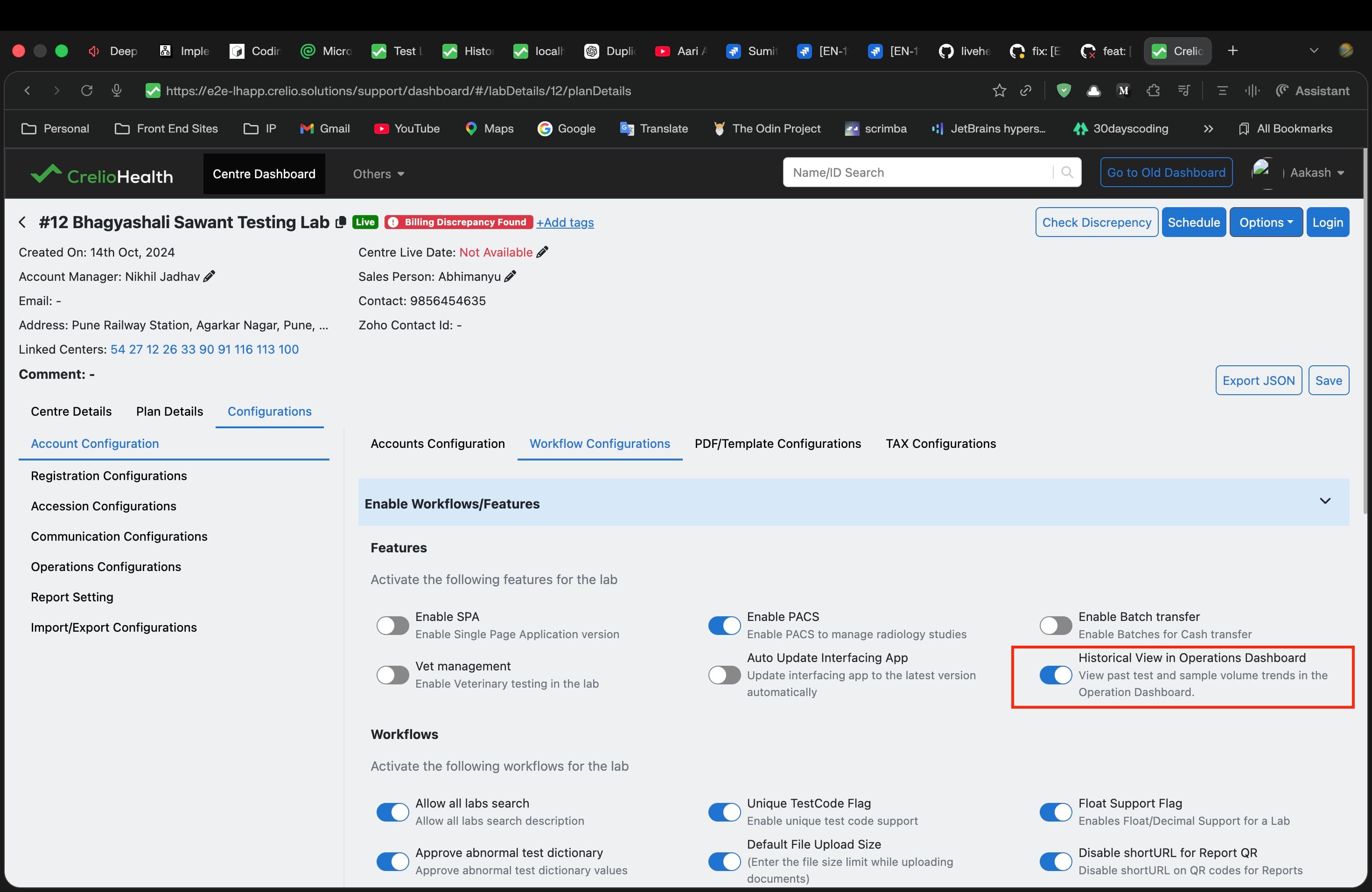
- Go to Workflow Configurations → Enable Workflows/Features.
- Under the Features section, toggle "Historical View in Operations Dashboard" to ON.
- Save the configuration.
What Happens Under the Hood
When the toggle is saved, the following sequence runs in support_dashboard_settings_view.py:
- Feature flag write —
labFeatures.enable_operation_summaryis set toTruefor the lab. - Migration scheduling — Any existing
crelio_data_migrationsrecord for this lab (typeHISTORICAL_SUMMARY) is deleted. - New migration record — A new
CrelioDataMigrationsrow is inserted withis_scheduled=Trueandmigration_type='HISTORICAL_SUMMARY'.
# Simplified from support_dashboard_settings_view.py
if "enable_operation_summary" in diff:
    CrelioDataMigrations.objects.filter(
        lab_id=lab_id, migration_type="HISTORICAL_SUMMARY"
    ).delete()
    value and CrelioDataMigrations.objects.create(
        lab_id=lab_id,
        is_scheduled=True,
        initiated_by_id=account_manager_id,
        migration_type="HISTORICAL_SUMMARY",
    )
This record is what the nightly migration event uses to know which labs need historical data backfill.
What to Expect After Enabling
Timeline
| Step | When | What Happens |
|---|---|---|
| 1. Flag saved | Immediately | enable_operation_summary = True persisted; migration record created |
| 2. Migration event runs | Next occurrence of 03:30 UTC daily | operation_summary_migration procedure picks up labs with is_scheduled=1 |
| 3. Historical backfill | During migration run | Full recompute from the lab's earliest billTime to yesterday |
| 4. Nightly job starts covering the lab | Next occurrence of 04:00 UTC daily | operation_summary_nightly_event includes this lab in its daily aggregation |
Note: If the toggle is saved before 03:30 UTC, the backfill will run the same day. If saved after, it runs the next day.
Backfill Duration
The backfill processes the lab's entire billing history. Duration depends on data volume:
- Small labs (< 1 year of data): seconds to a few minutes
- Large labs (3+ years, millions of bills): can take 10–30 minutes
The actual execution time is recorded in crelio_data_migrations.time_taken (in seconds).
What the Lab User Sees
Once the backfill completes and the user refreshes the Operations Dashboard:
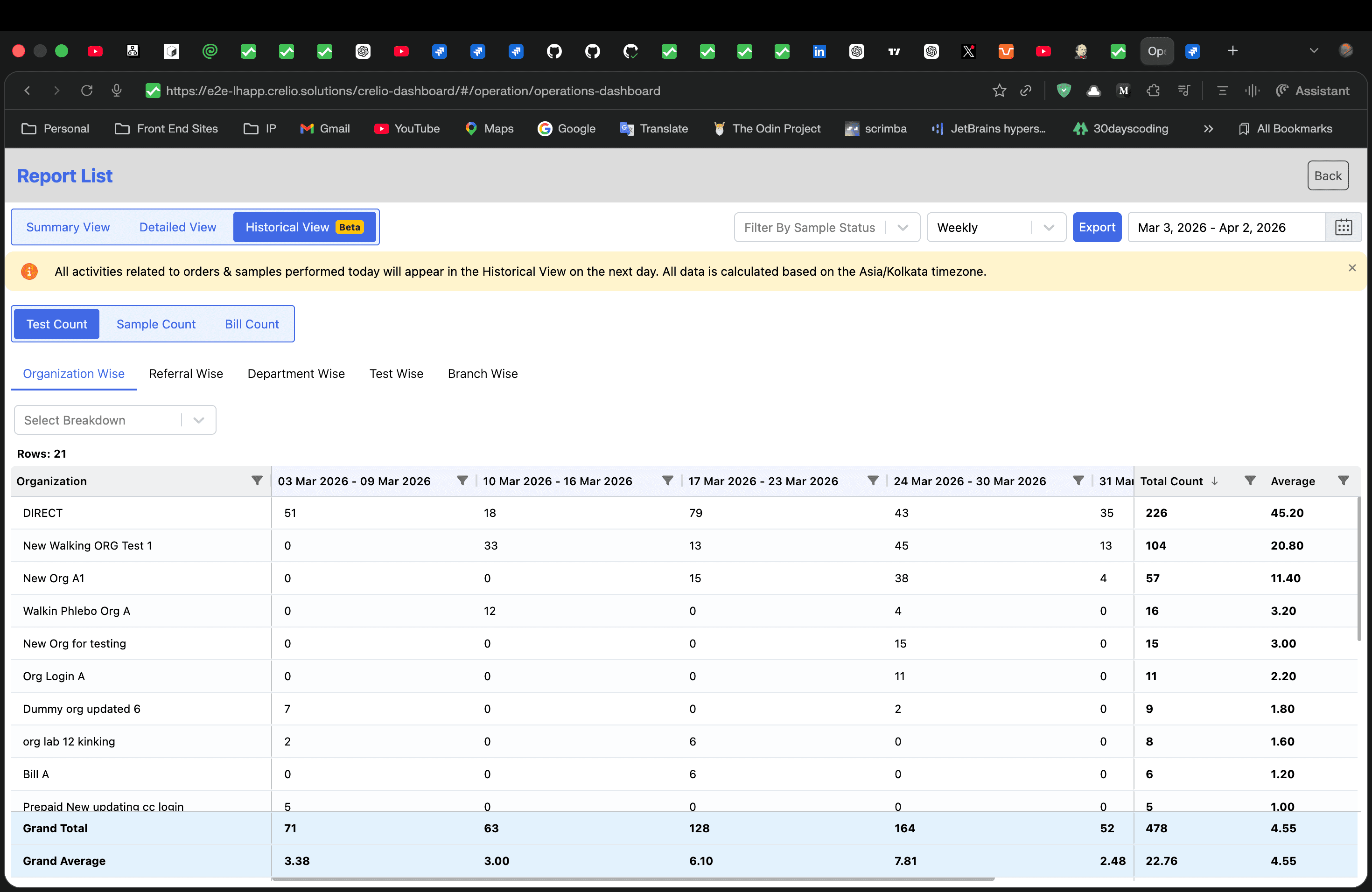
- A new "Historical View" tab appears alongside "Summary View" and "Detailed View."
- Selecting it shows the pivot grid with entity tabs, count tabs, and date columns.
- A notification banner reads: "All activities related to orders & samples performed today will appear in the Historical View on the next day. All data is calculated based on the
{timezone}timezone."
Data Availability Rules
| Scenario | Available in Historical View? |
|---|---|
| Bills billed yesterday or earlier | ✅ Yes (after nightly job runs) |
| Bills billed today | ❌ No (will appear tomorrow) |
| Corrections to historical bills (cancel, org change, etc.) | ✅ Yes, instantly (handled by triggers) |
How to Disable
- Go back to Workflow Configurations → Enable Workflows/Features.
- Toggle "Historical View in Operations Dashboard" to OFF.
- Save.
What Happens on Disable
- The
enable_operation_summaryflag is set toFalse. - Any pending
crelio_data_migrationsrecord for this lab is deleted (no new migration will be scheduled). - The "Historical View" tab disappears from the frontend on next page load.
- Existing data in
operation_historical_summaryis NOT deleted. The summary table retains the lab's data. If the feature is re-enabled later, the migration procedure will delete and recompute (clean-slate rebuild).
Verifying the Enable Status
Check Feature Flag
SELECT enable_operation_summary
FROM labFeatures
WHERE labForId_id = <lab_id>;
Check Migration Status
SELECT lab_id, is_scheduled, job_status, time_taken, start_date, end_date, created_at
FROM crelio_data_migrations
WHERE lab_id = <lab_id>
  AND migration_type = 'HISTORICAL_SUMMARY';
job_status | Meaning |
|---|---|
Pending | Waiting for the migration event to pick it up |
Completed | Backfill finished successfully |
Check Nightly Job Logs
SELECT *
FROM operation_event_log
ORDER BY created_at DESC
LIMIT 10;
This shows the last few STARTED / COMPLETED entries for the nightly aggregation job.