Worklist Guide
End-to-end walkthrough — accessing the Critical Callout Worklist, using the callout modal, and handling attempted or completed callouts.
Critical Callout Worklist Guide
This guide walks through the complete operational flow — from opening the worklist to completing or drafting a callout.
End-to-end workflow
1. Access the worklist
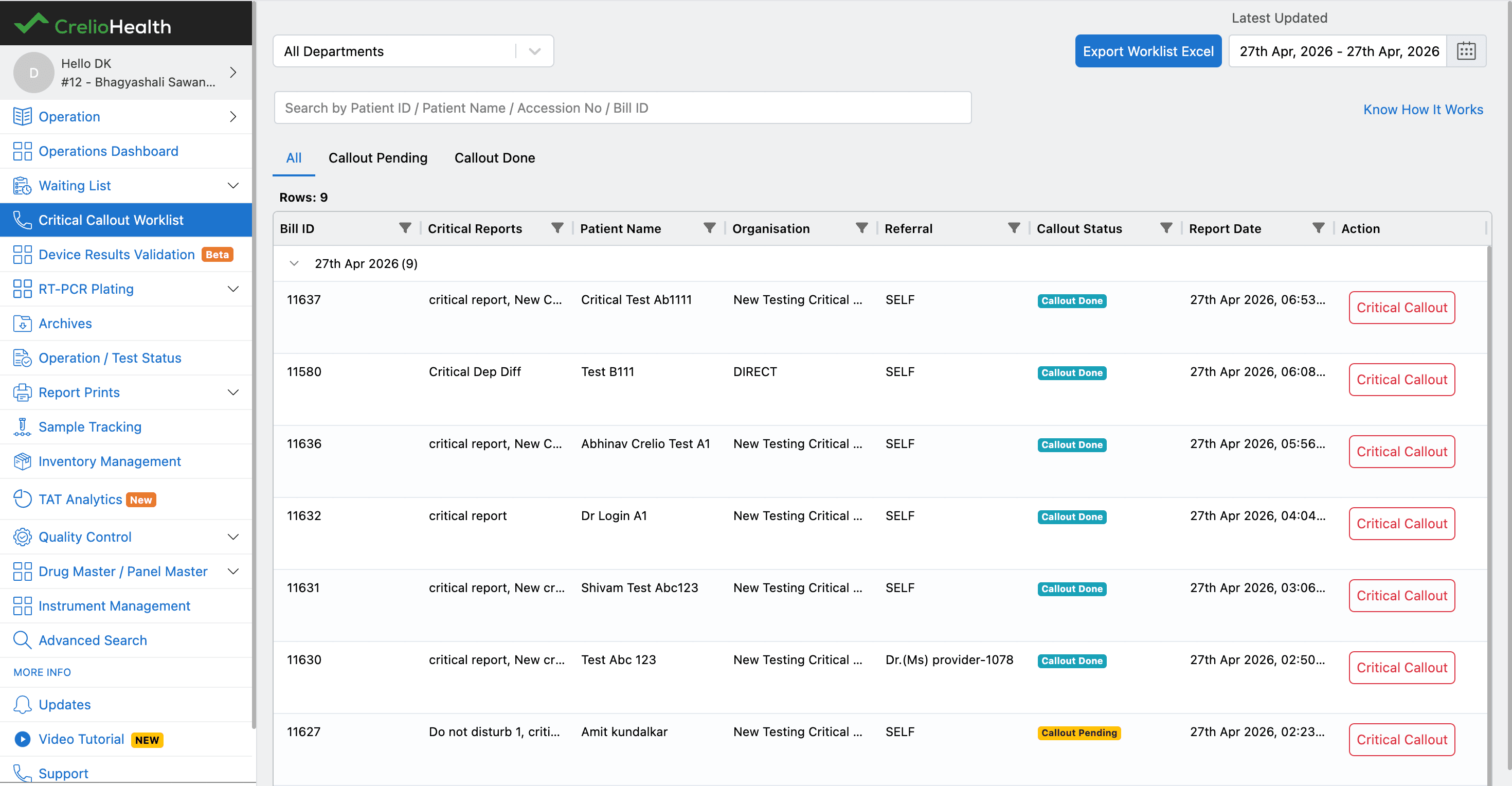
Navigate to Operations → Critical Callout Worklist.
The list shows all orders where at least one report is marked critical.
Visibility rules
- Orders are shown regardless of individual report status
- Includes orders with dispatched reports
- List is order-wise — not report-wise
Tabs
| Tab | Shows |
|---|---|
| All | Every order with a critical report |
| Callout Pending | Orders with at least one CALLOUT_PENDING or CALLOUT_ATTEMPTED report |
| Callout Done | Orders where all critical reports are CALLOUT_DONE |
2. Open the callout modal
Click the Critical Callout button on any row. The modal fetches:
- All critical reports for the order
- The existing draft (if any) to prefill state
3. What's inside the modal
The modal has two tabs: Critical Callout (action) and Notify Configuration (settings).
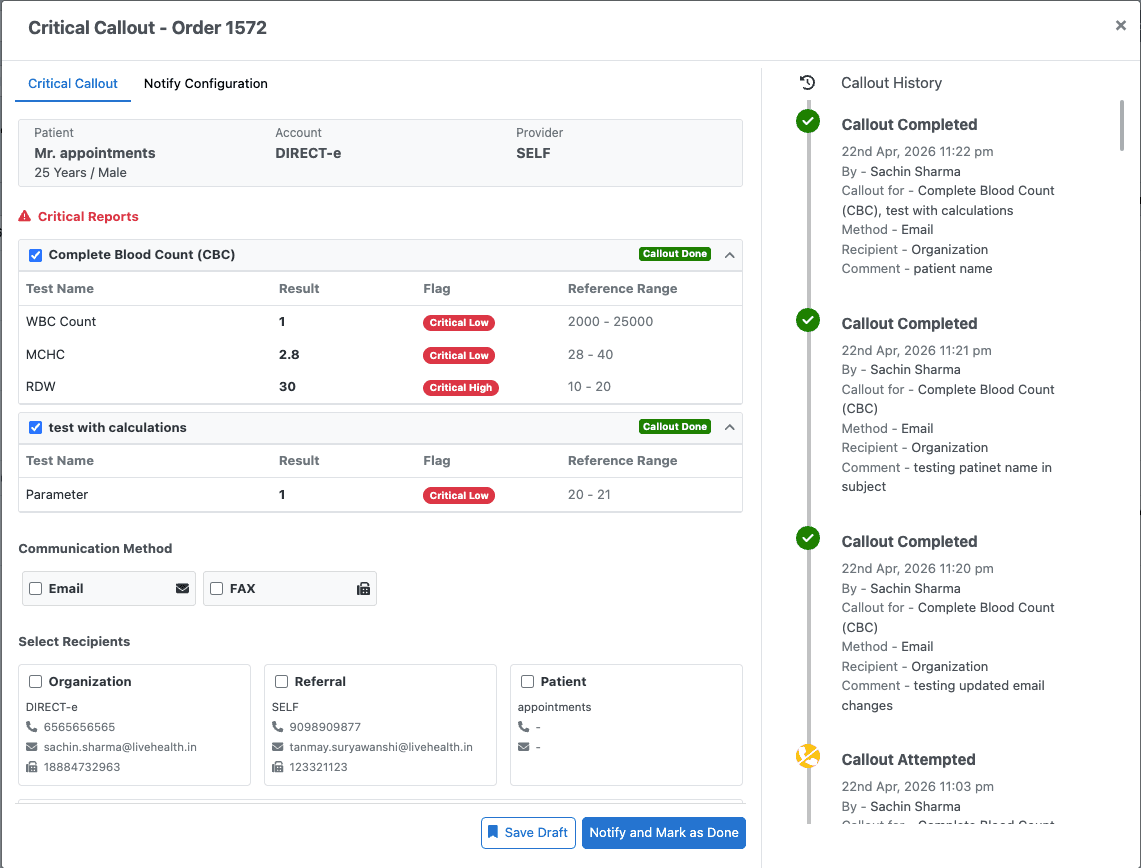
Critical Callout tab
The left panel is the action area, the right panel shows callout history.
Footer actions:
| Button | What it does |
|---|---|
| Save Draft | Sets status to Callout Attempted; saves draft at bill level; prefills on reopen |
| Notify and Mark as Done | Sends notification; sets status to Callout Done; writes audit entry |
Callout history panel (right side)
A vertical timeline of all previous callout actions for this order's reports, sorted most-recent first.
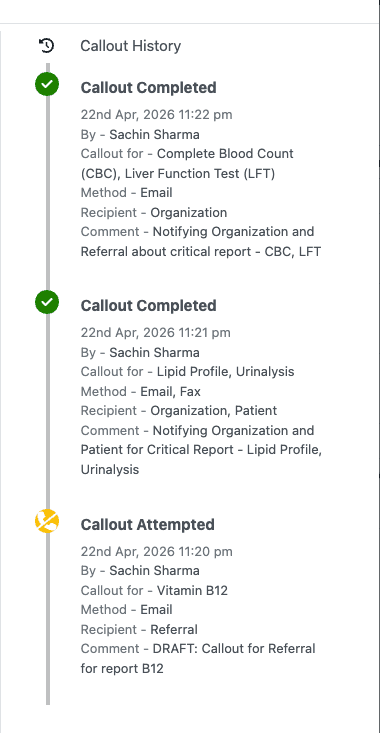
Each entry shows:
| Field | Content |
|---|---|
| Title | Callout Completed (green ✓) or Callout Attempted (yellow ✗) |
| Timestamp | Date and time of action |
| By | User or doctor who performed it |
| Callout for | Test names included in this action |
| Method | Email / Fax / SMS / WhatsApp |
| Recipient | Organisation / Referral / Patient / Other |
| Comment | Comment text if entered |
4. Attempted vs Done — decision guide
Use Save Draft when
- Recipient is busy or unavailable
- Call goes unanswered
- Line disconnected
Saving draft:
- Preserves selected reports, channels, recipients, and comment
- All selections are restored when the modal is reopened
- The attempt is recorded in the history panel
Use Notify and Mark as Done when
Communication was successful. The notification is sent and the status is finalised.
5. Callout status lifecycle
CALLOUT_ATTEMPTED is not a terminal state. The modal can be reopened and the callout completed at any time, cycling back through the decision.
6. Return to filtered worklist
After completing an action, back navigation restores the worklist to the same filters and tab that were active before navigating to the order. This supports fast multi-order processing without reapplying filters manually.
7. Redirect from existing critical queues
From existing critical report drilldowns and waiting lists, use the View in Critical Callout Worklist link to open the new worklist directly for that order's context.
8. Operational checklist
- Attempted entries remain visible under Callout Pending
- Done entries move to Callout Done
- Reopening a drafted callout restores all previous selections
- History panel records every attempt and completion with actor and timestamp
- Back navigation restores worklist filter and search state