Workflow Guide
Step-by-step guide for enabling, configuring and using cell counter.
👤 Siddharth Chakraborty📅 Updated: Mar 16, 2026
1. Enabling cell counter for a test
Admin module
    ↓
Profile & Report Management
    ↓
Test List
    ↓
Test Information
    ↓
Enable the `cell counter` check box
NOTE: This checkbox can only be enabled for services with test type "Pathology".
2. Creating Cell mappings with report parameters
- Go to any report in Operations for a test which has cell counter enabled.
- Click on
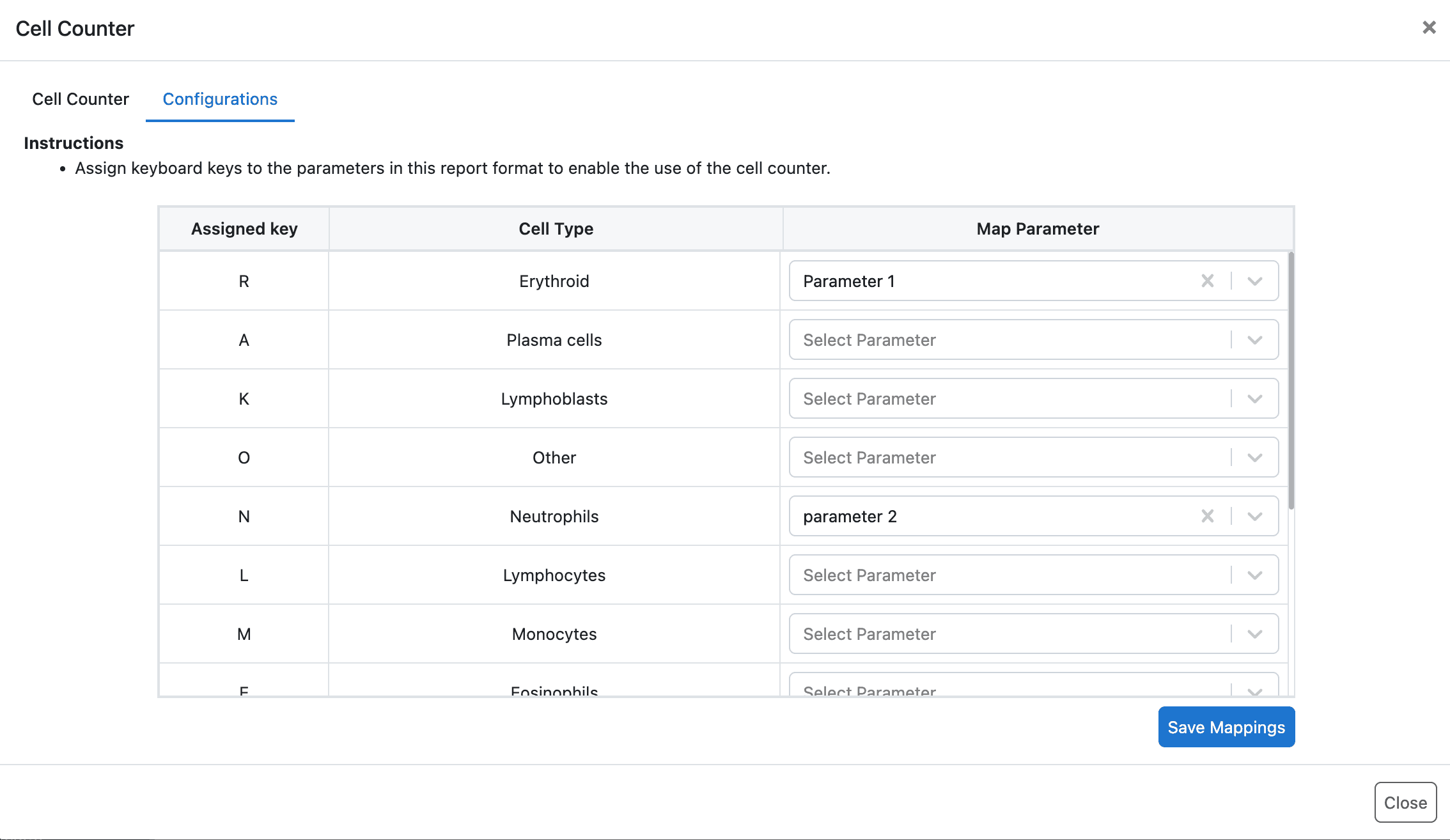
Start Cell Counterto open the cell counter modal. - Go to the Configurations tab.
- Map the default cell types with parameters present for the report. (Only normal range, descriptive range and parameters with age specific ranges)
3. Using Cell Counter for Report Entry
3.1 Cell Counting
- Click on start cell counter button.
- This will open the keyboard view where you will see the keys of the keyboard that are mapped to the cell types.
- Clicking on a mapped key will increase it's count by 1.
- Once the total count reaches 100, it will stop counting and you will see an error "Maximum count reached"
3.2 Export Values
- Click on the export button
- This will export the current state of cell counter
3.3 Sending Values To Report Entry
- Click on the Send Values button
- This will close the Cell Counter modal and add the respective values for parameters that have been mapped